

/api/memory*, and the model-facing half is the Memory MCP server. Both read and write the same SQLite store, so a fact an agent saves shows up here and vice versa.
Prerequisites
Memory is always available; it does not require a runtime to be connected. An empty store shows an empty state rather than an error.
- Nothing is required to browse, search by keyword, or save a fact by hand.
- Similarity links in the graph and semantic search need an embedding provider. See Embeddings for what counts as one and how to fix it when there isn’t one.
Where it lives
- Sidebar: the Memory button (the brain icon, Team Knowledge) opens Memory full-screen. A Graph | List toggle in the header switches views, and your choice is remembered in this browser.
- Settings: Settings, then Memory under the Workspace group, shows the list only, since the settings window is too small for the graph. Open full view closes Settings and opens the full-screen Memory.
The graph
Each fact is a node. A procedure is one node however many versions it has.- Links come in three kinds, keyed in the legend at the bottom left. Similar (solid) links two facts whose embeddings are close. Shared tag (dashed) links facts that carry the same tag, except tags on more than 30% of the store once at least 10 facts carry them. Each fact contributes its four strongest tag links, so a fact that many others link to can show more. Version (dotted) links procedures that share a name across scopes, such as a team’s copy of a runbook and the global one; a procedure’s own versions are folded into its node and listed in the inspector. Every link maps to something in the store; none is decorative.
- Clusters are groups of connected nodes, drawn as rounded containers and named after their most common tag (or, failing that, their procedure’s name, or untagged). The legend lists each cluster with its size, and unticking one hides it. A cluster of one is listed but has no container.
- Search (top left): typing dims everything that does not match. Pressing Enter runs a real store search, highlights the hits and their neighbours, and opens the top hit in the inspector. With an embedding provider, a mode control beside the search box picks
fts,vector, orhybrid. - The inspector (right) shows the selected node’s content, kind, scope and neighbours; clicking a neighbour moves the selection to it. For a fact it also shows the learning status with Helpful and Outdated feedback buttons, and Full history once the fact has been used in a run.
- Filters (top right): scope (All, Global, Team, Agent), time (All, 24h, 7d, 30d; older nodes fade rather than disappear, so the layout does not jump), and Community hulls, which toggles the cluster containers.
The list
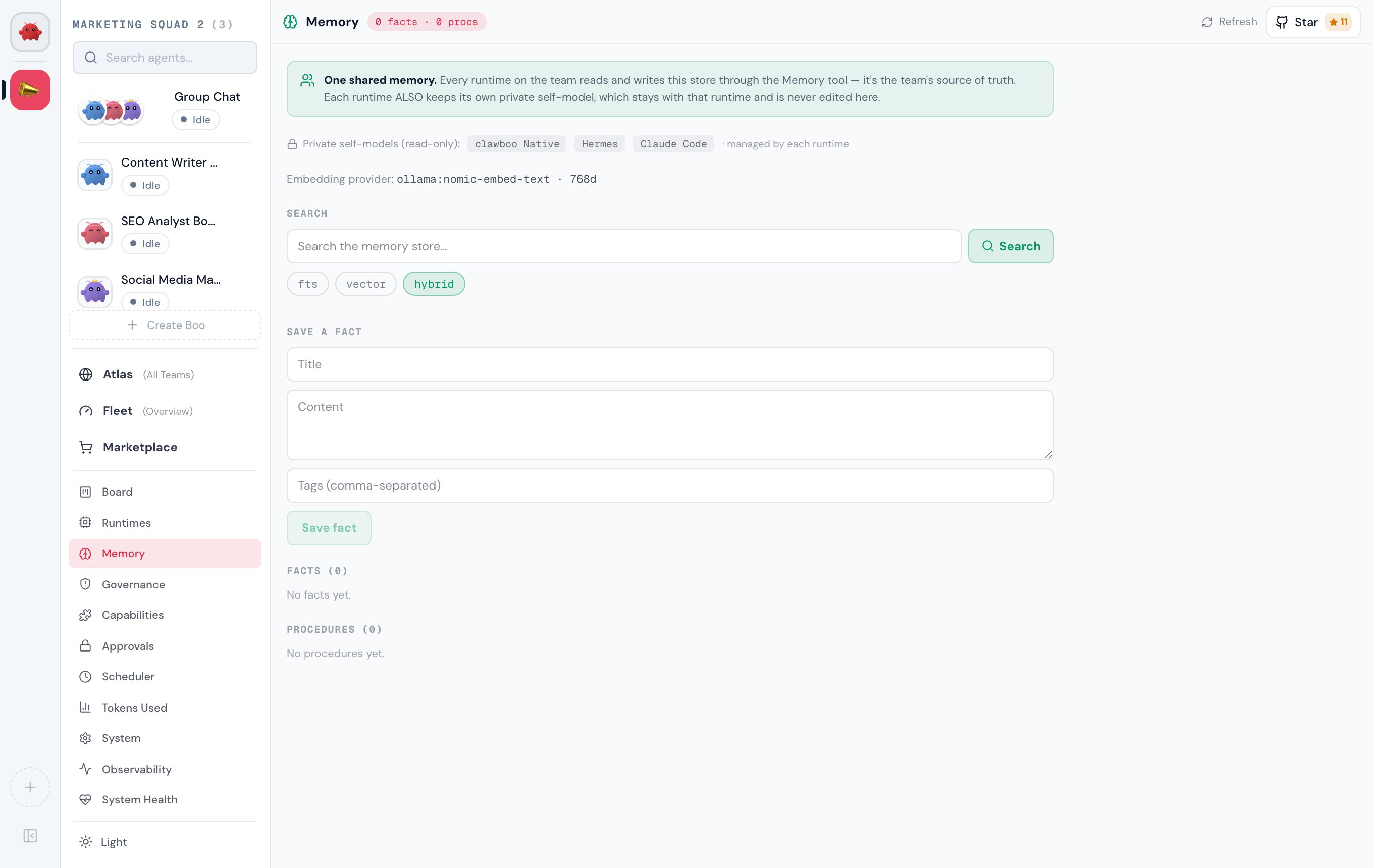
The list reads top to bottom as search, the facts, the procedures, and finally details about the store.Search the store
- Type a query into the search box (placeholder “Search the memory store…”).
- With an embedding provider, pick a mode with the
fts/vector/hybridchips below the box. The default ishybrid. Without one, the chips are replaced by a line saying why search is keyword-only, and offering the fix when there is one in the app. If the provider is failing, that line appears under the chips too. - Press Enter or click Search. An empty query does nothing.
matchedVia) with its score, and the first 240 characters. The list asks for up to 25 results; a query that matches nothing shows No matches.
Under the hood the list calls searchMemory(query, mode, { limit: 25 }), which issues GET /api/memory?query=&mode=&limit=. The handler validates the query string with searchMemoryBody (a 400 on an invalid mode or limit) and returns { ok: true, results, learning }. The client wrapper is defensive: a network or non-2xx failure resolves to an empty list, so a failed search shows as “no matches”, not a crash.
Add a fact
Agents write most of this store, so the form stays out of the way until you ask for it.- Click Add a fact beside the Facts heading.
- Fill in Title and the content box (“What should the team remember?”). Both are required; Save fact stays disabled until both have text.
- Optionally add tags, comma-separated. They are split on commas, trimmed, and empties dropped.
- Click Save fact. The form closes and the new fact appears under Facts.
saveFact({ title, content, tags }), which POSTs { kind: 'fact', ... } to /api/memory. The handler validates the body with saveMemoryBody, writes through SqliteMemoryStore.saveFact, and returns { ok: true, fact }. If the save fails, the wrapper returns null and an error toast says “Could not save the fact. Please try again.” instead of pretending it worked.
The form saves facts. The save endpoint also accepts
{ kind: 'procedure', name, content }, but the UI does not expose it: procedures are built up by the agents themselves and are read-only here.Facts and procedures
Both tiers load when Memory opens (and on Refresh) viabrowseMemory({ limit: 50 }).
- Facts: each row shows the title and the first 200 characters, then a line with its scope, its tags, and who saved it (agent, runtime, task) when that was recorded. A learning pill (preferred, tentative, contested · verify, dead end) or a quiet used N× shows how the fact has fared in real runs. The thumbs-up and thumbs-down buttons record Helpful or Outdated; clicking the row (or pressing Enter on its title) opens its recent outcomes, with a Full history link once the fact has been used.
- Procedures: each row shows the name, its scope, a
v<version>chip, and the first 200 characters. Procedures are the versioned, reusable tier and are not editable here.
About this store
The foot of the list says, in one line, that every runtime on the team reads and writes this store while also keeping a private self-model of its own. Below it, a small table shows the Embedding provider (see Embeddings), with a line saying so when fact text goes to OpenAI, and which runtimes on this fleet keep Private self-models.Scope
Every fact and procedure carries a scope within the shared store, derived from the row’sscopeAgentId / scopeTeamId:
This scope is within the shared store. It is not a runtime’s private self-model; those stay with each runtime and are never edited from Memory. See Memory for the shared-tier / private-tier model.
Search modes
Embeddings
An embedding is a vector computed from a fact’s title and content. Embeddings are what make similar links,vector and hybrid search, and similarity-based recall at the start of a run possible. Everything else works without them.
clawboo picks a provider in this order:
- A local Ollama at
http://localhost:11434that hasnomic-embed-textinstalled (the untagged model, which Ollama treats as:latest). - An OpenAI key: one exported as
OPENAI_API_KEY, or one you added in clawboo under Providers. A key you gave only to OpenClaw is not used. - None: keyword search only.
CLAWBOO_DISABLE_EMBEDDINGS=1 turns embeddings off entirely.
Embedding sends each fact’s title and content to the provider, and so does every memory search, including the recall an agent run makes when it starts (its task’s title and description). With Ollama none of it leaves your machine. With OpenAI, OpenAI receives it: the About this store section of the list says so, and so does the legend while facts are being indexed. Two rules keep that from happening by surprise:
- Local stays local. Once any fact has been indexed by Ollama, an OpenAI key is never used automatically, even while Ollama is down. The legend says Ollama is not reachable and waits for it; switching to OpenAI is a button you press (Use OpenAI instead), and the note says how many facts it sends. The choice covers that outage only: it lapses the next time clawboo finds Ollama serving, when you disconnect the OpenAI key under Providers, or when no OpenAI key is available any more. While it holds, the legend says Using OpenAI until Ollama is back (or Similarity uses OpenAI with Install model, if Ollama is running without the model). The next outage asks again. A switch that stops partway (a rate limit, say) is not forgotten: the legend shows Indexing stopped, and Retry or the server’s own retry finishes it. The stdio Memory bin follows the same rules.
- No bulk re-upload. With OpenAI as the provider, only facts that have no vector at all are indexed automatically. Facts already indexed by another provider are re-indexed with OpenAI only when you choose to.
OPENAI_API_KEY in the server’s environment is not the app’s to disconnect: it stays available until you unset it and restart clawboo. A connected agent also picks up a provider that appears later, and an Ollama restart does not interrupt it.
Facts saved while no provider could embed them are indexed in the background, newest first, as soon as a working provider appears, and the server checks every few minutes for any still waiting. A local provider also re-indexes facts another provider indexed, which is how moving from OpenAI to Ollama brings the store back onto your machine. Indexing never changes a fact’s age, so the graph’s time filter is unaffected. Only the first 8000 characters of a very long fact are embedded, or the first 2000 if the provider turns the longer text down (text in scripts such as Chinese or Hindi uses far more of a provider’s limit per character); the whole fact still matches by keyword. A fact the provider turns down on its own is skipped rather than holding up the rest.
In the graph, the legend says which of these is the case. In the list, the line under the search box says the same thing in its own words (for example “nomic-embed-text is not installed in Ollama, so search matches on keywords only.”), and indexing progress shows in the Embedding provider row.
If indexing finishes while you have a fact selected, a search highlighted or a cluster hidden, the graph offers Show new similarity links rather than rearranging itself under you.
Verify it worked
- After Save fact, the new fact appears under Facts. To check directly:
curl 'http://127.0.0.1:18790/api/memory/browse?limit=50'and look for it infacts[]. - A search returns results with a
matchedViaand a score; an unmatched query shows No matches rather than an error. - Embeddings are working when
curl http://127.0.0.1:18790/api/memory/providerreturnsstatus.state: "ready"andstatus.pending: 0, and the graph shows solid similar links between related facts.
Troubleshooting
Related
- Memory (concept): the shared-tier vs per-runtime private-tier model
/api/memoryreference: full request/response shapes for search, save, browse, the provider, reindexing and installing the model- MCP servers: how the Memory MCP server attaches to runtimes
- Capabilities dashboard: the Memory tool as a capability the team shares