

These docs describe Clawboo v0.3.1, the current release.
Prerequisites
- Node.js: this page installs OpenClaw, which requires
>=22.22.3 <23 || >=24.15.0 <25 || >=25.9.0. That is stricter than Clawboo’s ownengines(node >=22.12.0), so a Node that runs Clawboo can still be refused by the OpenClaw install. The System Check reports the exact range it wants. npmon yourPATH: the install step runsnpm install -g openclaw@~2026.9.- A provider API key for whichever model provider you’ll configure OpenClaw with (Anthropic, OpenAI, Google, OpenRouter, and others). Ollama needs no key, but it must be running locally.
- No prior OpenClaw install is required; the wizard can install, configure, and start one for you.
openclaw@~2026.9 deliberately. The pin is not about the connect protocol, which negotiates cleanly across both lines. It holds the OpenClaw config shape: 2026.9 moved the agent roster from agents.list to agents.entries and tightened config.patch, and Clawboo writes both.
Steps
1. Install and launch Clawboo
Install Clawboo globally, then run it:npx clawboo runs the latest instead. Either way, the CLI prints the Clawboo logo, does a quick informational probe of the OpenClaw Gateway port (localhost:18789), starts the bundled dashboard server, then opens your browser at the discovered URL.
Expected result: your terminal shows Dashboard started and Clawboo opened at http://localhost:18790 (or the next free port in the 18790–18809 range), and the dashboard loads. Because this is a fresh machine, the onboarding wizard appears.
2. Click “Get Started”
The first screen is the welcome splash: the Clawboo wordmark, the line “Your AI agents, visible.”, and a Get Started button. Expected result: clicking Get Started advances to the native connect step. There is no “pick a runtime” screen; native is the default, and OpenClaw is added afterward.3. Connect the native runtime, then choose “Set up OpenClaw”
Onboarding is native-first, so you connect the built-in native runtime before adding OpenClaw. On the Connect your AI provider step, pick a provider and paste a key (or select Ollama for a keyless local model), then click Continue. Clawboo stores the key and advances to the Add more runtimes step (you pick and deploy a team in a later step). (The native connect step is covered in full in Quickstart: native.) On Add more runtimes, find the Set up OpenClaw row and click Set up OpenClaw. Expected result: the wizard enters the OpenClaw setup detour at the System Check step. Everything in steps 4 to 7 below happens inside this detour, which returns you to Add more runtimes when it’s done.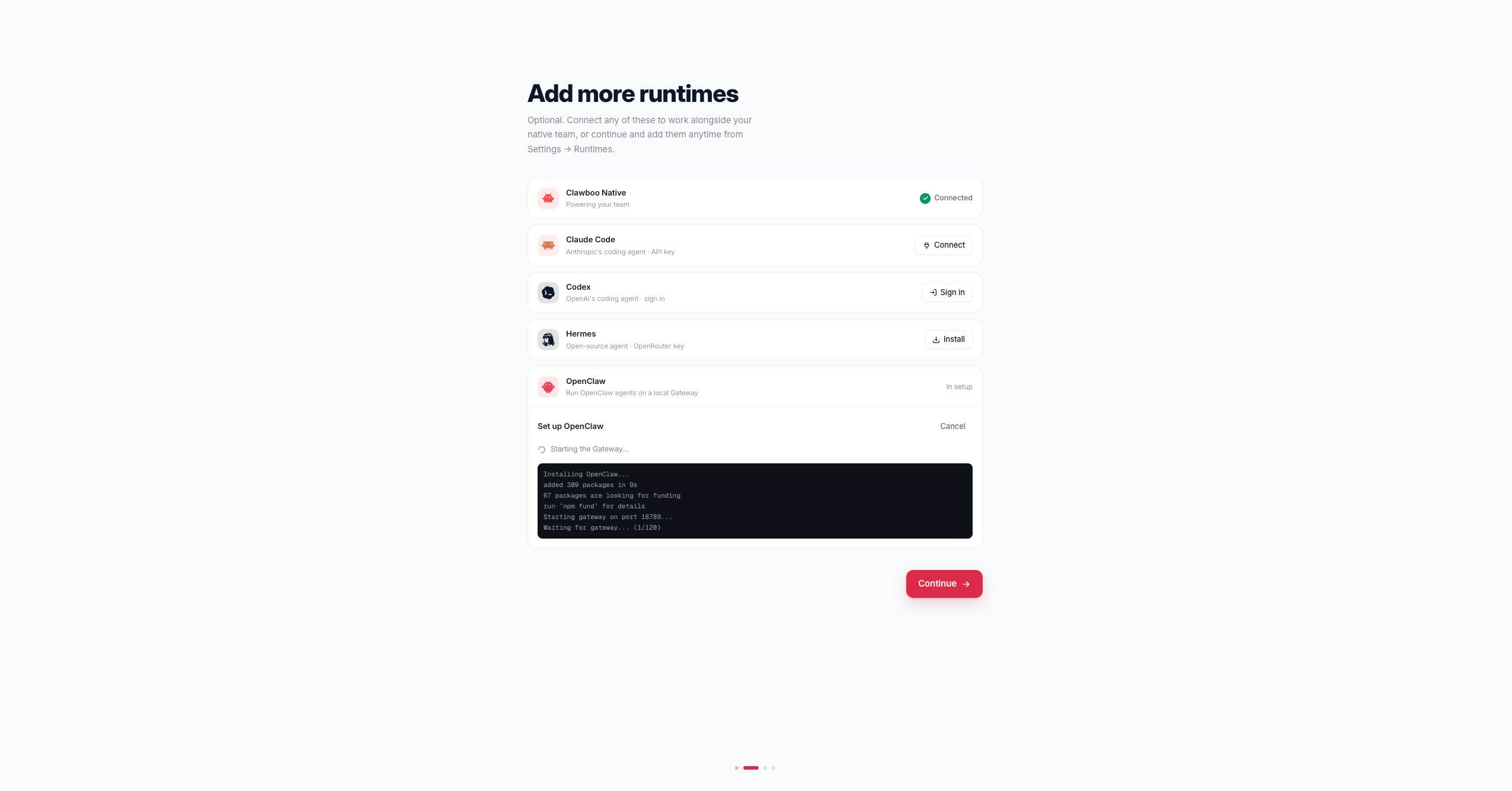
4. Let Clawboo detect your environment
The System Check step fetchesGET /api/system/status on mount and shows an animated three-item checklist: Node.js, OpenClaw, and Gateway, each revealed in sequence:
- Node.js: a green check when your version satisfies OpenClaw’s supported range (a red X naming that range, with a Download link, otherwise). It is not a bare major-version check: Node 22.12 has the right major and is still refused, and Node 23 is excluded outright.
- OpenClaw: green with the detected version when the
openclawbinary is on yourPATH; an amber dot reading “Not found” otherwise. - Gateway: green “Running on :18789” when a managed Gateway process is alive or the port probes reachable; amber “Not running” otherwise.
5. Install OpenClaw
If OpenClaw isn’t installed, clicking Install OpenClaw opens the Installing OpenClaw step, which streamsPOST /api/system/install-openclaw, a Server-Sent Events stream that runs npm install -g openclaw@~2026.9 and shows live npm output in a terminal log.
The stream emits typed events:
On
complete, the step shows “Installed! v…” and auto-advances to configuration after ~1 second.
Expected result: the terminal log fills with npm output, then the step reports the installed version and moves on.
6. Configure a provider
The Set Up OpenClaw step shows a provider grid: four primary cards (Anthropic, OpenAI, Google, Ollama) plus a “More providers” section (OpenRouter, xAI, Groq, and others). Pick a provider, paste your API key into the API Key field (the eye icon toggles visibility), and optionally choose a Default Model from the dropdown. Ollama needs no key; selecting it hides the key field. Clicking Configure & Start posts toPOST /api/system/configure-openclaw with { provider, apiKey?, model? }. The handler:
- writes OpenClaw’s
openclaw.jsonin local mode (gateway.mode: 'local', token auth, agent-to-agent tooling enabled withtools.sessions.visibility: 'all') and a default model underagents.defaults.model.primary; - generates a Gateway auth token and writes it into OpenClaw’s
~/.openclaw/.envasGATEWAY_AUTH_TOKEN, alongside your provider key; - saves Clawboo’s own
settings.json(gatewayUrl,gatewayToken).
{ ok: true, gatewayUrl }. The raw token is never returned in the response body; it’s persisted server-side, and the same-origin proxy injects it on connect.
Expected result: the button shows “Configuring…”, then the wizard advances to the Gateway-start step.
7. Start the Gateway and approve the device
The Starting Gateway step postsPOST /api/system/gateway with { "action": "start" }, an SSE stream that spawns the Gateway detached, polls until the port (18789) is reachable (up to 60 seconds), syncs the token, and reconnects Clawboo’s server-side agent source. On the complete event, the step auto-connects a Gateway client through the same-origin WebSocket proxy.
On OpenClaw 2026.5.x and later, that first connect fails with NOT_PAIRED; a new device lands in OpenClaw’s pending list and must be approved by a human before it can connect:
POST /api/system/approve-device, which performs a two-step shell-out against the OpenClaw CLI:
openclaw devices approve --latestruns in preview mode: it printsApprove this exact request with: openclaw devices approve <UUID>and exits non-zero. Clawboo regex-extracts the UUID from the captured output.openclaw devices approve <UUID>performs the actual approval.
8. Finish onboarding, then deploy an OpenClaw team
Back on Add more runtimes, click Continue. The wizard advances to the Team step, where you pick a starter team from the marketplace and deploy it. During onboarding every agent defaults to Clawboo Native; now that the Gateway is connected you can switch any member to OpenClaw from its runtime picker in the customize step. Then the Your team is ready screen shows the roster and a “Led by …” badge for Boo Zero; click Open my dashboard. You land in the dashboard connected to the Gateway (“gateway” mode), in your new team’s group chat, which opens on a one-time introduce yourself screen. To build a team of OpenClaw agents, open the Marketplace (or + Create team in the leftmost sidebar), pick a template, and choose OpenClaw as the runtime for its members. Deploy creates the team and its agents: itPOST /api/teams to create the team, writes each agent’s SOUL.md, IDENTITY.md, TOOLS.md, and an enhanced AGENTS.md with the team roster and collaboration protocol, assigns each agent to the team, sets the team-internal lead when one is detected, and, when any agent has @mention routing, enables agent-to-agent coordination in the Gateway config. See Deploy your first team for the full team-building flow.
Expected result: the new team appears in the sidebar, connected to the Gateway, and opens directly in its group chat.
What you should see
The dashboard opens connected to the Gateway, with the team you deployed in view and OpenClaw available as a runtime you can build teams on. Once you deploy an OpenClaw team, its Boos are ready to collaborate. The team space looks like this once you start collaborating: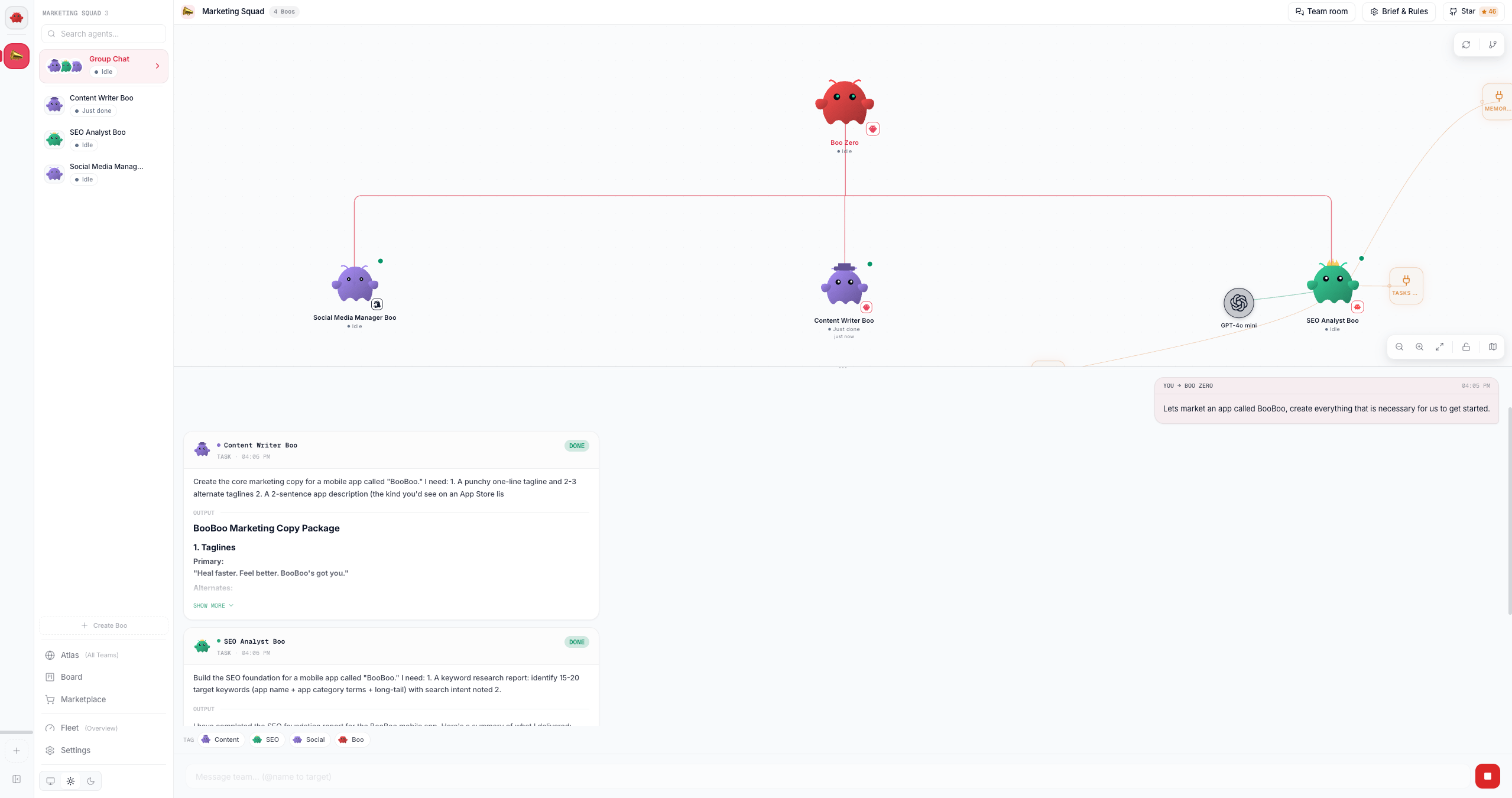
What just happened
The wizard’s Add-runtimes detour walked the full OpenClaw setup: it detected your environment, installed and configured OpenClaw with your provider key, started the Gateway, and approved this device for pairing. Once the Gateway came up, Clawboo opened two connections to it: a browser-side same-origin proxy connection for the chat/execution stream, and a server-side connection that mirrors the Gateway’s agent list into SQLite (the registry of record, so the fleet survives the Gateway being down). Deploying an OpenClaw team from the dashboard then creates real OpenClaw agents and wires their routing, so they can delegate to each other over the Gateway.Next steps
- Deploy and watch your first team collaborate
- Tour the dashboard: Atlas, Ghost Graph, and the view modes
- The OpenClaw runtime in depth: connections, channels, memory scope
- System API reference: status, install, configure, gateway, device
- Concept: the agent model and the five runtime classes
Enjoying Clawboo? Star it on GitHub
Clawboo is free and open source. A star is the best way to support the project and helps other people find it.