

GhostGraph component driven by a scope prop; what differs is which agents they show and a couple of Atlas-only controls.
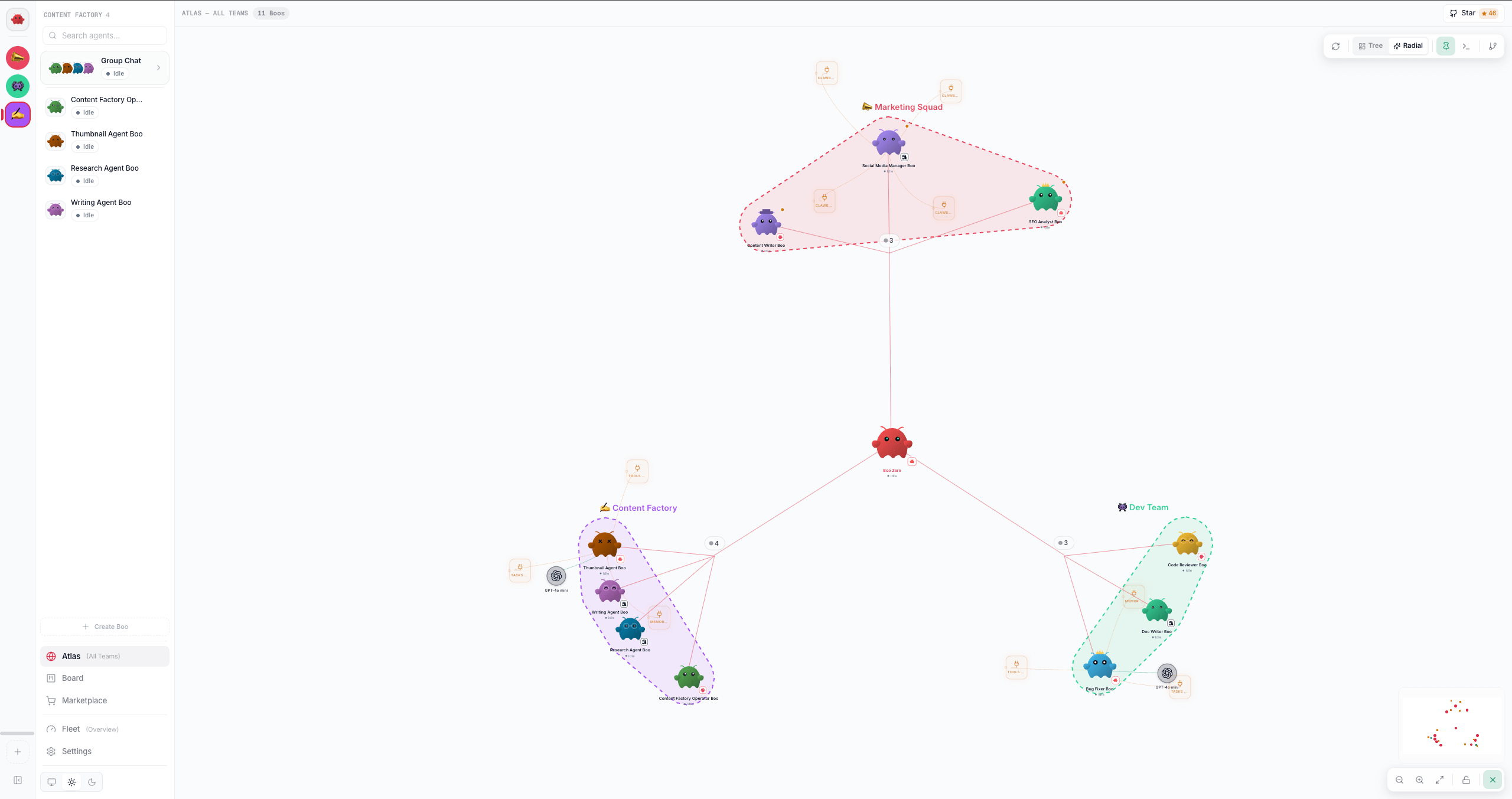
AGENTS.md, and a skill orbital is a capability from the unified inventory. Nothing on the canvas is decorative.
Prerequisites
The graph reads your fleet from the agent registry and the capability inventory; it does not need a live Gateway connection to render (positions and structure come from SQLite). Drawing a routing edge writes the source agent’s
AGENTS.md through Clawboo’s server, which needs no Gateway for a native agent; an OpenClaw agent’s file lives on its Gateway, so for that agent the Gateway has to be connected.- A team with at least one agent (Boo) to see anything. An empty fleet shows the “No agents yet” empty state.
- For removing a routing edge, an active connection (
useConnectionStore.clientnon-null).
Atlas vs the per-team Ghost Graph
The selected team in the sidebar is preserved when you enter Atlas, so the two graphs keep independent saved layouts (Atlas positions are global and split by layout mode; team positions are keyed
team-<id>). Switching scopes never overwrites the other’s positions.
Building on the canvas
Hover a Boo and its port appears on its right edge: a raised disc with a plus, tucked against its claw, with a Drag to connect hint beside it. It stays out of sight otherwise, so a canvas of resting Boos is not covered in plus signs (on a touch screen, which cannot hover, it stays visible). Pull a thread out of the port and let go. While a thread is out, every Boo it can land on raises a dashed docking ring, with a dot on top where the thread will attach. The whole ring is the drop target, not just the dot, and it turns solid as the thread passes over it. The Boo you pulled from shows no ring, because an agent cannot route to itself. The ring takes the thread’s colour, so a connector’s violet thread docks into violet rings.
To give an agent a skill or connector another agent already has, drag that tile onto the agent instead: a skill installs (see Install a skill onto a Boo), and a connector opens the dialog that shares it (see Connectors).
The port is on every graph that draws a Boo: Atlas, a team’s graph, and the mini graph in an agent’s view. The mini graph draws one agent, so there it offers skills and connectors but not a new agent.
The port and the rings keep a minimum size on screen, so they stay usable when the canvas is zoomed far out. Locking the canvas (the padlock at the bottom right) hides the port and stops drops, along with dragging.
A thread only raises the ports of the Boo it came from: hovering another Boo on the way to a target shows its docking ring, not its port.
The picker asks what kind of thing you want first: Connectors, Skills, or New agent. Pick one and it shows that list, ordered so the entries you can finish in a single click come first. The back arrow, Escape, or backspacing to an empty box all return to the choice.
If you already know the name, just type. Searching from the first screen looks across every kind at once and skips the second step, and the last row offers to create an agent named after whatever you typed. A new Boo lands in the same team as the one you pulled from, already routed to it.
A connector that needs a key or a folder is listed but greyed, with the reason. Those are set up in Connectors, because a credential is a form and not a canvas gesture.
The + button
Every graph leads its toolbar with a + button, tooltip Add a connector, skill or agent (in an agent’s mini graph, Add a connector or skill). It opens the same picker, with no agent behind it, so what you pick lands on the canvas attached to nothing:
A loose tile drops in just under the + button, clear of the graph, with a dashed ring and Not attached under its name. Hover it for its port and a Drag onto an agent hint, then drag the thread onto any Boo: that agent gets the skill, or the connector at write access with risky calls still asking first. The tile then leaves the canvas, because the thing now orbits that agent like any other capability. If the agent already has it, a toast says so and nothing is written; let go anywhere else and the tile stays put.
Hover a loose tile for an x that takes it back off the canvas. Each graph keeps its own loose tiles (Atlas, each team’s graph, each agent’s mini graph), they come back after a reload, and the picker never offers a second copy of one already there. A loose tile keeps a readable size when the canvas is zoomed far out, and when a layout change or a smaller window would leave one out of view, it moves back under the + button.
Each Boo shows what it carries under its name:
12 capabilities · 1 route. Hover the count to see what kinds they are, for example 1 skill, 2 tools, 3 connectors, 6 plugins, built-in tools; 1 route. It counts everything the agent has, including what its ring folds into a group or Atlas cuts, so it is the same number in every view. Clicking the Boo opens the ring, and the count steps aside while the ring is open.
The count beside a graph’s title (3 Boos · 1 skill) counts skills only: the ones a person installed, never tools, plugins or the built-in tool set.
Taking something back
Click an edge to open its panel, then Remove Connection. Or select an edge and press Backspace or Delete, which works anywhere except while you are typing in a field. Routes, skills and shares all come off the same way, and a share carries an eight-second Undo. Backspace removes the selected edge only. It never deletes an agent: that stays on the right-click menu, which asks the server rather than only removing the node from your screen. Some edges refuse, and say why: a runtime built-in came with the agent, and the model tile is part of the Boo rather than something added to it.What is not here
Creating a team, adding a custom MCP server, entering a credential, choosing a folder, and editing a personality are not on the canvas. Each needs more than a name or a pick, and a canvas button that opens another window is worse than no button. They live in the Marketplace, Connectors, and the agent’s own view. An agent’s runtime cannot be changed after it is created, anywhere.The canvas
- Boo nodes (red dots) are your agents. The leader-rooted spanning tree from
AGENTS.mdrouting rules drives the org-chart hierarchy: ELK lays out Boos and the primary dependency edges; secondary routes are revealed only on hover. - Dependency edges (red, with arrowheads) are agent-to-agent routing: “this agent routes work to the target.” Each one is a line in the source agent’s
AGENTS.md, and theN routescount under a Boo’s name counts exactly those: the routes a person authored, never the invisible backbone Atlas adds to lay teams out. - Skill nodes (mint circles) and connector nodes (violet circles) are each Boo’s capabilities, drawn as orbitals around their parent. An OpenClaw plugin is violet too, with a puzzle piece, or with the provider’s own logo when the plugin is a model provider such as Anthropic or OpenAI. A tile shows a readable name (
Web Search,Device Pair) and keeps the exact key the runtime reports in its tooltip. They are hidden by default and revealed by expanding a Boo. A Boo draws its own per-agent capabilities AND its runtime’s shared ones together, so an agent that has picked up a skill of its own keeps the built-ins it already had. An agent with none of its own (Codex, OpenClaw, a not-yet-run Hermes agent) therefore shows exactly its runtime’s shared capabilities, so every agent surfaces its attached MCP and built-ins. - Grant edges connect a Boo to a connector somebody deliberately shared with it. Drag a connector tile onto a second Boo to share it, and use Stop sharing on the edge to revoke, which leaves an 8-second Undo. That is distinct from Turn off, which stops the connector itself rather than one agent’s access to it. Only a deliberate share draws an edge: a connector a Boo’s own runtime already attaches is authorized too, but the tile itself is that statement, so drawing it again would be noise. The edge’s state is not a second reading of a status column; it is the verdict the tool broker would return for that pair right now, so a grant that has expired or drifted renders as expired or drifted because that is what a call would actually do.
- Runtime badge + model orbital. Every Boo carries a small runtime brand chip on its avatar, so you can tell Native, OpenClaw, Claude Code, Codex, and Hermes apart at a glance. Expanding a Boo also pops out a model orbital, the provider logo plus the LLM it runs on. A model Clawboo has not catalogued still gets a readable name (
MiniMax M2.7rather thanminimax-m2.7), and the tooltip keeps the exact model id. Every Boo has one: an account/SDK-default runtime (Codex, Claude Code) shows a neutral “default” chip rather than a specific model, and an OpenClaw agent shows its Gateway default model.
The Boo and its thought bubble
A Boo is always a circle: a degree-aware disc (bigger if it has more edges) with the avatar filling it, and the name, a status dot and a “seen Xm ago” timestamp stacked below. It stays a circle while it works. It used to morph into a card, which cost the mascot its identity at the moment it was most interesting, shrinking the character to a corner icon to make room for a single line of text. That line now lives in a thought bubble above the Boo’s right shoulder, sized to its own contents, with two trailing puffs leading up from the mascot. The bubble appears while an agent is running, and stays up when it errors, so the reason a run failed remains on screen. What the bubble says, in priority order: the agent’s in-flight streaming text, then its most recent assistant message, then its reasoning, then its most recent tool call, rendered as “Using<tool>”. A task running on the board has no chat session, so its line comes from the event
stream instead and is already phrased for a reader. With nothing to report yet it says thinking,
because a reasoning model can think for a long time before its first tool call and a bubble that
stayed hidden through the longest part of a run made the canvas look dead.
Reasoning IS shown. It was previously withheld as private, which left the bubble empty for exactly
the stretch where the honest answer to “what is it doing” is the thinking itself. It is
model-written text, so it is displayed and never acted on, and clamped to two lines.
Three dots pulse in the bubble for as long as the run lasts, and collapse to one solid dot on an
error. That pulse is the only looping animation on the node: it carries the one claim that decays
if it stops moving, which is that this agent is working right now. A frozen line cannot tell a busy
agent from a hung one. Every other change in the bubble is a real event, and a new line tickers up
as the old one leaves.
Beneath the name, the status dot and its verb stand down while the bubble is up, because the bubble
is already saying what the agent is doing in more detail than one word can. The ring counts stay
put: they are the node’s only advertisement that the orbital ring exists.
Hover to focus a cluster
Hovering a node highlights its connected nodes and edges and dims everything else (non-connected nodes fade, non-connected edges nearly vanish). Move off, and full opacity returns. This is the fast way to read a single agent’s relationships in a dense graph.Steps
Expand a Boo’s skills (peacock)
By default the canvas shows only Boos and dependency edges; skill and connector orbitals are mounted but hidden, keeping the view focused on team topology.- Single-click a Boo. Its orbital children fan out from behind it with a staggered “peacock-feather” animation (
expandedBooNodeIdsgains the Boo’s node id). - Single-click it again to collapse them.
41 plugins, 8 tools. An OpenClaw Gateway reports forty-odd plugins and every OpenClaw Boo inherits them all, so this is what keeps its ring readable. Click the group tile to list its members, with the provider logos and any that are off; the list scrolls, and closes when you click the canvas. (A locked canvas selects nothing, so unlock it first.) Anything with an action keeps its own tile: a skill a person installed, a connector (it has a toolbar, and a share is drawn as its own edge), and anything asking for a sign-in or showing drift.
Atlas keeps a ceiling. The all-teams view pays for tiles in node count across every agent at once, which no amount of radius fixes, so it draws at most 24 per Boo and accounts for the rest in one overflow tile, which counts every capability it hides, including a group’s members. Groups fold first, so on a typical install nothing is cut. Open the Boo’s own view to see all of them.
The MiniMap matches: collapsed skill/connector dots render transparent there, so at rest the MiniMap shows only the Boo dots; expand a Boo and its mint (skill) / violet (connector) dots appear in sync with the canvas. Boo dots carry their status colour, so the one view you use when zoomed too far out to read a node still tells you which agents are working and which have failed.
Install a skill onto a Boo
Two ways, both routed through the unified capability pipeline (POST /api/capabilities/install), which writes an audited record into the managed source and refreshes the graph:
- From a skill node’s “Install →” button: hover a skill, click Install →, then pick a target agent from the dropdown.
- By drag: drag a skill node onto a Boo node. (The server resolves the owning runtime authoritatively from the agent row, so the install lands on the right runtime regardless of the placeholder sent.)
Installed "<skill>" on <agent>. The leadership orbital that accompanies Boo Zero is non-transferrable; it has no Install button.
Draw a routing edge
Routing edges are agent-to-agent delegation rules. To add one from the canvas:- Hover a Boo, then drag from its port (the plus that appears on its right edge) onto another Boo, and let go inside its docking ring. (You can also click-to-connect: click the port, then click the dot on top of the other Boo.)
- Clawboo optimistically adds the edge, then appends
- Route to @<TargetName> for delegated tasks.to the source agent’sAGENTS.md(via the per-agent mutation queue) and best-effort enables agent-to-agent coordination in Gateway config. On failure the optimistic edge rolls back with an error toast.
Drawing the same edge twice is a no-op: if the target is already in the source’s routing, you get a
<target> already in routing toast and nothing is written.Remove a routing edge
- Click a dependency edge to open the edge explain panel (bottom-center). It names the connection, the source agent, and the backing file (
AGENTS.mdfor dependencies; the capability inventory for skill/resource edges). - Click Remove Connection. Clawboo optimistically removes the edge, then strips every
@<TargetName>mention from the source agent’sAGENTS.md. On failure the edge is restored.
Right-click a Boo (context menu)
Right-click any Boo for its action menu:
The first three all land in the same place, the agent detail view.
Select in sidebar is the highlight-only action; left-click is reserved for peacock expand.
Keyboard
Boo selection, the peacock expand/collapse, and the action menu all have keyboard equivalents; drawing a routing edge, drag-installing a skill, and opening the edge explain panel stay pointer-only. Each Boo is a Tab stop; the Atlas team junctions (the badges repeat the team the Boos below already name) and any collapsed skill/resource orbitals are taken out of the tab order, so you only land on agents and on things you can actually see.
The
Alt+Enter alias exists because macOS keyboards have no Menu key and the OS swallows Shift+F10. Backspace deliberately does not delete a Boo: React Flow’s default delete key is disabled on this canvas, so deletion stays context-menu only (that is the path that archives the agent through its runtime instead of silently splicing the node out of the local store).
Re-layout
Click Re-layout (top-right, appears once the first layout has run) to recompute positions from scratch. It drops your saved drag positions, re-runs ELK for the Boo hierarchy + orbital math for skills, and persists the fresh positions so a refresh is a no-op. Use it after adding agents or routes if the auto-layout looks tangled.Atlas-only controls
Tree vs Radial layout
In Atlas, a segmented pill in the toolbar toggles the global topology:- Tree (
top-down): Boo Zero at the top, teams in a flat row beneath it (the org-chart sketch). - Radial (default): Boo Zero at the center with teams arranged as petals around it.
localStorage (clawboo.atlas.layout). Each mode keeps its own saved drag positions (atlas-top-down vs atlas-radial), so flipping modes never drags one mode’s coordinates into the other.
Team halos
Click Team halos (Atlas-only, Pin icon) to draw a colored convex-hull background behind each team’s Boos, a visual grouping for the Skills → Agents → Teams hierarchy. It is a pure overlay: it never touches the node tree, physics, or ELK layout. Single-agent teams render no halo (the Boo’s team badge is enough); the toggle is off by default.Team status pills
Each team also carries a small pill beside its badge that counts its agents by status: ● 4 idle, or ● 2 running ● 4 idle when they differ. Each count is one status, not the team: a team of six with four resting and two running reads ● 2 running ● 4 idle, and adding the counts gives you the team size. A dot that needs your attention pulses (running and error), so a team with three errors is as loud as a team with one agent working. The pill sits to the right of the badge, level with it. When a line, an agent, another team’s badge or another pill is there, it takes the next clear side instead, so it never covers a line, and it keeps that side as you zoom in.Activity dock
Every graph carries an Activity button (Terminal icon) that slides in a right-edge live-activity terminal, sourced from the orchestration event log and scoped to what that graph draws:
The tooltip reads Hide activity feed while the dock is open. Close it with the button, the X in its header, or
Escape. It shares the right edge with the agent browser dock, so opening one closes the other. The dock only tails events while it is open.
Team badges
In Atlas, each team’s branch of the chart meets Boo Zero at a junction, and the junction wears the team’s badge: the same coloured disc and icon the team has in the sidebar rail, so you can follow a branch back to its team at a glance. Hover it for the team’s name; hovering also highlights that team’s Boos and dims the rest. It stays a readable size when Atlas is zoomed far out. A team’s own graph, in its group chat, wears the same badge where Boo Zero’s edge splits into the team, or halfway down that edge when Boo Zero reaches the team through its lead. The mini graph in an agent’s view draws one agent and no junction, so it has no badge.The MiniMap
The MiniMap (bottom-right overview) is hidden by default to give Boos more canvas. A small toggle (Map icon) at the bottom-right shows it; while shown the toggle slides left of it and becomes an X. It sizes proportionally to the canvas (~16% wide). Boos render as a representative-sized dot rather than their full transparent footprint, and collapsed skill/resource dots are transparent, so the MiniMap reflects what you actually see.Verify it worked
- Skill install: after installing, the skill orbital appears on the target Boo (expand it to see it) and a success toast fires. The new capability also shows on the Capabilities dashboard.
- Routing edge added: a red dependency edge appears between the two Boos; clicking it shows the source agent and
via AGENTS.mdin the explain panel. - Routing edge removed: the edge disappears and the source agent’s
AGENTS.mdno longer mentions the target. - Layout persists: drag a Boo, then refresh. It stays where you dropped it (positions are saved to
/api/graph-layout, keyed per scope/team/mode).
Troubleshooting
Delete from the right-click menu is destructive. It archives the agent through its runtime and removes its local rows (cost, approvals, per-agent settings). There is no undo from the graph.
See also
- Using teams, create teams, set the leader that roots the org chart, color collections
- Using agents, edit
SOUL/IDENTITY/TOOLS/AGENTS, personality sliders - Using group chat, where the per-team Ghost Graph is embedded
- The board, the durable task board the orchestration runs on
- Capabilities dashboard, the full capability inventory that drives the skill and connector nodes
- Observability dashboard, the event log behind the Atlas activity dock and the live Boo bubbles