

The shell
The app is three persistent columns plus a swappable content area: The team sidebar (column 1) and the content area (column 3) are always present. The agent-list column (column 2) is hidden in two cases: when you’re in the standalone Boo Zero view, and when you collapse it with the sidebar’s collapse toggle. The Boo Zero view dedicates the whole window to Boo Zero’s agent detail, so the agent list, which is team-scoped, has nothing to show.Widths are fixed: the team sidebar is 60px, the agent-list column is 236px. The content area takes the rest. There’s no draggable shell divider; the only resizable seams are inside views (the agent detail panels, the group-chat graph/chat split).
Team sidebar (column 1)
The leftmost strip is a Discord-style icon rail. Top to bottom:- The Boo Zero mascot (the Clawboo logo). Clicking it deselects any team and opens the standalone Boo Zero view. Boo Zero is the universal team leader, teamless in the registry, but present in every team. Right-clicking the mascot offers “Show all agents,” which clears the team filter and opens Atlas.
- One icon per active team (its emoji on its color). Clicking a team icon selects that team and opens its group chat directly, not Atlas. A Discord-style pill marks the selected team. Right-clicking a team icon opens a context menu: archive/unarchive, “Refresh Protocol” (regenerate each agent’s routing file), “Delete team only” (orphan the agents), or “Delete with agents.”
- The ”+” button opens the Marketplace’s Teams tab, the one place to browse and deploy a team or start one from scratch.
- The collapse toggle hides or shows the agent-list column.
Agent-list column (column 2)
This column is team-scoped: it shows the agents of the selected team (or all agents when no team is selected), filtered live by the search box. Top to bottom:- The team header: the selected team’s name (or “All Agents”) plus the visible agent count.
- The search box: filters the agent list by name as you type.
- The Group Chat row: when a team is selected and has agents, a single row at the top of the list shows the team “photo” (a stack of up to four overlapping Boo avatars, leader first, with a “+N” badge for larger teams) and an aggregate team-status badge. Clicking it opens the team’s group chat. It’s styled to read as a peer of the agent rows beneath it, not a section header.
- The agent rows: each Boo with its avatar, name, a live status badge (Idle / Working / Error / Sleeping, with a fine-grained activity verb when running), and a “seen X ago” timestamp. Clicking a row opens that agent’s detail view. A trash icon appears on hover to delete the agent.
- Create Boo: adds a new agent to the selected team (shown only when connected to a runtime that can create agents).
- The global nav: anchored to the bottom of the column. It holds the work surfaces you switch between most, plus a Settings gear and the theme toggle.
There is no standalone Approvals nav item. Approvals surface where they are raised: the Needs you column on the board and an inline tray above the group-chat composer. See Approvals.
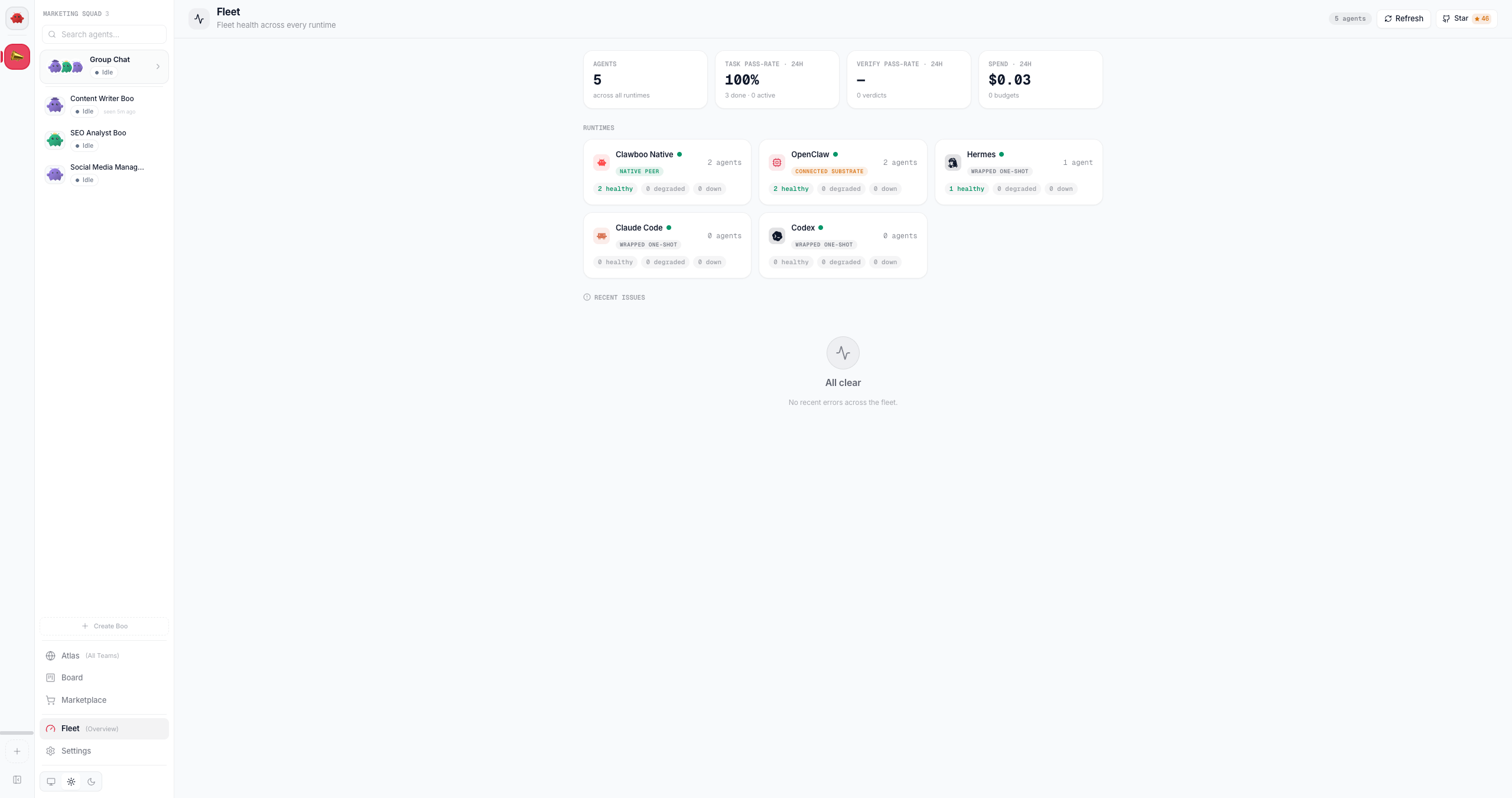
The Settings modal
Everything for managing, configuring, and inspecting the dashboard lives in a Settings modal, opened from the gear at the bottom of the sidebar or withCmd/Ctrl + ,. It groups ten surfaces. Memory is one of them and is also in the sidebar, on purpose: Settings shows its list, and the sidebar opens it full-screen with the graph.
Content area (column 3)
The content area renders exactly one view at a time, chosen by the current view mode (see below). When you switch views, the old view fades out and the new one fades in. PressingEscape from an agent, Boo Zero, or group-chat view returns you to the welcome screen.
View modes
The dashboard’s state is a single discriminated union, theViewMode, and the content area is a switch over it. There are five shapes:
The
nav mode carries a view field, one of the 15 NAV_VIEWS: graph (Atlas), fleet, cost, marketplace, connectors, routines, system, obs, board, runtimes, providers, memory, governance, capabilities, health. The dashboard opens on nav: graph (Atlas) by default, so a fresh launch lands you on the org-wide map.
Keyboard navigation
Escape: leave an agent / Boo Zero / group-chat view back to the welcome screen. Ignored while you’re typing, or while any overlay is open — an open dialog, drawer, menu or dropdown takesEscapefirst, innermost one first, so dismissing a dropdown inside a dialog leaves the dialog (and anything you typed into it) alone.Cmd/Ctrl + 1…4: jump to one of four sidebar surfaces, in this order: 1 Atlas, 2 Fleet, 3 Marketplace, 4 Board. (The shortcut handler fixes this order; it is not the visual order of the nav blocks. Connectors and Memory have no shortcut.)Cmd/Ctrl + ,: open the Settings modal (Providers, Runtimes, Memory, Capabilities, Routines, Tokens Used, Observability, Governance, System, System Health).
Atlas vs the per-team Ghost Graph
The single most useful thing to internalize: the same Ghost Graph component renders at two scopes, and which one you’re looking at depends on how you got there.- Atlas is the Ghost Graph at
atlasscope. It ignores the selected team and pulls every agent onto one canvas, with each team clustered around a presiding Boo Zero (the default radial layout; a Tree/Radial toggle switches to a top-down hierarchy with each team laid out as a row). Reach it from the Atlas nav item (column 2) or the mascot’s “Show all agents.” This is the org-wide map, every team at once. - The per-team Ghost Graph is the same component at the default
teamscope, embedded inside a team’s group-chat view. It filters to the selected team’s agents (plus Boo Zero) and renders that team’s internal routing as a top-down org chart. You don’t navigate to it separately; it’s the top half of the group-chat split.
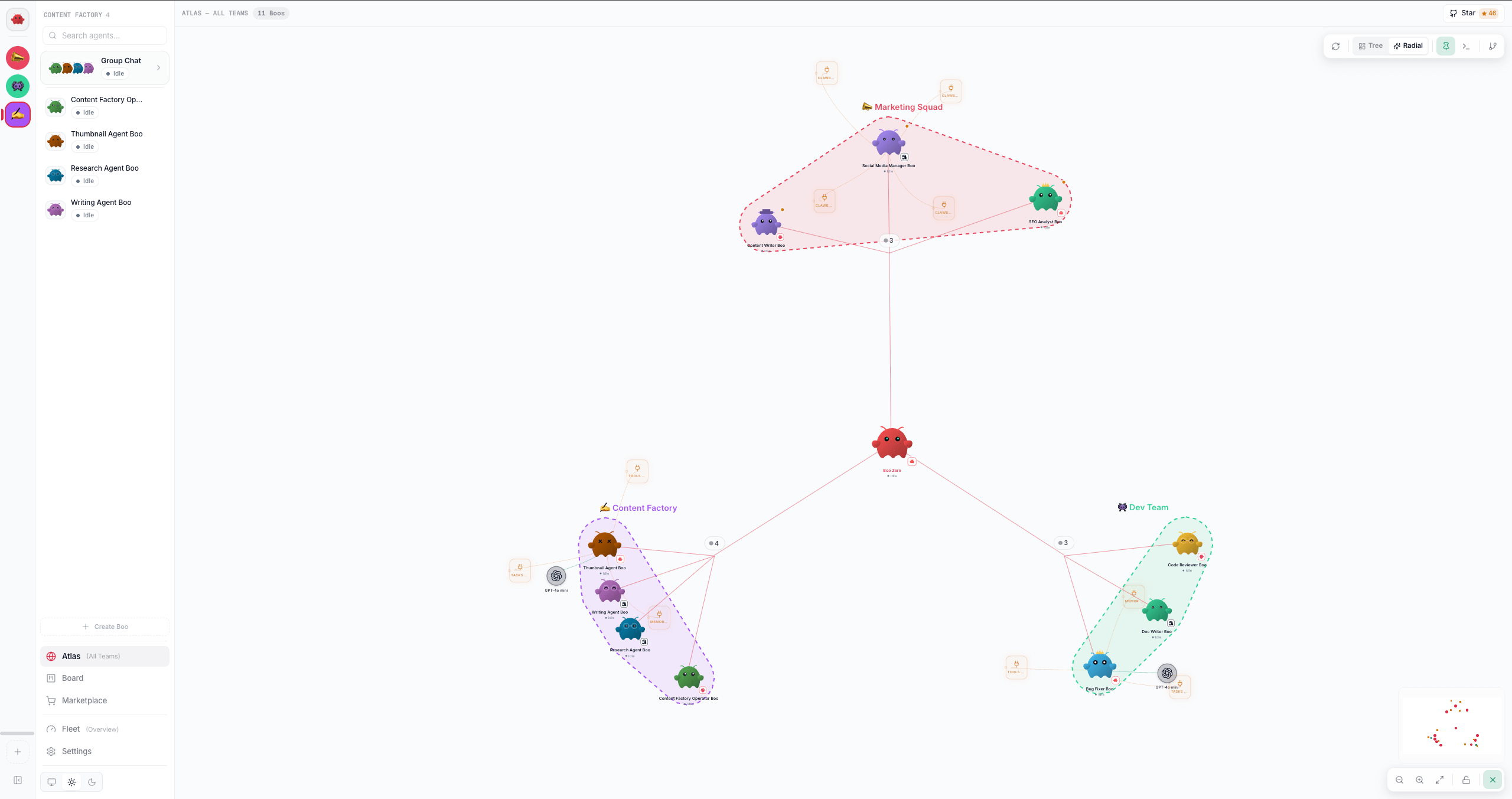
The agent detail view
Clicking an agent opens a three-panel detail view: a chat panel on the left, a single-agent compact graph (its Boo, skills, and resources) top-right, and an inline editor bottom-right with tabs for personality sliders and the four agent files (SOUL.md, IDENTITY.md, TOOLS.md, AGENTS.md). The panels are resizable; their sizes reset to the defaults (45/55 horizontally, 55/45 in the right-hand stack) on reload.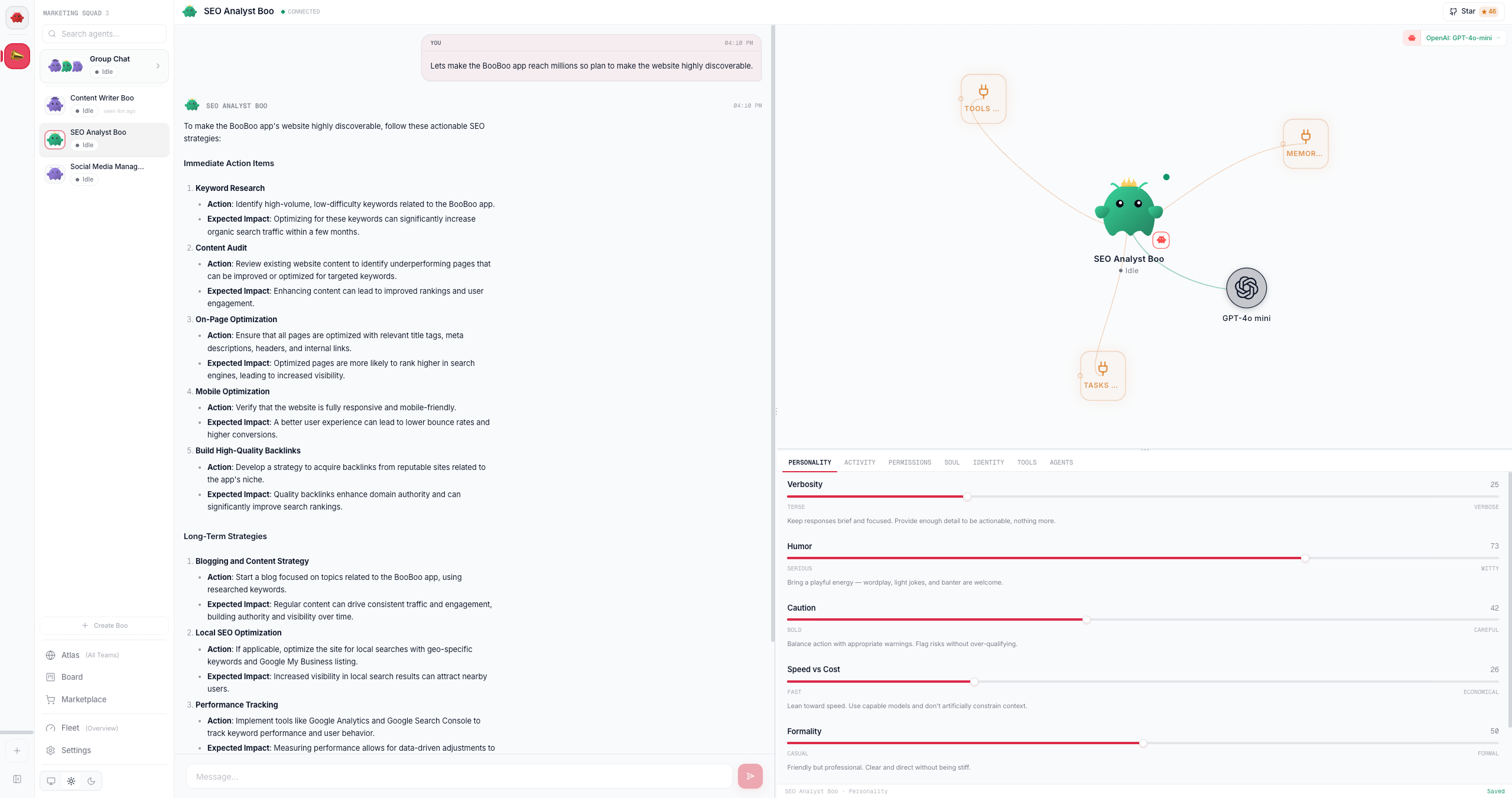
Where to go from here
- Click a team icon to open its group chat and watch the team collaborate.
- Open Atlas to see how all your teams relate under Boo Zero.
- Open the Board to see delegated work as durable, claimable tasks.
- Open Settings, then Runtimes, to connect Claude Code, Codex, Hermes, or OpenClaw alongside the native runtime.
See also
- Deploy your first team, get a team on screen, then come back to this map
- Teams and planes, what a team is, shared vs private plane
- The board, the durable substrate beneath the Board view
- Peer chat, what happens inside a team’s group chat
- Agent model, Boo, Boo Zero, and the runtime classes
- Connecting runtimes, what the Runtimes view manages
- Glossary, canonical term definitions