

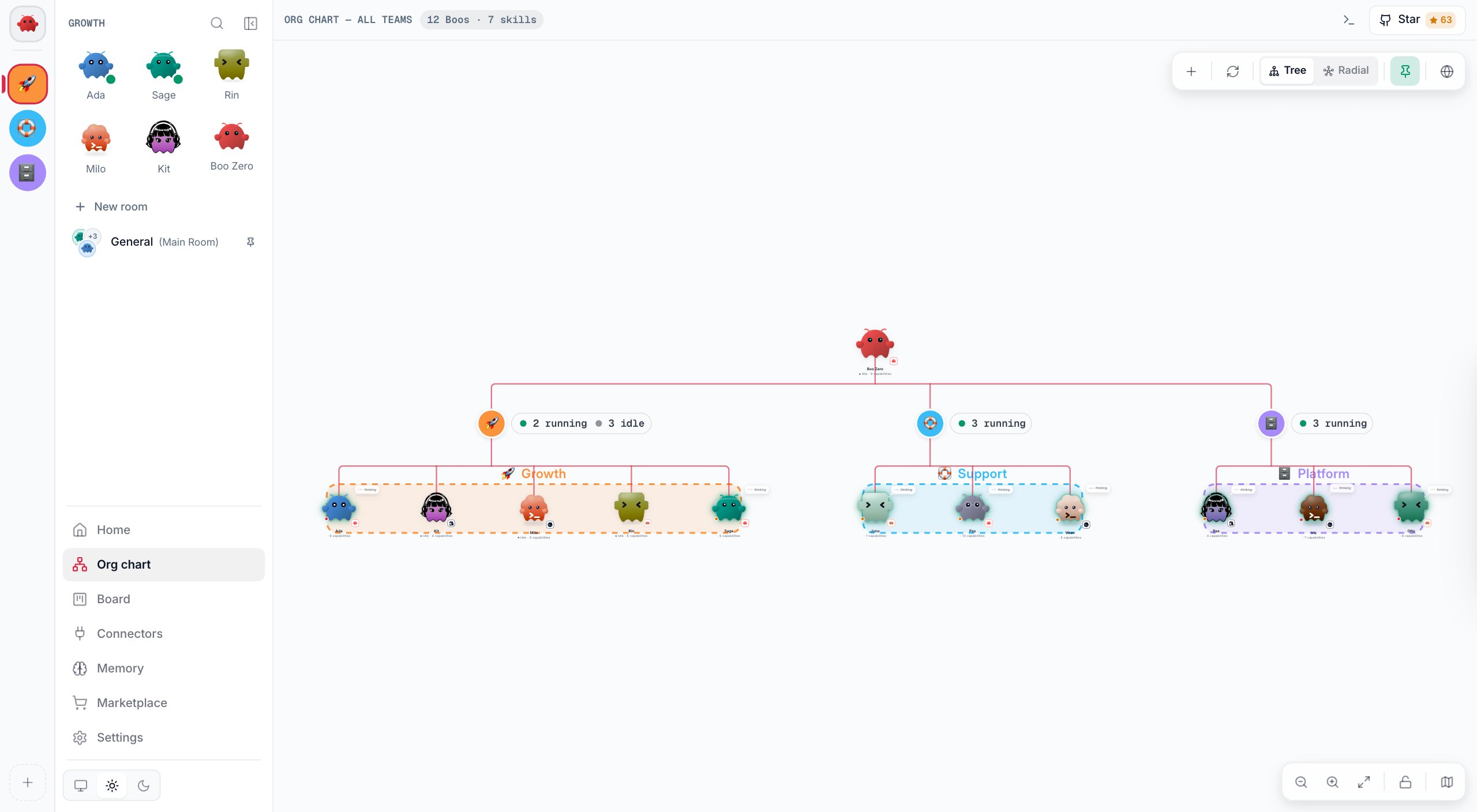
Where the graph appears
Right-clicking the Boo Zero mascot at the top of the team rail and choosing Show all agents also opens the Org chart. The Org chart ignores the team selected in the sidebar and keeps that selection for when you come back.
Only the Org chart has the layout switch, team halos, the Activity dock and the agent browser. Beside a chat, Activity and the browser are cards of their own. Each graph keeps its own saved positions, so arranging a room’s graph never moves the team’s graph or the Org chart.
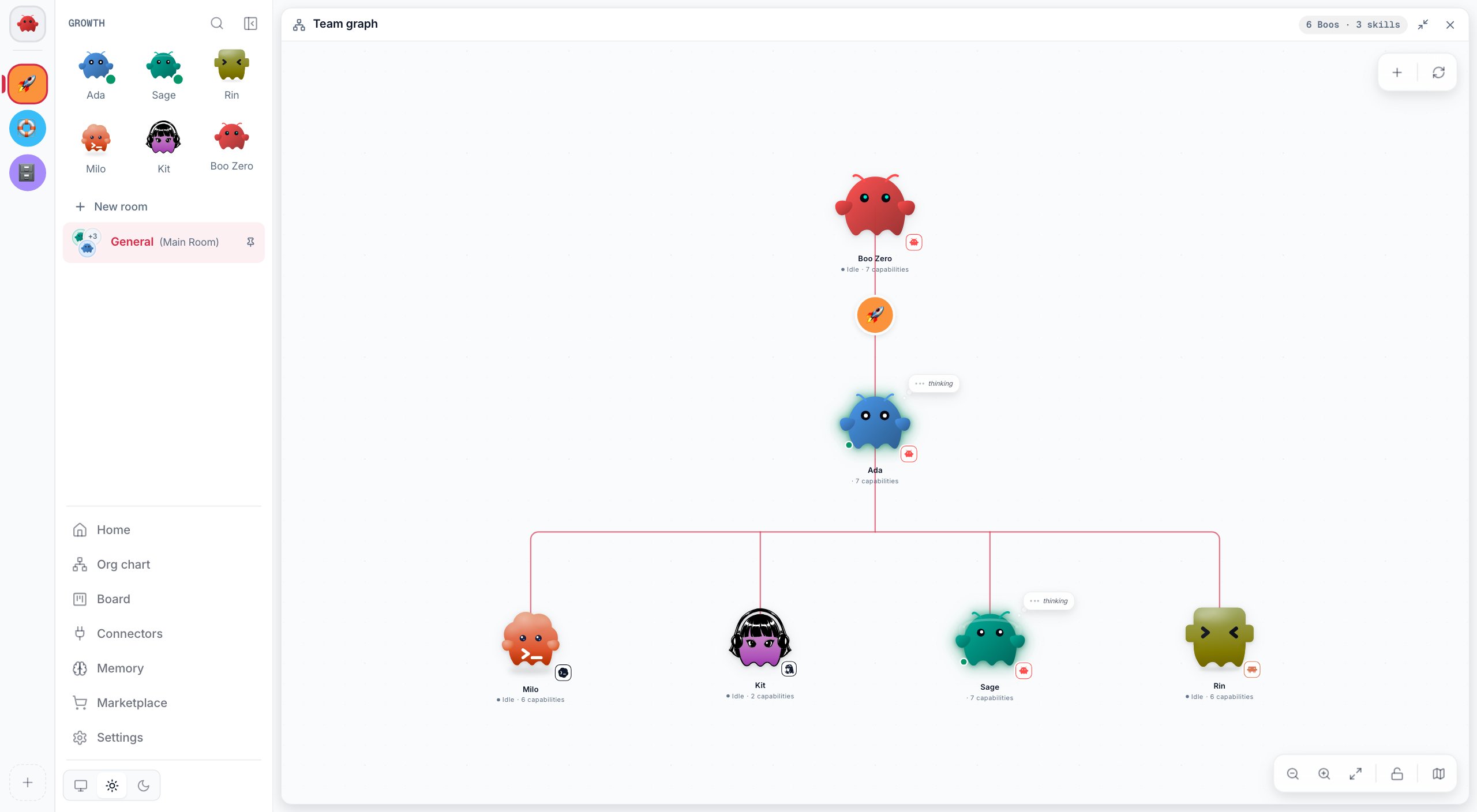
Read the graph
- Boos are your agents. Boo Zero sits at the root, a little larger than the others and in its own red. Under each name, a Boo shows its status and a count such as
12 capabilities · 1 route. Point at the count to see what kinds they are. A small badge on each Boo shows its runtime. - Teams hang from Boo Zero through a junction that wears the team’s badge, the same icon as in the team rail. Point at a badge to see the team’s name: its Boos light up and the rest dim. On the Org chart, a pill beside each badge counts the team’s agents by status, for example 2 running and 3 idle.
- Routes are the red lines with arrowheads between Boos. Each means “this agent hands work to that one”, and each is a line in the first agent’s AGENTS.md file. See What a route does.
- Skills and connectors circle a Boo when you click it, along with the model it runs on. See Open a Boo.
- Thought bubbles appear while an agent works. The bubble shows what it is doing: its latest words, its reasoning, or the tool it is using, with three pulsing dots. Before anything arrives it says “thinking”. After an error the bubble stays, so you can read the reason.
- Status glows: a running Boo glows mint, a Boo with an error glows red, and a sleeping Boo looks faded.
3 Boos · 1 skill, counts skills only, not tools or connectors.
What a route does
A route is a line such as- Route to @Sage for delegated tasks. in the first agent’s AGENTS.md file. OpenClaw agents read that file, so a route tells an OpenClaw agent whom to hand work to. Agents on Clawboo Native, Claude Code, Codex and Hermes do not read AGENTS.md: for them a route only draws the line. Those agents can hand work to any member of the chat they work in (see How a team works).
Open a Boo
Click a Boo to fan out its skills (mint), connectors (violet) and model around it. Click it again to fold them. Several Boos can be open at once, and the view zooms to fit what is open.- On a team graph, a room graph and an agent’s Graph card, a Boo shows every capability it has.
- Five or more read-only items of one kind fold into one group tile, such as
41 plugins. Click the tile to list them. - The Org chart draws at most 24 tiles per Boo and counts the rest on one overflow tile. Open the agent’s own Graph card to see all of them.
Add routes, skills, connectors and agents
Every graph that draws a Boo works the same way: pull a thread out of a Boo and let go where you want it to end.1
Find the port
Point at a Boo. A small disc with a plus, its port, appears on its right edge with the hint Drag to connect. On a touch screen the port is always shown.
2
Pull a thread
Drag from the port. Every Boo the thread can reach shows a dashed docking ring.
3
Let go
Drop on another Boo to add a route from the first agent to the second. Drop on empty canvas to open a picker of what the thread can end in: Connectors, Skills or New agent.
- A skill is installed on that agent.
- A connector is turned on if it is not running yet (with a sign-in, if it has one), and the agent gets Write access to it. Risky calls still ask you first.
- New agent creates an agent on the same team, already routed from the one you pulled from. On a room’s graph it joins the room too. A thread from Boo Zero gives the new agent the graph’s team, or on the Org chart the team selected in the sidebar (or your first team). The New agent row names the team.
The + button
Every graph’s toolbar starts with +, labelled Add a connector, skill or agent (on an agent’s Graph card, Add a connector or skill). It opens the same picker with no agent behind it, so what you pick lands on the canvas as a loose tile marked Not attached. A new agent picked here joins the graph’s team, and the room on a room’s graph. On the Org chart it joins the team selected in the sidebar, or your first team. To attach a loose tile, point at it: a port appears with Drag onto an agent beside it. Drag from the port and let go on a Boo: that agent gets the skill, or the connector at Write access with risky calls still asking first. Point at a loose tile for an x that takes it off the canvas. Loose tiles stay after a reload. Each graph keeps its own, and a room’s graph shares its team’s.Give a second agent a skill or connector
To install a skill on another agent too, drag from the small handle on the right edge of its tile and let go on that agent’s Boo. You can also point at a skill and click Install →, then pick an agent. To share a connector, drag from the small handle on the right edge of its tile and let go on another Boo. A dialog opens to share it. The second agent gets its own access, and the first keeps its own. Pick a level:
Connecting a connector in Connectors gives no agent access by itself: you attach it to agents here. See Connectors.
Take things back
Click a line to open its panel at the bottom of the canvas, then click Remove Connection. Or select the line and press Backspace or Delete, as long as you are not typing in a field.- Removing a skill’s line takes the skill off that agent.
- Removing a share’s line ends that agent’s access, with an Undo for 8 seconds. Stop sharing on the connector tile does the same. Turn off on the tile stops the connector itself.
- Removing a route deletes every line in the first agent’s AGENTS.md that mentions the second agent.
Right-click a Boo
Right-click a Boo, or focus it and press the Menu key, Shift+F10 or Alt+Enter, to open its menu:- Open agent opens the agent’s page, with its chat, files and personality.
- Delete deletes the agent at once. It works without an OpenClaw Gateway.
Layouts and tools on the Org chart
Tree and Radial
The Tree and Radial switch in the Org chart’s toolbar picks the layout:- Radial, the default, puts Boo Zero in the center with the teams around it. Each team’s Boos fan out from its badge, spaced so that no Boo, name or bubble lands on a neighbor.
- Tree puts Boo Zero at the top and the teams in a row beneath it.
Arrange and re-layout
Drag Boos to arrange any graph, and Clawboo saves where you put them. Re-layout in the toolbar, shown once the first layout has run, drops that graph’s saved positions and lays it out again. Use it when Boos overlap or the lines look tangled.Team halos
Team halos, on the Org chart only, draws a colored outline around each team’s Boos. A team with one agent gets none. Halos are off each time the app loads.Activity and the agent browser
- Activity, the terminal icon in the Org chart’s header, opens a live feed of every team’s tool calls, results and errors at the right edge. Close it with the same icon, its close button, or Escape.
- Agent browser, the globe at the end of the toolbar, shows the page an agent is looking at. Tabs pick a team (or No team for agents such as Boo Zero), and faces pick an agent. It opens on the agent that captured a page most recently.
Move around the canvas
The controls at the bottom right zoom out, zoom in, Fit to view, lock the canvas, and show the minimap, which is hidden at first. Lock canvas freezes positions, hides the ports and stops drops until you unlock it.
Drawing a route and dragging a tile need a pointer.
Reduced motion
When your system’s reduce motion setting is on, the graph skips its animations. Tiles appear at once when you open a Boo, and Boos land straight on their final positions. On the Org chart, turns and focus happen without moving through the motion, and the docks open without sliding. The dots in a thought bubble hold still.What is not on the canvas
Creating a team, adding your own MCP server, entering a key, choosing a folder, and editing a personality each need a form. They live in the Marketplace, Connectors, and the agent’s page. An agent’s runtime cannot be changed after the agent is created.Troubleshooting
Boos pile up or the layout looks broken
Boos pile up or the layout looks broken
Saved positions from an earlier arrangement can cover only part of the current graph. Click Re-layout to drop them and lay the graph out again.
A Boo shows no port, or a thread will not land
A Boo shows no port, or a thread will not land
The canvas is probably locked: unlock it with the padlock at the bottom right. If the thread lands but a Failed to save routing message appears, the agent’s file could not be written. For an OpenClaw agent, check that Clawboo is connected to its OpenClaw Gateway.
Remove Connection on a route does nothing
Remove Connection on a route does nothing
Removing a route needs the dashboard connected to an OpenClaw Gateway. Without one, delete the route line from the agent’s AGENTS.md on its page instead. See Take things back.
A route I drew does not change who gets the work
A route I drew does not change who gets the work
Only OpenClaw agents read routes. Agents on other runtimes can hand work to any member of their chat, whatever the graph shows. See What a route does.
The Org chart says No agents yet
The Org chart says No agents yet
There are no agents to draw. Deploy a team from the Marketplace, or click Create Boo in the sidebar.
Under the hood
Under the hood
- Drawing a route appends
- Route to @<Name> for delegated tasks.to the first agent’s AGENTS.md and, best-effort, turns on agent-to-agent messaging in the OpenClaw Gateway’s config. - Positions are saved on the server through
/api/graph-layout, per graph: one set per Org chart layout, one per team graph, and one per room graph. The layout choice is kept in the browser underclawboo.atlas.layout. - Installing a skill goes through
POST /api/capabilities/install. Sharing a connector creates a grant for that agent; see Capabilities.
Next steps
- Team chat: give the team work and watch its graph card light up.
- Agents: open an agent’s page to edit its files and personality.
- Connectors: connect the apps and tools you then attach on the graph.
- Capabilities: see every skill, tool and connector across your agents.
- Observability: the live activity behind the Activity dock and the thought bubbles.