

Where to look
To open Settings, click Settings at the bottom of the left sidebar, or press Cmd+, (macOS) or Ctrl+, (Windows, Linux) while no text field has focus. Fleet and Observability are in the Insights group.
Check the fleet
Fleet fits your whole setup on one screen: how many agents you have, how the last day of board work went, what it cost, and whether each runtime is ready.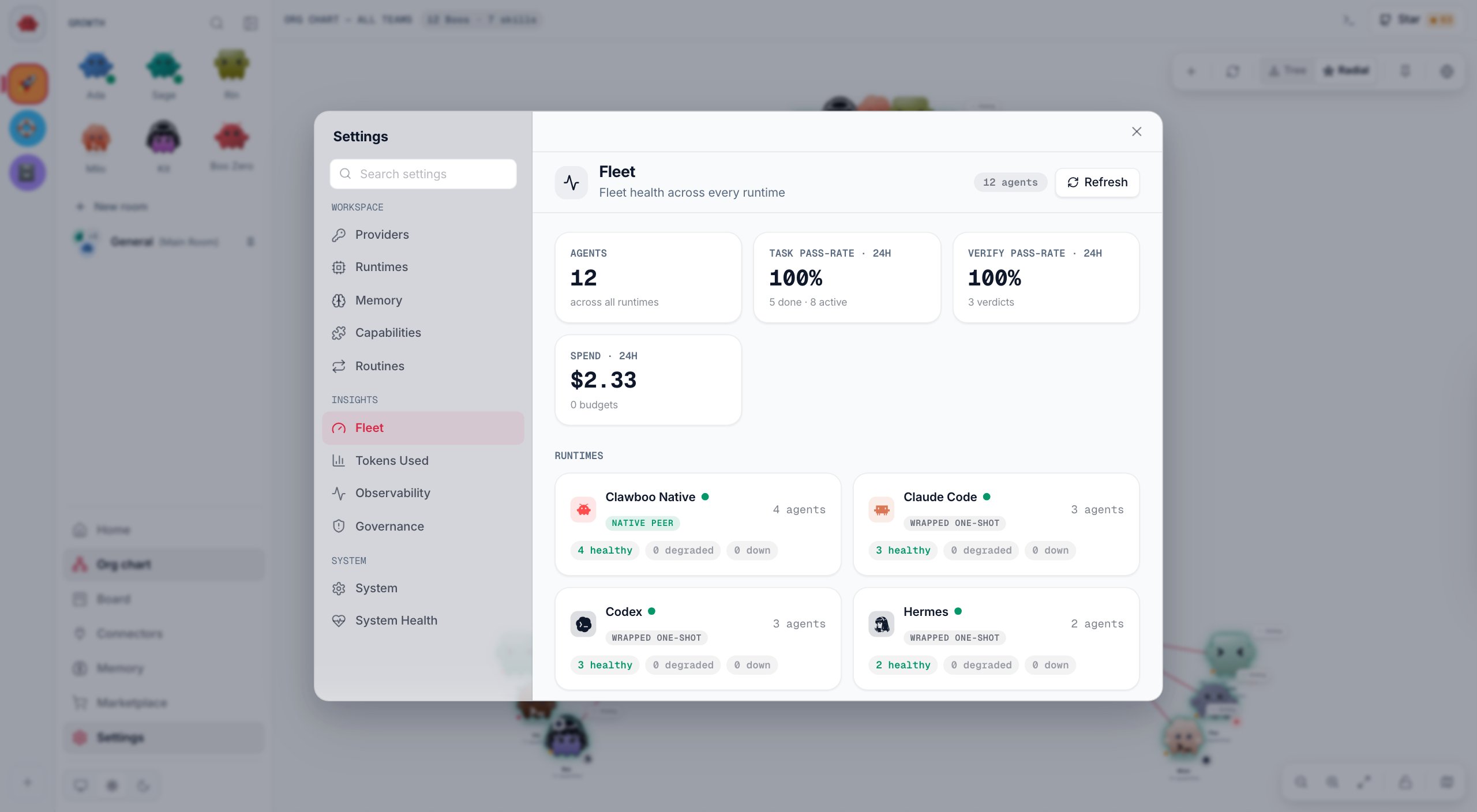
Every runtime gets a tile, even one with no agents. The dot beside its name is green when the runtime is ready and red when it is not:
- Claude Code, Codex and Hermes: green when the runtime’s program is installed. It does not tell you whether the runtime is signed in or has a key.
- Clawboo Native: green when it has a provider it can use, such as an API key or a local Ollama.
- OpenClaw: green while Clawboo is connected to the OpenClaw Gateway.
Find out what an agent did
1
Open the task
On the Board, click the task’s card to open its drawer. In a team chat, you can also open the Tasks card and click the task there.
2
Read the report
The drawer shows what the agent reported, titled with its name (for example Rin’s report). In a chat’s Tasks card, the same text is under Output or Latest report.
3
Check each run
The drawer’s Run history lists every run of the task: the runtime, how it ended, when it started, what it cost and how many tokens it used, and the error if it failed.
4
Follow the activity
Activity in the drawer (Progress in a chat’s Tasks card) lists the task’s events in order: each tool the agent called, what came back, and every error.
Read an Activity feed
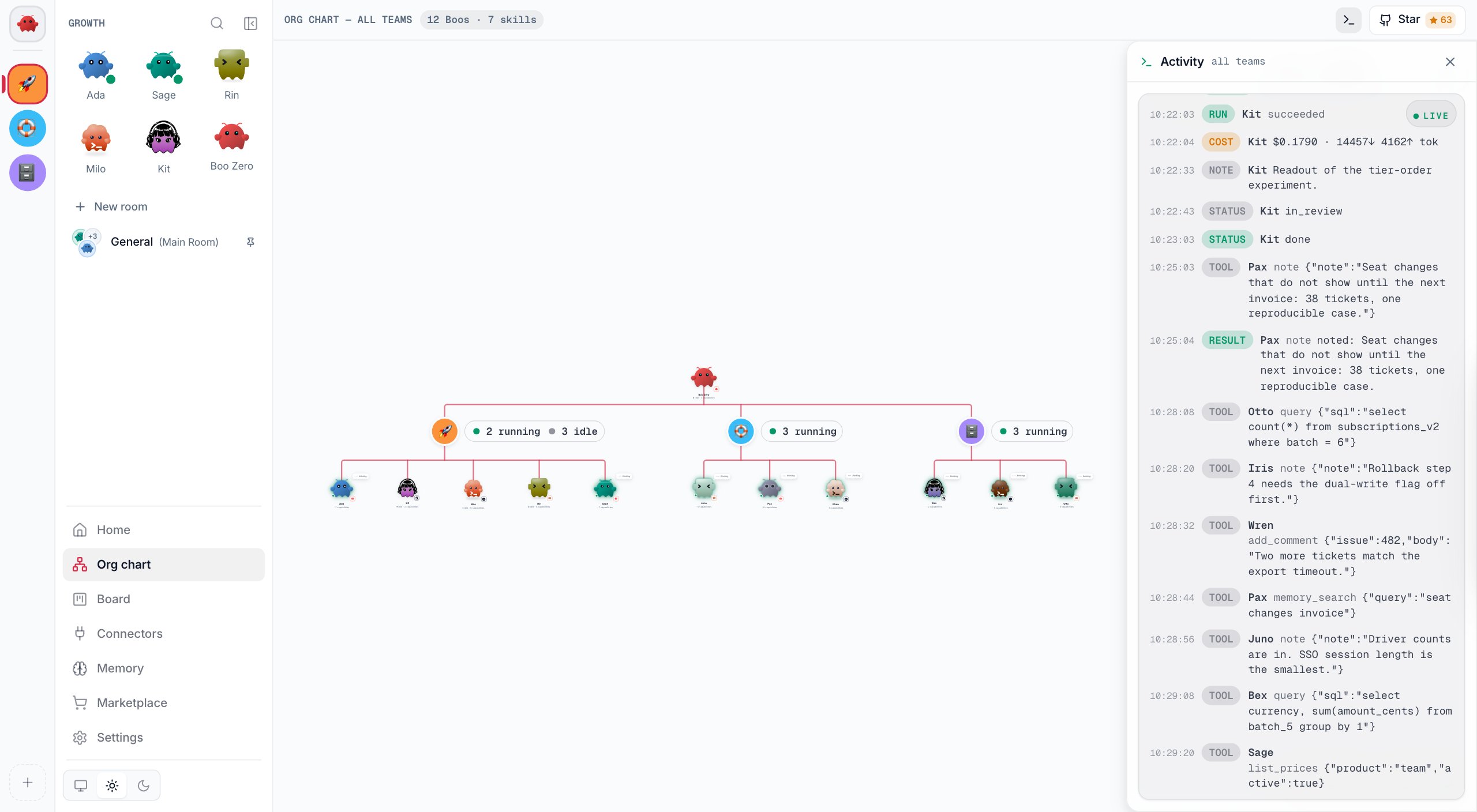
The same live feed appears in several places. On a task it covers that task. On an agent’s page it covers that agent. Beside a team chat it covers the whole team, even in a room. The Org chart’s Activity dock covers every team.
A feed that spans several agents names the agent on each row. Long tool input folds behind a toggle. The pill in the corner reads Live while new events stream in, and Reconnecting if the connection drops. The feed follows new rows while you stay at the bottom.
Activity from every runtime lands in the same log. That includes OpenClaw agents’ own work that Clawboo did not start, such as a cron job or a message from another channel, while Clawboo is connected to the Gateway.
Read the Observability panel
Open Settings > Observability. The left column holds Fleet health, Error taxonomy and Traces. The right column holds the Eval scorecard, the trace you select, and the Delegation graph. The header counts the tasks and agents in recent events. The panel refreshes every 5 seconds while its tab is visible, and Refresh reloads it at once.Fleet health
Each agent that appears in recent events gets a row with a status, how many runs it has open, and the cost its runs reported to the log. Rows show the agent’s id (its first 12 characters), not its name.
A long model call can be quiet for minutes, so stalled on its own is not a failure. Team-chat runs report their cost on the task, so their agents show $0.000 here; see the task on the board for what they cost.
Error taxonomy
Clawboo sorts each error into a class, such as RateLimited or ProviderError. This section groups the newest 500 errors by class, most frequent first. Its title counts the classes and the harness bugs among them. An error that fits no class is Unknown and carries a harness bug label: most likely a gap in Clawboo’s own error handling rather than a problem with your prompt or provider. In team chat, a tool call that a guardrail refused can also land here, so read the message first. If it is not a refusal, open an issue with the error text. What to do about an error covers the other classes.Traces
A trace is one run’s events laid out as a timeline: the run itself, with each tool call inside it. Click a trace in the list to open it. A bar above the timeline totals the run:
Only runs started by Clawboo’s task runner have traces: a routine aimed at one agent on Clawboo Native, Claude Code, Codex or Hermes, and runs started through the API. Team chat, the tasks your team takes on from chat, team routines and OpenClaw work have no traces. Most everyday work happens in team chat, so an empty Traces list is normal. The list’s empty message suggests running a board task, but a task your team runs from chat does not add one. How a team works explains the two paths.
Delegation graph
When recent tasks were handed out or wait on each other, this section lists the links, one per row: the first task’s id, an arrow, the second task’s id, and the kind. delegation means the second task was handed out from the first. dependency links a task to another it waits on. The section is hidden when there are no links.Eval scorecard
Run smoke evals runs Clawboo’s built-in test tasks on throwaway boards, with no AI model and no API keys, and never touches your own board. It shows how many test tasks passed (pass@1 and pass^k) and a row for each one. If the run fails, the panel shows a short error; try again, and if it keeps failing, open an issue. The Ablation table below it, marked CI only, is filled in only by the project’s own test runs. In the app it shows the table’s layout with no numbers.Under the hood
Under the hood
- Fleet health and the delegation graph read the newest 5,000 events, so agents and tasks with older events drop out of them. A trace shows at most 5,000 events.
- The Traces list comes from the newest 300 events and shows up to 40 traces.
- The harness-bug count covers only the newest 500 errors.
- Fleet reads
GET /api/fleet/summaryand, for Recent issues,GET /api/obs/errors. The Observability panel readsGET /api/obs/health,/api/obs/errors,/api/obs/events,/api/obs/graphand/api/obs/traces/:traceId. See the Observability API. - Run smoke evals calls
POST /api/eval/smoke. When it fails, the server log records only the failed request; the reason is in that call’s JSON response.
What to do about an error
Each error’s class tells you where to look. Events and errors lists the words that put an error in each class.Export traces with OpenTelemetry
Clawboo can also send its traces to an OpenTelemetry collector, such as Jaeger. Export is off until you setOTEL_EXPORTER_OTLP_ENDPOINT (or OTEL_EXPORTER_OTLP_TRACES_ENDPOINT) to the collector’s OTLP over HTTP address, for example http://localhost:4318, in the environment that starts Clawboo’s server. OTEL_SERVICE_NAME names the service, clawboo by default. Only runs with traces are exported, so team-chat work never reaches the collector.
The npm package does not include the OpenTelemetry SDK. On an install from npm (
npx clawboo@latest or a global install), setting the endpoint exports nothing: the exporter cannot load, and traces stay in Clawboo’s own log. Export works where the two packages it needs, @opentelemetry/sdk-node and @opentelemetry/exporter-trace-otlp-http, are installed, as in a source checkout of the repository.Troubleshooting
The Observability panel is empty
The Observability panel is empty
The Observability panel shows only what Clawboo has recorded, and a fresh install has recorded nothing yet. Give your team some work in team chat or on the board, then come back. Fleet health, Error taxonomy and the Delegation graph fill in from any work. Traces fill in only from task-runner runs (see Traces).
The Traces list is empty, but my team is busy
The Traces list is empty, but my team is busy
This is expected. Work done in team chat, including the tasks your team takes on from chat, has no traces. Use the task’s Activity on the board, or the Activity card beside the chat, to see what happened.
An agent reads stalled or zombie
An agent reads stalled or zombie
Open the agent’s task on the board. If it is still In progress with nothing happening, the run may have hung: Clawboo puts a task whose run stops checking in back in To do after a few minutes, so it can run again. If the task has already moved on, the run’s end never reached the log, and the agent can keep this status here until newer events push the old run out of view. The board is the one to trust.
The OTel exporter check is Degraded
The OTel exporter check is Degraded
An OTLP endpoint is set, but the OpenTelemetry SDK could not load. On an npm install this is expected, because the package does not include the SDK. To clear the warning, unset
OTEL_EXPORTER_OTLP_ENDPOINT and OTEL_EXPORTER_OTLP_TRACES_ENDPOINT and restart Clawboo. To export traces, run Clawboo from a source checkout.Next steps
- Observability: what the event log records, and where its gaps are.
- Events and errors: every event kind and error class in detail.
- Track work on the board: the task drawer, retries and steering.
- Budgets and spend: where cost figures come from, and which are estimates.
- System Health: the checks Clawboo runs on its own parts.
- Observability API: the same data over REST.