

Before you begin
- Node.js 22.12 or newer. Run
node --versionto check. Install covers Node and the other ways to run Clawboo. - One way to reach an AI model:
- an API key from OpenAI, Anthropic, OpenRouter, Google, xAI, Groq, Mistral, Together, Cerebras or Moonshot,
- a ChatGPT subscription, or
- Ollama running on this computer with a chat model pulled.
- No Clawboo account. Clawboo is free; the provider you connect bills the model usage.
Steps
1
Start Clawboo
Run this in a terminal:Clawboo starts a local server and opens your browser. Prefer a lasting
clawboo command? Install it globally instead; see Install.You should see the welcome screen, “Your AI agents, visible.”, with a Get Started button. Click it.2
Connect your AI provider
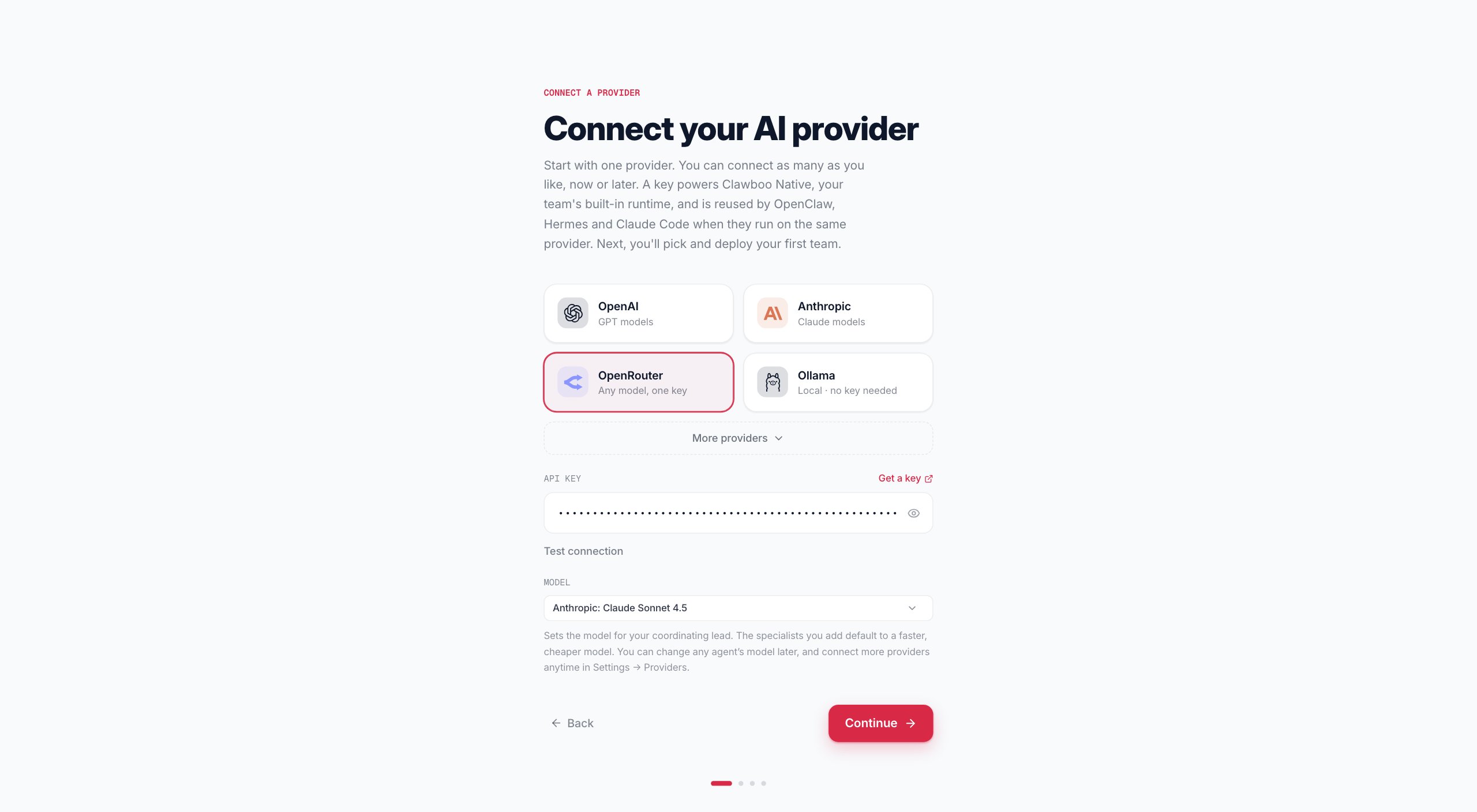
The Connect your AI provider screen sets up the AI your team runs on. Pick one path:You should see the Add more runtimes screen. If a check fails, the reason appears on the screen instead; see If something goes wrong.
- API key
- Sign in with ChatGPT
- Ollama
- Click OpenAI, Anthropic or OpenRouter, or open More providers for Google, xAI, Groq, Mistral, Together, Cerebras or Moonshot. For OpenAI, also click the API key card: the screen starts on Sign in with ChatGPT.
- Paste your key into API Key. No key yet? Get a key opens the provider’s key page.
- Optional: choose the Model for your team’s lead. Teammates you add default to a faster, cheaper model.
-
Click Continue. Clawboo checks the key with the provider (Verifying…), then saves it in its encrypted vault on your computer (Connecting…).
3
Skip the extra runtimes
Add more runtimes lists Codex, Claude Code, Hermes and OpenClaw. Connecting them is optional, and you can do it later from Settings → Runtimes. Click Continue.If you want them later: Claude Code also needs the Claude Agent SDK installed with Clawboo (see Install), and Set up OpenClaw installs and starts a local OpenClaw Gateway for you (see OpenClaw).You should see Choose your first team.
4
Deploy a team
The Create a team window opens by itself. If you close it, Browse teams brings it back.
- Find a team that fits your work, such as a marketing or research team, and click Deploy on its card. Details shows who is on it first.
- In Customize team, change the name, badge or colors if you like. Every teammate runs on what you connected in step 2 unless you pick another runtime or model for it here.
- Click Deploy team.
5
Introduce yourself
Click Open my dashboard. Your team’s chat, General, opens on a one-time introduction screen. Write a line about who you are and what you’re working on (at least 5 characters), then click Continue to Team Space. Clawboo saves it to the team’s context.You should see the team chat, with your introduction and a short acknowledgement from Boo Zero. The first time, a tour may offer to show you around; Skip tour closes it.
6
Give your team its first job
Paste this into the message box at the bottom, or write your own request, and press Enter:You should see task cards appear in the chat as Boo Zero hands the parts to teammates. Each card moves from Queued to Working to Done, and the Tasks card beside the chat lists the same tasks. When the teammates finish, Boo Zero posts one summary of what the team produced.A quick question gets a direct answer instead of tasks. If Boo Zero answers a request with several parts by itself, ask it to hand the parts to the team.
What you should see
Your team’s chat on the left, with the Team graph and Tasks cards on the right. Task cards in the chat show who is working on what, and each one opens on the Board.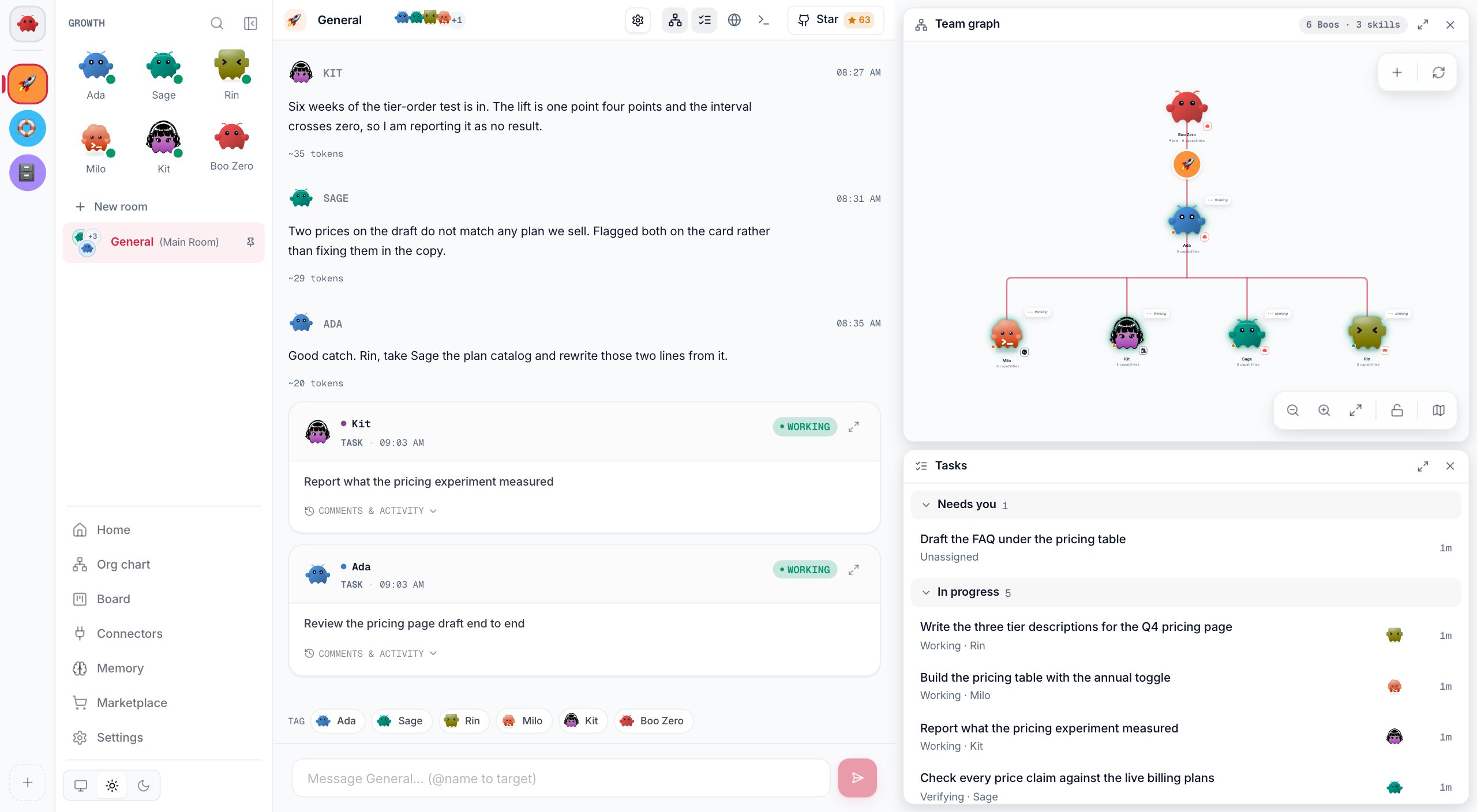
If something goes wrong
Invalid API key.
Invalid API key.
The provider rejected the key. Copy it again from the provider’s key page, check that you picked the matching provider, and click Continue again.
Could not reach the provider
Could not reach the provider
The message reads like “Could not reach openai.” This computer could not reach the provider within 8 seconds, often because of a proxy, a firewall or no network. Fix the connection and try again. If you are sure the key is right, Continue anyway saves it without the check.
Ollama isn't answering.
Ollama isn't answering.
Start Ollama (open the Ollama app, or run
ollama serve), then click Continue again. Don’t have Ollama? The screen links to its download.Ollama is running, but has no chat model yet.
Ollama is running, but has no chat model yet.
Run
ollama pull llama3.2, then click Check again. Embedding-only models can’t run agents. If the screen says Ollama doesn’t have the model you picked, run the ollama pull command it shows, then click Check again.Install Codex fails
Install Codex fails
The panel shows the install output and the reason. A permission error means npm can’t write to its global folder: run the
sudo command the message suggests in a terminal yourself. Then click the API key card and Sign in with ChatGPT again, so the panel checks for Codex once more.The browser didn't open
The browser didn't open
Open the address the terminal printed after “Clawboo opened at”, usually
http://localhost:18790.The team doesn't answer
The team doesn't answer
Look for an error message in the chat first; it usually names the problem. Then check that your provider is still connected: a key or your ChatGPT subscription in Settings → Providers, or Ollama (which must be running) on Clawboo Native in Settings → Runtimes. Also look in Needs you on the Board for work waiting on you. Troubleshooting covers more cases.
Next steps
- Work with your first team: find the results, steer a task and stop work.
- Tour the dashboard: the sidebar, Settings and the other views.
- Providers and runtimes: add more keys, or Claude Code, Codex, Hermes and OpenClaw teammates.
- Run Clawboo without an API key: Ollama and ChatGPT sign-in in more depth.
- Budgets and spend: watch what your team spends.