Deploy a marketing or research team from the marketplace, give it rules, steer its tasks, repeat the job weekly and copy out what it writes.
This recipe sets up a small marketing team that writes for you: a blog post, social posts and search keywords from one request. You deploy a ready-made team, tell it who you are and how you like things done, follow its tasks, correct one while it runs, and have it repeat the job every week. Everything happens in the dashboard; you need no code.The same steps work for a research team. Pick Research Lab instead of Marketing Squad in step 1.What you’ll build
The Marketing Squad team (Content Writer Boo, SEO Analyst Boo and Social Media Manager Boo), led by Boo Zero, the leader who hands work to teammates.
Team rules that every agent follows, and a separate room for social posts.
A weekly routine that asks the team for next week’s posts.
Clawboo is installed and onboarding is done, with one way to run agents connected: an API key, Sign in with ChatGPT, or a local Ollama model. See the Quickstart, or Run Clawboo without an API key.
If you only signed in with ChatGPT (no API key and no Ollama), you will set every member to Codex in step 1.
Read this before you rely on the team. What an agent can do depends on its runtime, the engine it runs on:
Clawboo Native runs a marketplace team when no OpenClaw Gateway is connected. Its agents plan, write and review using the model’s own knowledge and whatever you give them. They read the team’s board and share a team memory. In team chat they can read and write files only in the team’s own folder, and they cannot browse the web, open your other files, or send and post anything. Connectors add those abilities.
OpenClaw agents use the tools your OpenClaw Gateway gives them.
Claude Code, Codex and Hermes agents bring their own tools for commands and files, and run with their own approval prompts turned off. Read What agents can do before you put one on a team.
The skills a catalog agent lists, such as web-search or email-draft, describe its role. They do not give it a working tool.Nobody checks writing work automatically. A task that finishes in team chat goes to Done without a verification step, so read what the team wrote before you publish it. See How work is checked.
In the sidebar, click Marketplace, then the Teams tab.
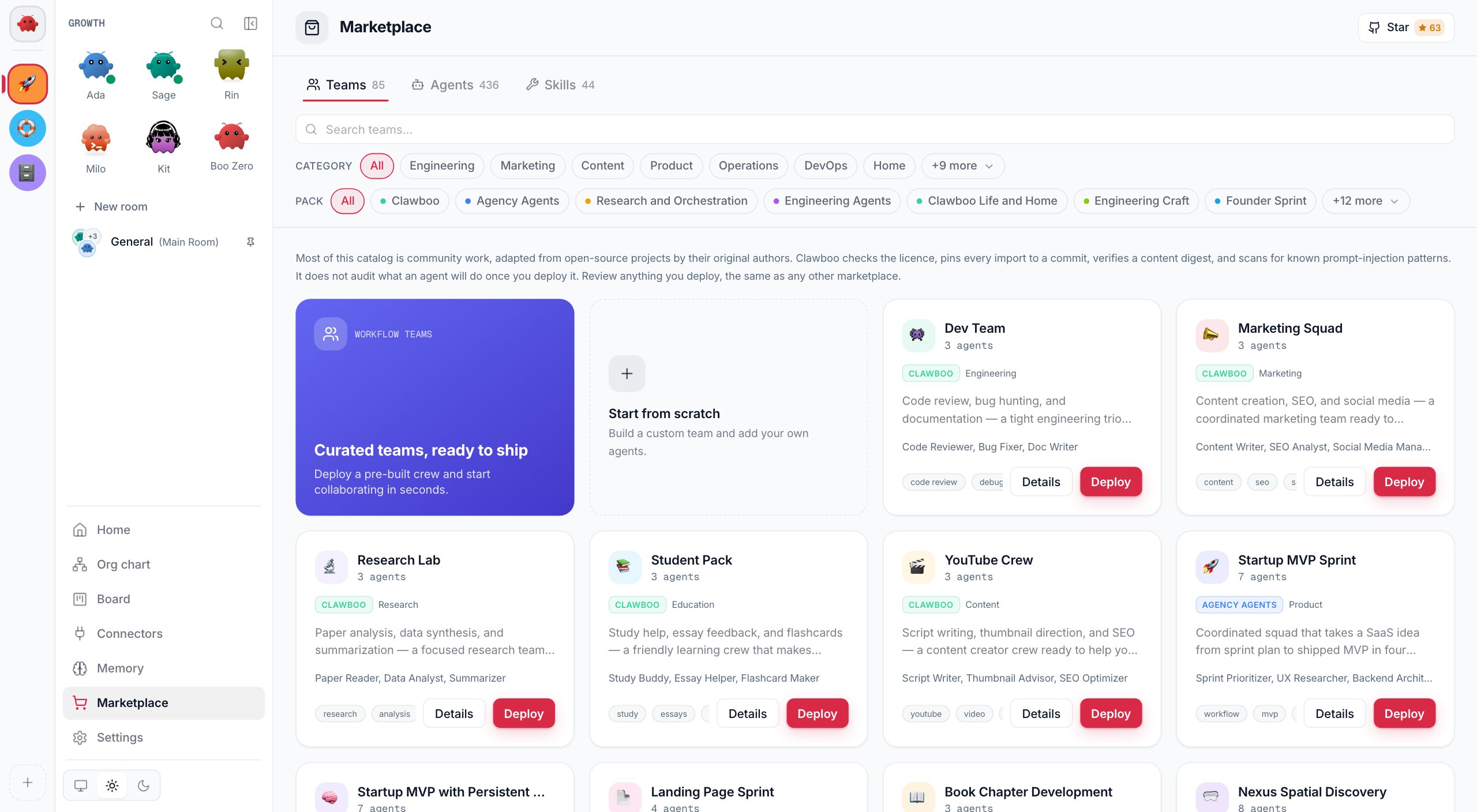
Find Marketing Squad. Search for it, or pick the Marketing category. Click Details to see its three members, then Deploy.
Customize team opens. Each member’s row has a runtime menu. Keep the suggestions, or pick a runtime per member (see Mix runtimes on one team).
Click Deploy team.
You should see Team deployed!, and then the team’s General chat opens.With no OpenClaw Gateway connected, each row reads OpenClaw unavailable · using Clawboo Native. That is expected: the team runs on Clawboo Native. If you only signed in with ChatGPT, set every row to Codex before you click Deploy team, because Clawboo Native needs an API key or Ollama. A member’s runtime cannot be changed after the deploy.
The Teams tab of the Marketplace. Marketing Squad and Research Lab are built in, so they are there even offline.
2
Meet your team and introduce yourself
On the Meet your team card, click Get Started. Then write a few lines about you and the work: your company, your audience, the voice you want, and what you need help with. Click Continue to Team Space.You should see the General chat, with the Team graph and Tasks cards beside it. Your introduction is saved with the team and goes into every turn its agents take.
3
Set the team's rules
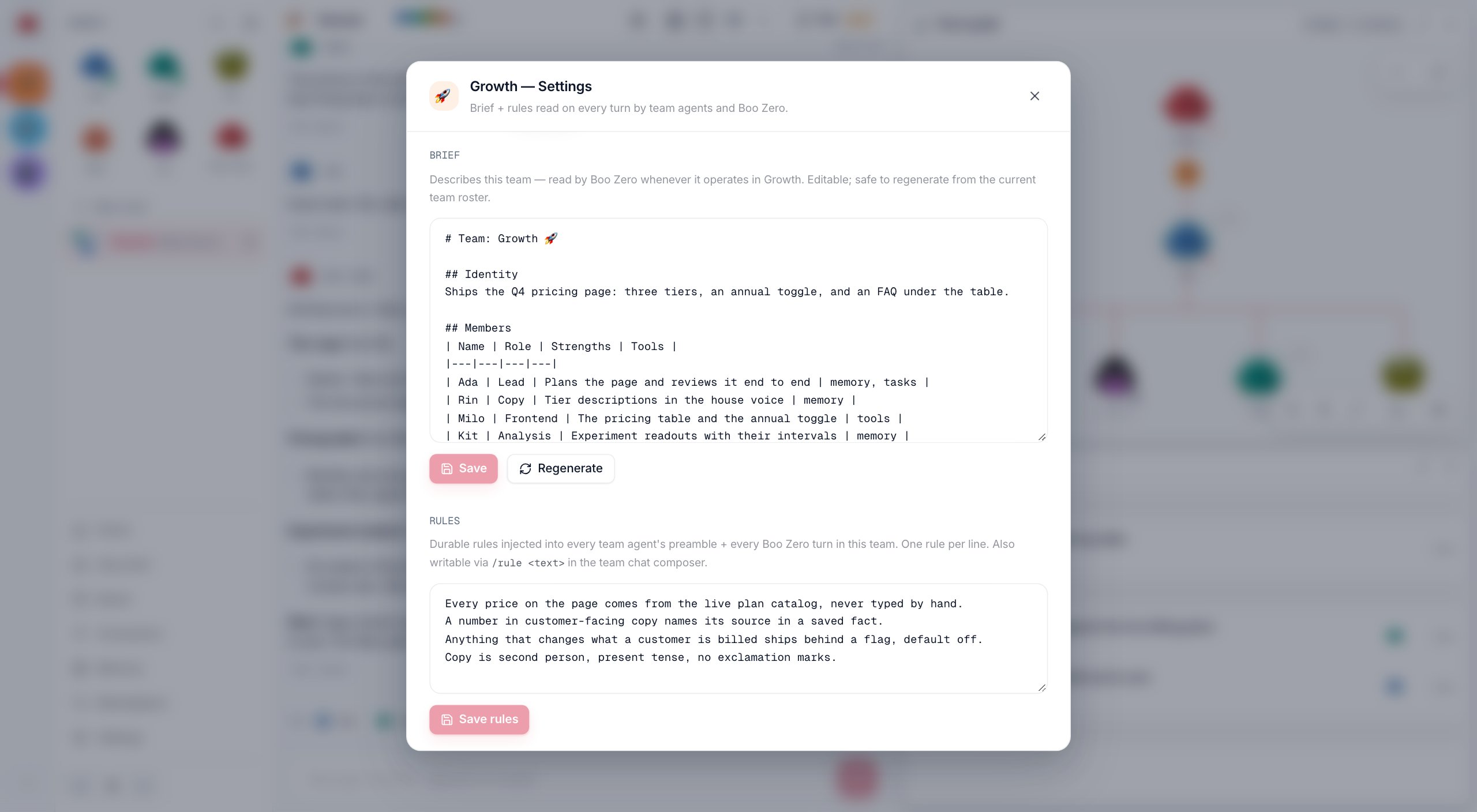
At the top of the chat, click the gear button. Its label is the team’s name followed by “brief & rules”.
Under Rules, write one rule per line, for example:
Write in British English.Our readers are owners of small cafes.Never invent statistics. Say when a number needs a source.
Click Save rules.
You should see “Team rules saved.” The rules go into every turn of every agent and of Boo Zero in this team.To add one rule without opening the sheet, type /rule and the rule in the chat box, for example /rule Keep posts under 150 words, and press Enter. You should see “Team rule saved.”The Brief in the same sheet describes the team. Boo Zero reads it only when you start a message in Boo Zero’s own chat with @ and the team’s name. Team chat turns use your rules and your introduction instead, so put anything the team must follow in the rules.
The brief and rules sheet. Save rules applies them from the team's next turn.
4
Ask for the work in General
Type the request in the chat box and press Enter. Say exactly what you want back:
Write a 600-word blog post announcing our new weekend brunch menu, three LinkedIn posts that link to it, and five search keywords to target.
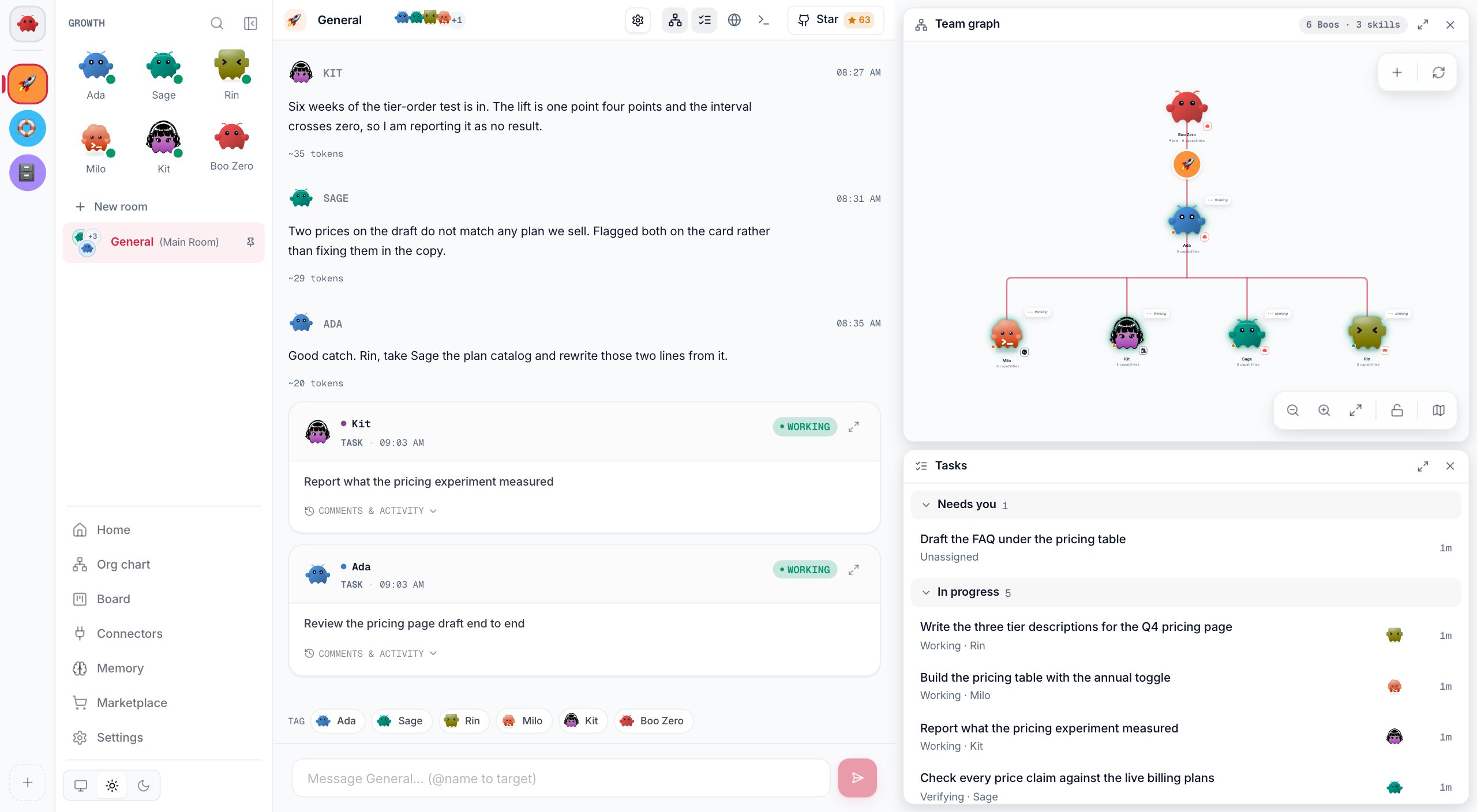
Boo Zero answers simple questions itself. For work like this it hands parts to teammates. Each hand-off appears as a task card in the chat and in the Tasks card, where it moves from To do to In progress to Done. While the team works, the Send button turns into Stop. When the tasks are done, Boo Zero posts one short summary.You should see one or more task cards, each naming the teammate doing it.
A team's General chat with its Team graph and Tasks cards.
5
Open a room for focused work (optional)
In the sidebar, at the top of the team’s chats, click New room.
Name it, for example “Social posts”. Under Members, tick Social Media Manager Boo. Click Create room.
The room opens as its own chat. Boo Zero leads it and hands work only to the members you picked. The team’s rules, brief and memory are shared with General, and the room’s tasks still appear on the team’s board.
6
Follow a task and steer it while it runs
In the Tasks card, click a task under In progress. If the card is closed, click Show tasks at the top of the chat.
Read Latest report and Progress to see where it is.
In the Comment or steer this task… box, type a correction, for example “Keep it under 500 words and leave out prices”. Click Send.
The line beside Send says when the agent sees your comment. On most runtimes it reads ”… gets this now, before its next step”; a Hermes agent pauses to read it, then carries on. You should see a note under your comment such as “Sent to Content Writer Boo’s run”.For a task that failed or was stopped, sending a comment starts its agent on it again, and the agent reads your comment as the run begins. To see every task the team has, click Board in the sidebar. Its columns are Needs you, Backlog, To do, In progress, Done and Cancelled. See Board.
7
Repeat the job every week
Open Settings (Cmd/Ctrl + ,). Under Workspace, click Routines, then New routine.
Choose A team task, and pick Marketing Squad under Team.
Under What should happen, write the request, for example “Draft next week’s three LinkedIn posts from this week’s blog post, and suggest one topic for the next post.”
Give it a Name, such as “Weekly posts”, and pick Weekly · Mon 9am under Runs. Click Create routine.
You should see the routine under Team routines. Every Monday at 9:00, in the time zone of the computer running Clawboo, it posts your instructions in General as “Routine · Weekly posts”, and Boo Zero takes it from there. To try it now, open the routine and click Run now.Clawboo must be running for a routine to fire. A run that was due while Clawboo was not running fires once when it starts again. A run that fails stops the routine until you resume it. See Routines.
8
Find and copy the results
Boo Zero’s summary is in the chat where you asked.
Each teammate’s full write-up is on its task. In the Tasks card, click the task and read Output. On the Board, click the card and read the agent’s report.
Facts the team saved are under Memory in the sidebar.
To copy a result, select the text and copy it (Cmd/Ctrl + C). There is no export button.
Deploy Research Lab (Paper Reader Boo, Data Analyst Boo, Summarizer Boo). Paste the text you want read: on Clawboo Native the team cannot open links, or files outside its team folder.
A bigger catalog
Online, the marketplace adds teams such as SEO Content Studio, Writing Room and Market Intelligence Unit. Offline it shows only the five built-in teams.
Web search or your own apps
On the Connectors page, connect a tool such as Exa Search (web search, needs an Exa API key) or Composio (Gmail, Slack and more), and give your agents access. See Connectors.
Every member reads OpenClaw unavailable · using Clawboo Native
What it means: a marketplace team suggests OpenClaw, and no OpenClaw Gateway is connected, so each member falls back to Clawboo Native.Fix: nothing, if Clawboo Native is what you want. To run the members on OpenClaw, set up OpenClaw first (see OpenClaw), then deploy the team.
Every reply or task fails as soon as it starts
What it means: the members run on a runtime that is not connected, for example Clawboo Native with no API key and no Ollama.Fix:
On the Board, click Retry on each failed task in Needs you.
If that runtime cannot be connected, delete the team with Delete with agents (see Teams) and deploy it again with each member on a connected runtime. A member’s runtime cannot be changed after the deploy.
The team makes up facts, or says it cannot browse
What it means: on Clawboo Native the agents have no web access, so they answer from the model’s own knowledge.Fix: paste the source material into your request, or connect a search connector such as Exa Search and give your agents access.
I can't type in General, and the Send button says Stop
What it means: the team is still working on your last request.Fix: to change a task while it runs, comment on it in the Tasks card. To end every run in this chat, click Stop. Stopped tasks wait in Needs you on the Board.
The weekly routine did not run
What it means: Clawboo has not been running since the routine was due (it runs once when Clawboo starts again), or an earlier run failed and stopped the routine.Fix: open Settings > Routines and look at the routine’s status. If it failed, read the error, then click Resume. Click Run now to test it.
A team from the catalog is missing
What it means: the marketplace could not load the online catalog and shows “Showing the built-in teams only.”Fix: check your network connection and click Try again.
{"docsConfig":{"theme":"maple","$schema":"https://mintlify.com/docs.json","name":"Clawboo","description":"Free, open-source (MIT) dashboard for running a team of AI agents on your own computer.","colors":{"primary":"#dc2a48","light":"#e94560","dark":"#e94560"},"logo":{"light":"https://mintcdn.com/privatedocs/KagrIjR9kVtZJZDf/logo/light.svg?fit=max\u0026auto=format\u0026n=KagrIjR9kVtZJZDf\u0026q=85\u0026s=2285f19733ee1931c30ac151426ab9d2","dark":"https://mintcdn.com/privatedocs/KagrIjR9kVtZJZDf/logo/dark.svg?fit=max\u0026auto=format\u0026n=KagrIjR9kVtZJZDf\u0026q=85\u0026s=b7cb49ca4d40191c10a3319c3d71761c","href":"/"},"favicon":"https://mintcdn.com/privatedocs/n8IFZQQwzCSArT5C/favicon.svg?fit=max\u0026auto=format\u0026n=n8IFZQQwzCSArT5C\u0026q=85\u0026s=3ea2b9b6163e2131d76deaad8aa0c5e4","appearance":{"default":"system"},"background":{"decoration":"gradient","color":{"light":"#f8fafc","dark":"#0a0e1a"}},"navbar":{"links":[{"href":"https://github.com/clawboo/clawboo","type":"github"}],"primary":{"type":"button","label":"Star on GitHub","href":"https://github.com/clawboo/clawboo"}},"footer":{"socials":{"github":"https://github.com/clawboo/clawboo","website":"https://www.claw.boo"},"links":[{"header":"Product","items":[{"label":"Install","href":"https://www.npmjs.com/package/clawboo"},{"label":"Website","href":"https://www.claw.boo"},{"label":"Changelog","href":"/appendices/changelog"}]},{"header":"Docs","items":[{"label":"Quickstart","href":"/getting-started/quickstart"},{"label":"How it works","href":"/concepts/index"},{"label":"REST API","href":"/reference/rest-api/index"}]},{"header":"Community","items":[{"label":"GitHub","href":"https://github.com/clawboo/clawboo"},{"label":"Contributing","href":"/appendices/contributing"},{"label":"License","href":"/appendices/license-and-notices"}]}]},"search":{"prompt":"Search the Clawboo docs"},"fonts":{"heading":{"family":"Cabinet Grotesk","weight":800,"source":"fonts/CabinetGrotesk-Extrabold.woff2","format":"woff2"},"body":{"family":"DM Sans"}},"icons":{"library":"lucide"},"styling":{"eyebrows":"breadcrumbs","codeblocks":{"theme":"github-dark"},"latex":true},"errors":{"404":{"redirect":false,"title":"We could not find that page","description":"Try search, start with the [quickstart](/getting-started/quickstart), or read the [troubleshooting guide](/help/troubleshooting)."}},"contextual":{"options":["copy","view","chatgpt","claude","mcp","cursor","vscode",{"title":"Report a problem with this page","description":"Open a docs issue on GitHub with this page filled in","icon":"github","href":{"base":"https://github.com/clawboo/clawboo/issues/new","query":[{"key":"template","value":"docs_issue.yml"},{"key":"page","value":"$path"}]}}],"display":"header"},"metadata":{"timestamp":true},"navigation":{"global":{"anchors":[{"anchor":"Discussions","icon":"messages-square","href":"https://github.com/clawboo/clawboo/discussions"},{"anchor":"Changelog","icon":"history","href":"/appendices/changelog"}]},"pages":[]}},"deployment":{"deploymentMetadataValue":{"subdomain":"privatedocs","hasAudioNarration":false,"actualSubdomain":"privatedocs","customDomains":["docs.claw.boo"],"gitSource":{"type":"github","owner":"clawboo","repo":"clawboo","deployBranch":"main","contentDirectory":"docs","isPrivate":false,"mountPath":"","label":""},"chroma":{"collectionId":"c59bbbfc-bddb-4b55-83c0-d137a1501dd0","liveDeploymentHistoryId":"6ae693ca3e428d6b587d4f1e","schemaVersion":"v3","latestBuiltDeploymentHistoryId":"6ae693ca3e428d6b587d4f1e"},"feedback":{"edits":true},"entitlements":{"AI_CHAT":{"status":"ENABLED"}},"buildId":"6ae693ca3e428d6b587d4f1e","clientVersion":"0.0.4044","searchFilterCounts":[{"language":"default","tag":"Reference","count":39},{"language":"default","tag":"Use Clawboo","count":32},{"language":"default","tag":"Contribute","count":27},{"language":"default","tag":"REST API","count":19},{"language":"default","tag":"How it works","count":16},{"language":"default","tag":"Start here","count":12},{"language":"default","tag":"Packages","count":12},{"language":"default","tag":"Runtimes","count":12},{"language":"default","tag":"Building blocks","count":11},{"language":"default","tag":"Help","count":10}]},"assistantConfig":{"enableAskAiButton":false,"enableStarterQuestions":false,"enableContextualStarterQuestions":false,"enableAskAiSearchBar":true},"basePath":"","hasChatPermissions":true,"hasWebMcpPermissions":false,"toggles":[{"name":"kill-isr","enabled":true,"variant":{"name":"disabled","enabled":false,"feature_enabled":true},"impressionData":false},{"name":"agent-mintlify-slack","enabled":true,"variant":{"name":"disabled","enabled":false,"feature_enabled":true},"impressionData":false},{"name":"agent-integrations-settings","enabled":true,"variant":{"name":"disabled","enabled":false,"feature_enabled":true},"impressionData":false},{"name":"automations-pr-grouping","enabled":true,"variant":{"name":"disabled","enabled":false,"feature_enabled":true},"impressionData":false},{"name":"custom-prefix","enabled":true,"variant":{"name":"disabled","enabled":false,"feature_enabled":true},"impressionData":false},{"name":"analytics-v7","enabled":true,"variant":{"name":"disabled","enabled":false,"feature_enabled":true},"impressionData":false},{"name":"user-flows-analytics","enabled":true,"variant":{"name":"disabled","enabled":false,"feature_enabled":true},"impressionData":false},{"name":"no-publish-flow","enabled":true,"variant":{"name":"disabled","enabled":false,"feature_enabled":true},"impressionData":false},{"name":"workos-onboarding","enabled":true,"variant":{"name":"disabled","enabled":false,"feature_enabled":true},"impressionData":false},{"name":"llms-txt-v2","enabled":true,"variant":{"name":"disabled","enabled":false,"feature_enabled":true},"impressionData":false},{"name":"snapshot-serving-live","enabled":true,"variant":{"name":"disabled","enabled":false,"feature_enabled":true},"impressionData":false},{"name":"stripTemperatureMiddleware","enabled":true,"variant":{"name":"disabled","enabled":false,"feature_enabled":true},"impressionData":false},{"name":"support-platform-pylon-zendesk","enabled":true,"variant":{"name":"disabled","enabled":false,"feature_enabled":true},"impressionData":false},{"name":"snapshot-serving","enabled":true,"variant":{"name":"disabled","enabled":false,"feature_enabled":true},"impressionData":false},{"name":"instant-rollback","enabled":true,"variant":{"name":"disabled","enabled":false,"feature_enabled":true},"impressionData":false},{"name":"granular-notifications-server","enabled":true,"variant":{"name":"disabled","enabled":false,"feature_enabled":true},"impressionData":false},{"name":"granular-notifications","enabled":true,"variant":{"name":"disabled","enabled":false,"feature_enabled":true},"impressionData":false},{"name":"automations-fable","enabled":true,"variant":{"name":"disabled","enabled":false,"feature_enabled":true},"impressionData":false},{"name":"fixed-ai-action-pricing","enabled":true,"variant":{"name":"disabled","enabled":false,"feature_enabled":true},"impressionData":false},{"name":"automation-resolve-merge-conflict","enabled":true,"variant":{"name":"disabled","enabled":false,"feature_enabled":true},"impressionData":false},{"name":"scoped-publishing","enabled":true,"variant":{"name":"disabled","enabled":false,"feature_enabled":true},"impressionData":false},{"name":"mintql","enabled":true,"variant":{"name":"disabled","enabled":false,"feature_enabled":true},"impressionData":false},{"name":"page-level-analytics","enabled":true,"variant":{"name":"disabled","enabled":false,"feature_enabled":true},"impressionData":false},{"name":"editor-version-history-v2","enabled":true,"variant":{"name":"disabled","enabled":false,"feature_enabled":true},"impressionData":false},{"name":"billing-page-v2","enabled":true,"variant":{"name":"disabled","enabled":false,"feature_enabled":true},"impressionData":false},{"name":"full-page-search","enabled":true,"variant":{"name":"disabled","enabled":false,"feature_enabled":true},"impressionData":false},{"name":"workspace-projects","enabled":true,"variant":{"name":"disabled","enabled":false,"feature_enabled":true},"impressionData":false},{"name":"assistant-v5","enabled":true,"variant":{"name":"disabled","enabled":false,"feature_enabled":true},"impressionData":false},{"name":"byok-sep-25","enabled":true,"variant":{"name":"disabled","enabled":false,"feature_enabled":true},"impressionData":false},{"name":"fork-pr-previews","enabled":true,"variant":{"name":"disabled","enabled":false,"feature_enabled":true},"impressionData":false},{"name":"revalidation-jwt","enabled":true,"variant":{"name":"disabled","enabled":false,"feature_enabled":true},"impressionData":false},{"name":"vite-origin","enabled":true,"variant":{"name":"disabled","enabled":false,"feature_enabled":true},"impressionData":false},{"name":"billing-updated-9-15","enabled":true,"variant":{"name":"disabled","enabled":false,"feature_enabled":true},"impressionData":false},{"name":"workos-sso-scim","enabled":true,"variant":{"name":"disabled","enabled":false,"feature_enabled":true},"impressionData":false},{"name":"hobby-abuse-scan","enabled":true,"variant":{"name":"disabled","enabled":false,"feature_enabled":true},"impressionData":false},{"name":"dashboard-inbox","enabled":true,"variant":{"name":"disabled","enabled":false,"feature_enabled":true},"impressionData":false},{"name":"workos-signup","enabled":true,"variant":{"name":"disabled","enabled":false,"feature_enabled":true},"impressionData":false},{"name":"turbopuffer-dual-write","enabled":true,"variant":{"name":"disabled","enabled":false,"feature_enabled":true},"impressionData":false},{"name":"workos-enabled","enabled":true,"variant":{"name":"disabled","enabled":false,"feature_enabled":true},"impressionData":false},{"name":"approve-review-flow","enabled":true,"variant":{"name":"disabled","enabled":false,"feature_enabled":true},"impressionData":false},{"name":"sso-setup-deadline-banner","enabled":true,"variant":{"name":"disabled","enabled":false,"feature_enabled":true},"impressionData":false}],"googleFontsInlined":true},"customCss":[{"filePath":"style.css","content":"@font-face{font-family:'Geist Mono';src:url(/fonts/GeistMono-Variable.woff2) format('woff2');font-weight:100 900;font-display:swap}:root{--clawboo-accent:#dc2a48;--clawboo-hairline:rgb(15 23 42 / 0.08);--clawboo-code-radius:10px;--clawboo-ease:cubic-bezier(0.4, 0, 0.2, 1)}.dark{--clawboo-accent:#e94560;--clawboo-hairline:rgb(255 255 255 / 0.08)}#content h2,#content h3{letter-spacing:-.02em}#content h1{letter-spacing:-.025em}#content code,code,pre code{font-family:'Geist Mono',ui-monospace,SFMono-Regular,monospace;font-feature-settings:'tnum' 1}#content h2{margin-top:3rem}#content h3{margin-top:2rem}#content :not(pre)>code{border:1px solid var(--clawboo-hairline);border-radius:6px;padding:.1em .4em}#sidebar a:hover{transition:background 150ms var(--clawboo-ease)}#content .card,#content [class*=card]{transition:transform 150ms var(--clawboo-ease),box-shadow 150ms var(--clawboo-ease),border-color 150ms var(--clawboo-ease)}#content td{font-variant-numeric:tabular-nums}:focus-visible{outline:2px solid var(--clawboo-accent);outline-offset:2px}#content img{border-radius:12px;border:1px solid var(--clawboo-hairline);box-shadow:0 1px 2px rgb(15 23 42/.06),0 12px 32px -16px rgb(15 23 42/.18)}.dark #content img{box-shadow:0 1px 2px rgb(0 0 0/.5),0 16px 40px -16px rgb(0 0 0/.6)}#sidebar li[id='https://github.com/clawboo/clawboo']>a{justify-content:center;align-items:center;gap:.5rem;background:var(--clawboo-accent);color:#fff!important;font-weight:600;border-radius:10px;padding:9px 14px;margin-top:4px;box-shadow:0 1px 2px rgb(15 23 42/.14);transition:filter 150ms var(--clawboo-ease),transform 150ms var(--clawboo-ease)}#sidebar li[id='https://github.com/clawboo/clawboo']>a:hover{color:#fff!important;filter:brightness(1.08);transform:translateY(-1px)}#sidebar li[id='https://github.com/clawboo/clawboo']>a svg{color:#fff;opacity:.9}@media (min-width:1280px){#sidebar{z-index:31}#sidebar>ul{position:fixed;top:0;right:1.5rem;left:auto;bottom:auto;width:auto;height:3rem;display:flex;align-items:center;gap:1rem;padding:0;margin:0;background:0 0;border:0;z-index:40}#sidebar>ul>li{padding:0;white-space:nowrap}#sidebar li[id='https://github.com/clawboo/clawboo']>a{margin-top:0;padding:6px 13px;font-size:.8125rem;border-radius:8px}}"}],"page":{"pagePath":"guides/content-team","slug":"/guides/content-team","pageMetadata":{"title":"Run a content or research team","sidebarTitle":"Content team","description":"Deploy a marketing or research team from the marketplace, give it rules, steer its tasks, repeat the job weekly and copy out what it writes.","icon":"pen-line","keywords":["marketing team","research team","Marketing Squad","Research Lab","weekly report","no code"],"href":"/guides/content-team"},"description":{"compiledSource":"\"use strict\";\nconst {jsx: _jsx} = arguments[0];\nconst {useMDXComponents: _provideComponents} = arguments[0];\nfunction _createMdxContent(props) {\n const _components = {\n p: \"p\",\n ..._provideComponents(),\n ...props.components\n };\n return _jsx(_components.p, {\n children: \"Deploy a marketing or research team from the marketplace, give it rules, steer its tasks, repeat the job weekly and copy out what it writes.\"\n });\n}\nfunction MDXContent(props = {}) {\n const {wrapper: MDXLayout} = {\n ..._provideComponents(),\n ...props.components\n };\n return MDXLayout ? _jsx(MDXLayout, {\n ...props,\n children: _jsx(_createMdxContent, {\n ...props\n })\n }) : _createMdxContent(props);\n}\nreturn {\n default: MDXContent\n};\n","frontmatter":{},"scope":{}},"pageType":"default","mdx":{"mdxSource":{"compiledSource":"\"use strict\";const{Fragment:_Fragment,jsx:_jsx,jsxs:_jsxs}=arguments[0];const{useMDXComponents:_provideComponents}=arguments[0];function _createMdxContent(props){const _components={a:`a`,code:`code`,li:`li`,ol:`ol`,p:`p`,pre:`pre`,span:`span`,strong:`strong`,tbody:`tbody`,td:`td`,th:`th`,thead:`thead`,tr:`tr`,ul:`ul`,..._provideComponents(),...props.components},{Accordion,AccordionGroup,CodeBlock,Frame,Heading,OptimizedImage,Step,Steps,Table}=_components;if(!Accordion)_missingMdxReference(`Accordion`,true);if(!AccordionGroup)_missingMdxReference(`AccordionGroup`,true);if(!CodeBlock)_missingMdxReference(`CodeBlock`,true);if(!Frame)_missingMdxReference(`Frame`,true);if(!Heading)_missingMdxReference(`Heading`,true);if(!OptimizedImage)_missingMdxReference(`OptimizedImage`,true);if(!Step)_missingMdxReference(`Step`,true);if(!Steps)_missingMdxReference(`Steps`,true);if(!Table)_missingMdxReference(`Table`,true);return _jsxs(_Fragment,{children:[_jsx(_components.p,{children:`This recipe sets up a small marketing team that writes for you: a blog post, social posts and search keywords from one request. You deploy a ready-made team, tell it who you are and how you like things done, follow its tasks, correct one while it runs, and have it repeat the job every week. Everything happens in the dashboard; you need no code.`}),`\n`,_jsxs(_components.p,{children:[`The same steps work for a research team. Pick `,_jsx(_components.strong,{children:`Research Lab`}),` instead of `,_jsx(_components.strong,{children:`Marketing Squad`}),` in step 1.`]}),`\n`,_jsx(_components.p,{children:_jsx(_components.strong,{children:`What you’ll build`})}),`\n`,_jsxs(_components.ul,{children:[`\n`,_jsxs(_components.li,{children:[`The `,_jsx(_components.strong,{children:`Marketing Squad`}),` team (Content Writer Boo, SEO Analyst Boo and Social Media Manager Boo), led by Boo Zero, the leader who hands work to teammates.`]}),`\n`,_jsx(_components.li,{children:`Team rules that every agent follows, and a separate room for social posts.`}),`\n`,_jsx(_components.li,{children:`A weekly routine that asks the team for next week’s posts.`}),`\n`]}),`\n`,_jsxs(_components.p,{children:[_jsx(_components.strong,{children:`Time:`}),` about 20 minutes.`]}),`\n`,_jsx(Heading,{level:`2`,id:`before-you-begin`,children:`Before you begin`}),`\n`,_jsxs(_components.ul,{children:[`\n`,_jsxs(_components.li,{children:[`Clawboo is installed and onboarding is done, with one way to run agents connected: an API key, `,_jsx(_components.strong,{children:`Sign in with ChatGPT`}),`, or a local Ollama model. See the `,_jsx(_components.a,{href:`/getting-started/quickstart`,children:`Quickstart`}),`, or `,_jsx(_components.a,{href:`/guides/no-api-key`,children:`Run Clawboo without an API key`}),`.`]}),`\n`,_jsxs(_components.li,{children:[`If you only signed in with ChatGPT (no API key and no Ollama), you will set every member to `,_jsx(_components.strong,{children:`Codex`}),` in step 1.`]}),`\n`]}),`\n`,_jsx(Heading,{level:`2`,id:`what-this-team-can-and-cannot-do`,children:`What this team can and cannot do`}),`\n`,_jsx(_components.p,{children:`Read this before you rely on the team. What an agent can do depends on its runtime, the engine it runs on:`}),`\n`,_jsxs(_components.ul,{children:[`\n`,_jsxs(_components.li,{children:[_jsx(_components.strong,{children:`Clawboo Native`}),` runs a marketplace team when no OpenClaw Gateway is connected. Its agents plan, write and review using the model’s own knowledge and whatever you give them. They read the team’s board and share a team memory. In team chat they can read and write files only in the team’s own folder, and they cannot browse the web, open your other files, or send and post anything. `,_jsx(_components.a,{href:`/using/connectors`,children:`Connectors`}),` add those abilities.`]}),`\n`,_jsxs(_components.li,{children:[_jsx(_components.strong,{children:`OpenClaw`}),` agents use the tools your OpenClaw Gateway gives them.`]}),`\n`,_jsxs(_components.li,{children:[_jsx(_components.strong,{children:`Claude Code, Codex and Hermes`}),` agents bring their own tools for commands and files, and run with their own approval prompts turned off. Read `,_jsx(_components.a,{href:`/concepts/permissions`,children:`What agents can do`}),` before you put one on a team.`]}),`\n`]}),`\n`,_jsxs(_components.p,{children:[`The skills a catalog agent lists, such as `,_jsx(_components.code,{children:`web-search`}),` or `,_jsx(_components.code,{children:`email-draft`}),`, describe its role. They do not give it a working tool.`]}),`\n`,_jsxs(_components.p,{children:[`Nobody checks writing work automatically. A task that finishes in team chat goes to `,_jsx(_components.strong,{children:`Done`}),` without a verification step, so read what the team wrote before you publish it. See `,_jsx(_components.a,{href:`/concepts/verification`,children:`How work is checked`}),`.`]}),`\n`,_jsx(Heading,{level:`2`,id:`steps`,children:`Steps`}),`\n`,_jsxs(Steps,{children:[_jsxs(Step,{title:`Deploy the Marketing Squad`,children:[_jsxs(_components.ol,{children:[`\n`,_jsxs(_components.li,{children:[`In the sidebar, click `,_jsx(_components.strong,{children:`Marketplace`}),`, then the `,_jsx(_components.strong,{children:`Teams`}),` tab.`]}),`\n`,_jsxs(_components.li,{children:[`Find `,_jsx(_components.strong,{children:`Marketing Squad`}),`. Search for it, or pick the `,_jsx(_components.strong,{children:`Marketing`}),` category. Click `,_jsx(_components.strong,{children:`Details`}),` to see its three members, then `,_jsx(_components.strong,{children:`Deploy`}),`.`]}),`\n`,_jsxs(_components.li,{children:[_jsx(_components.strong,{children:`Customize team`}),` opens. Each member’s row has a runtime menu. Keep the suggestions, or pick a runtime per member (see `,_jsx(_components.a,{href:`/guides/multi-runtime-team`,children:`Mix runtimes on one team`}),`).`]}),`\n`,_jsxs(_components.li,{children:[`Click `,_jsx(_components.strong,{children:`Deploy team`}),`.`]}),`\n`]}),_jsxs(_components.p,{children:[`You should see `,_jsx(_components.strong,{children:`Team deployed!`}),`, and then the team’s `,_jsx(_components.strong,{children:`General`}),` chat opens.`]}),_jsxs(_components.p,{children:[`With no OpenClaw Gateway connected, each row reads `,_jsx(_components.strong,{children:`OpenClaw unavailable · using Clawboo Native`}),`. That is expected: the team runs on Clawboo Native. If you only signed in with ChatGPT, set every row to `,_jsx(_components.strong,{children:`Codex`}),` before you click `,_jsx(_components.strong,{children:`Deploy team`}),`, because Clawboo Native needs an API key or Ollama. A member’s runtime cannot be changed after the deploy.`]}),_jsx(Frame,{caption:`The Teams tab of the Marketplace. Marketing Squad and Research Lab are built in, so they are there even offline.`,children:_jsx(OptimizedImage,{src:`https://mintcdn.com/privatedocs/6H-VHke03QIa-oHL/images/team-gallery.png?fit=max\u0026auto=format\u0026n=6H-VHke03QIa-oHL\u0026q=85\u0026s=8a66172b8d46c009793cf4c2513f41a5`,alt:`The Marketplace Teams tab with team cards, each with Details and Deploy buttons`,\"data-og-width\":`2560`,width:`2560`,\"data-og-height\":`1408`,height:`1408`,\"data-path\":`images/team-gallery.png`,\"data-optimize\":`true`,\"data-opv\":`3`,srcset:`https://mintcdn.com/privatedocs/6H-VHke03QIa-oHL/images/team-gallery.png?w=280\u0026fit=max\u0026auto=format\u0026n=6H-VHke03QIa-oHL\u0026q=85\u0026s=626e597329d63c49f9946493a259afec 280w, https://mintcdn.com/privatedocs/6H-VHke03QIa-oHL/images/team-gallery.png?w=560\u0026fit=max\u0026auto=format\u0026n=6H-VHke03QIa-oHL\u0026q=85\u0026s=a16c8e6cf3d37ebf7ed21e6acdd147a1 560w, https://mintcdn.com/privatedocs/6H-VHke03QIa-oHL/images/team-gallery.png?w=840\u0026fit=max\u0026auto=format\u0026n=6H-VHke03QIa-oHL\u0026q=85\u0026s=f1747faa11717e55a33e9c562590416f 840w, https://mintcdn.com/privatedocs/6H-VHke03QIa-oHL/images/team-gallery.png?w=1100\u0026fit=max\u0026auto=format\u0026n=6H-VHke03QIa-oHL\u0026q=85\u0026s=6f7b1ef8b52b6270d4feae8a6c5b066e 1100w, https://mintcdn.com/privatedocs/6H-VHke03QIa-oHL/images/team-gallery.png?w=1650\u0026fit=max\u0026auto=format\u0026n=6H-VHke03QIa-oHL\u0026q=85\u0026s=4a1e444683485418a7b2cee0f88c8d2d 1650w, https://mintcdn.com/privatedocs/6H-VHke03QIa-oHL/images/team-gallery.png?w=2500\u0026fit=max\u0026auto=format\u0026n=6H-VHke03QIa-oHL\u0026q=85\u0026s=cd0f55a4c01a6276d3ec9802c76b908f 2500w`})})]}),_jsxs(Step,{title:`Meet your team and introduce yourself`,children:[_jsxs(_components.p,{children:[`On the `,_jsx(_components.strong,{children:`Meet your team`}),` card, click `,_jsx(_components.strong,{children:`Get Started`}),`. Then write a few lines about you and the work: your company, your audience, the voice you want, and what you need help with. Click `,_jsx(_components.strong,{children:`Continue to Team Space`}),`.`]}),_jsxs(_components.p,{children:[`You should see the `,_jsx(_components.strong,{children:`General`}),` chat, with the `,_jsx(_components.strong,{children:`Team graph`}),` and `,_jsx(_components.strong,{children:`Tasks`}),` cards beside it. Your introduction is saved with the team and goes into every turn its agents take.`]})]}),_jsxs(Step,{title:`Set the team's rules`,children:[_jsxs(_components.ol,{children:[`\n`,_jsxs(_components.li,{children:[`\n`,_jsx(_components.p,{children:`At the top of the chat, click the gear button. Its label is the team’s name followed by “brief \u0026 rules”.`}),`\n`]}),`\n`,_jsxs(_components.li,{children:[`\n`,_jsxs(_components.p,{children:[`Under `,_jsx(_components.strong,{children:`Rules`}),`, write one rule per line, for example:`]}),`\n`,_jsx(CodeBlock,{filename:``,numberOfLines:`4`,language:`text`,children:_jsx(_components.pre,{className:`shiki shiki-themes github-dark github-dark`,style:{backgroundColor:`#24292e`,\"--shiki-dark-bg\":`#24292e`,color:`#e1e4e8`,\"--shiki-dark\":`#e1e4e8`},language:`text`,children:_jsxs(_components.code,{language:`text`,numberOfLines:`4`,children:[_jsx(_components.span,{className:`line`,children:_jsx(_components.span,{children:`Write in British English.`})}),`\n`,_jsx(_components.span,{className:`line`,children:_jsx(_components.span,{children:`Our readers are owners of small cafes.`})}),`\n`,_jsx(_components.span,{className:`line`,children:_jsx(_components.span,{children:`Never invent statistics. Say when a number needs a source.`})}),`\n`,_jsx(_components.span,{className:`line`,children:_jsx(_components.span,{})})]})})}),`\n`]}),`\n`,_jsxs(_components.li,{children:[`\n`,_jsxs(_components.p,{children:[`Click `,_jsx(_components.strong,{children:`Save rules`}),`.`]}),`\n`]}),`\n`]}),_jsx(_components.p,{children:`You should see “Team rules saved.” The rules go into every turn of every agent and of Boo Zero in this team.`}),_jsxs(_components.p,{children:[`To add one rule without opening the sheet, type `,_jsx(_components.code,{children:`/rule`}),` and the rule in the chat box, for example `,_jsx(_components.code,{children:`/rule Keep posts under 150 words`}),`, and press Enter. You should see “Team rule saved.”`]}),_jsxs(_components.p,{children:[`The `,_jsx(_components.strong,{children:`Brief`}),` in the same sheet describes the team. Boo Zero reads it only when you start a message in Boo Zero’s own chat with `,_jsx(_components.code,{children:`@`}),` and the team’s name. Team chat turns use your rules and your introduction instead, so put anything the team must follow in the rules.`]}),_jsx(Frame,{caption:`The brief and rules sheet. Save rules applies them from the team's next turn.`,children:_jsx(OptimizedImage,{src:`https://mintcdn.com/privatedocs/6H-VHke03QIa-oHL/images/team-brief-rules.png?fit=max\u0026auto=format\u0026n=6H-VHke03QIa-oHL\u0026q=85\u0026s=d1288a89f78913bef451605b564344b9`,alt:`The team settings sheet with a Brief text box and a Rules text box`,\"data-og-width\":`2560`,width:`2560`,\"data-og-height\":`1408`,height:`1408`,\"data-path\":`images/team-brief-rules.png`,\"data-optimize\":`true`,\"data-opv\":`3`,srcset:`https://mintcdn.com/privatedocs/6H-VHke03QIa-oHL/images/team-brief-rules.png?w=280\u0026fit=max\u0026auto=format\u0026n=6H-VHke03QIa-oHL\u0026q=85\u0026s=a4b05ad4451a78ae72eb45a99c830877 280w, https://mintcdn.com/privatedocs/6H-VHke03QIa-oHL/images/team-brief-rules.png?w=560\u0026fit=max\u0026auto=format\u0026n=6H-VHke03QIa-oHL\u0026q=85\u0026s=6b5b1bdc8a6627e8308c87d435510214 560w, https://mintcdn.com/privatedocs/6H-VHke03QIa-oHL/images/team-brief-rules.png?w=840\u0026fit=max\u0026auto=format\u0026n=6H-VHke03QIa-oHL\u0026q=85\u0026s=0404c853b748603850bed5384fef7074 840w, https://mintcdn.com/privatedocs/6H-VHke03QIa-oHL/images/team-brief-rules.png?w=1100\u0026fit=max\u0026auto=format\u0026n=6H-VHke03QIa-oHL\u0026q=85\u0026s=08b3ce49546462055a7ecb67cfa7e6ed 1100w, https://mintcdn.com/privatedocs/6H-VHke03QIa-oHL/images/team-brief-rules.png?w=1650\u0026fit=max\u0026auto=format\u0026n=6H-VHke03QIa-oHL\u0026q=85\u0026s=a3355b5d13bc1309283a4a502f81b73b 1650w, https://mintcdn.com/privatedocs/6H-VHke03QIa-oHL/images/team-brief-rules.png?w=2500\u0026fit=max\u0026auto=format\u0026n=6H-VHke03QIa-oHL\u0026q=85\u0026s=897cd0f637ae7100be61417f7f2a27a8 2500w`})})]}),_jsxs(Step,{title:`Ask for the work in General`,children:[_jsx(_components.p,{children:`Type the request in the chat box and press Enter. Say exactly what you want back:`}),_jsx(CodeBlock,{filename:``,numberOfLines:`2`,language:`text`,children:_jsx(_components.pre,{className:`shiki shiki-themes github-dark github-dark`,style:{backgroundColor:`#24292e`,\"--shiki-dark-bg\":`#24292e`,color:`#e1e4e8`,\"--shiki-dark\":`#e1e4e8`},language:`text`,children:_jsxs(_components.code,{language:`text`,numberOfLines:`2`,children:[_jsx(_components.span,{className:`line`,children:_jsx(_components.span,{children:`Write a 600-word blog post announcing our new weekend brunch menu, three LinkedIn posts that link to it, and five search keywords to target.`})}),`\n`,_jsx(_components.span,{className:`line`,children:_jsx(_components.span,{})})]})})}),_jsxs(_components.p,{children:[`Boo Zero answers simple questions itself. For work like this it hands parts to teammates. Each hand-off appears as a task card in the chat and in the `,_jsx(_components.strong,{children:`Tasks`}),` card, where it moves from `,_jsx(_components.strong,{children:`To do`}),` to `,_jsx(_components.strong,{children:`In progress`}),` to `,_jsx(_components.strong,{children:`Done`}),`. While the team works, the `,_jsx(_components.strong,{children:`Send`}),` button turns into `,_jsx(_components.strong,{children:`Stop`}),`. When the tasks are done, Boo Zero posts one short summary.`]}),_jsx(_components.p,{children:`You should see one or more task cards, each naming the teammate doing it.`}),_jsx(Frame,{caption:`A team's General chat with its Team graph and Tasks cards.`,children:_jsx(OptimizedImage,{src:`https://mintcdn.com/privatedocs/6H-VHke03QIa-oHL/images/team-space.png?fit=max\u0026auto=format\u0026n=6H-VHke03QIa-oHL\u0026q=85\u0026s=c6bed9e50135bba92df482a1ddf6cd8d`,alt:`A team chat with agent messages and task cards on the left, and the Team graph and Tasks cards on the right`,\"data-og-width\":`2560`,width:`2560`,\"data-og-height\":`1408`,height:`1408`,\"data-path\":`images/team-space.png`,\"data-optimize\":`true`,\"data-opv\":`3`,srcset:`https://mintcdn.com/privatedocs/6H-VHke03QIa-oHL/images/team-space.png?w=280\u0026fit=max\u0026auto=format\u0026n=6H-VHke03QIa-oHL\u0026q=85\u0026s=8777882608fd41d13a42136360b087d1 280w, https://mintcdn.com/privatedocs/6H-VHke03QIa-oHL/images/team-space.png?w=560\u0026fit=max\u0026auto=format\u0026n=6H-VHke03QIa-oHL\u0026q=85\u0026s=e4eb59cd7a2515e658689ef8bc35df13 560w, https://mintcdn.com/privatedocs/6H-VHke03QIa-oHL/images/team-space.png?w=840\u0026fit=max\u0026auto=format\u0026n=6H-VHke03QIa-oHL\u0026q=85\u0026s=80e2b1e2985e6f43d9142668c8da041d 840w, https://mintcdn.com/privatedocs/6H-VHke03QIa-oHL/images/team-space.png?w=1100\u0026fit=max\u0026auto=format\u0026n=6H-VHke03QIa-oHL\u0026q=85\u0026s=176b55c90a7f7cc33e9f85b541ed1c9f 1100w, https://mintcdn.com/privatedocs/6H-VHke03QIa-oHL/images/team-space.png?w=1650\u0026fit=max\u0026auto=format\u0026n=6H-VHke03QIa-oHL\u0026q=85\u0026s=222c0187ae9618c9601939ae737a1ba5 1650w, https://mintcdn.com/privatedocs/6H-VHke03QIa-oHL/images/team-space.png?w=2500\u0026fit=max\u0026auto=format\u0026n=6H-VHke03QIa-oHL\u0026q=85\u0026s=5f5ac05431e25edf9164fdaf6154d886 2500w`})})]}),_jsxs(Step,{title:`Open a room for focused work (optional)`,children:[_jsxs(_components.ol,{children:[`\n`,_jsxs(_components.li,{children:[`In the sidebar, at the top of the team’s chats, click `,_jsx(_components.strong,{children:`New room`}),`.`]}),`\n`,_jsxs(_components.li,{children:[`Name it, for example “Social posts”. Under `,_jsx(_components.strong,{children:`Members`}),`, tick `,_jsx(_components.strong,{children:`Social Media Manager Boo`}),`. Click `,_jsx(_components.strong,{children:`Create room`}),`.`]}),`\n`]}),_jsxs(_components.p,{children:[`The room opens as its own chat. Boo Zero leads it and hands work only to the members you picked. The team’s rules, brief and memory are shared with `,_jsx(_components.strong,{children:`General`}),`, and the room’s tasks still appear on the team’s board.`]})]}),_jsxs(Step,{title:`Follow a task and steer it while it runs`,children:[_jsxs(_components.ol,{children:[`\n`,_jsxs(_components.li,{children:[`In the `,_jsx(_components.strong,{children:`Tasks`}),` card, click a task under `,_jsx(_components.strong,{children:`In progress`}),`. If the card is closed, click `,_jsx(_components.strong,{children:`Show tasks`}),` at the top of the chat.`]}),`\n`,_jsxs(_components.li,{children:[`Read `,_jsx(_components.strong,{children:`Latest report`}),` and `,_jsx(_components.strong,{children:`Progress`}),` to see where it is.`]}),`\n`,_jsxs(_components.li,{children:[`In the `,_jsx(_components.strong,{children:`Comment or steer this task…`}),` box, type a correction, for example “Keep it under 500 words and leave out prices”. Click `,_jsx(_components.strong,{children:`Send`}),`.`]}),`\n`]}),_jsxs(_components.p,{children:[`The line beside `,_jsx(_components.strong,{children:`Send`}),` says when the agent sees your comment. On most runtimes it reads ”… gets this now, before its next step”; a Hermes agent pauses to read it, then carries on. You should see a note under your comment such as “Sent to Content Writer Boo’s run”.`]}),_jsxs(_components.p,{children:[`For a task that failed or was stopped, sending a comment starts its agent on it again, and the agent reads your comment as the run begins. To see every task the team has, click `,_jsx(_components.strong,{children:`Board`}),` in the sidebar. Its columns are `,_jsx(_components.strong,{children:`Needs you`}),`, `,_jsx(_components.strong,{children:`Backlog`}),`, `,_jsx(_components.strong,{children:`To do`}),`, `,_jsx(_components.strong,{children:`In progress`}),`, `,_jsx(_components.strong,{children:`Done`}),` and `,_jsx(_components.strong,{children:`Cancelled`}),`. See `,_jsx(_components.a,{href:`/using/board`,children:`Board`}),`.`]})]}),_jsxs(Step,{title:`Repeat the job every week`,children:[_jsxs(_components.ol,{children:[`\n`,_jsxs(_components.li,{children:[`Open `,_jsx(_components.strong,{children:`Settings`}),` (`,_jsx(_components.code,{children:`Cmd/Ctrl + ,`}),`). Under `,_jsx(_components.strong,{children:`Workspace`}),`, click `,_jsx(_components.strong,{children:`Routines`}),`, then `,_jsx(_components.strong,{children:`New routine`}),`.`]}),`\n`,_jsxs(_components.li,{children:[`Choose `,_jsx(_components.strong,{children:`A team task`}),`, and pick `,_jsx(_components.strong,{children:`Marketing Squad`}),` under `,_jsx(_components.strong,{children:`Team`}),`.`]}),`\n`,_jsxs(_components.li,{children:[`Under `,_jsx(_components.strong,{children:`What should happen`}),`, write the request, for example “Draft next week’s three LinkedIn posts from this week’s blog post, and suggest one topic for the next post.”`]}),`\n`,_jsxs(_components.li,{children:[`Give it a `,_jsx(_components.strong,{children:`Name`}),`, such as “Weekly posts”, and pick `,_jsx(_components.strong,{children:`Weekly · Mon 9am`}),` under `,_jsx(_components.strong,{children:`Runs`}),`. Click `,_jsx(_components.strong,{children:`Create routine`}),`.`]}),`\n`]}),_jsxs(_components.p,{children:[`You should see the routine under `,_jsx(_components.strong,{children:`Team routines`}),`. Every Monday at 9:00, in the time zone of the computer running Clawboo, it posts your instructions in `,_jsx(_components.strong,{children:`General`}),` as “Routine · Weekly posts”, and Boo Zero takes it from there. To try it now, open the routine and click `,_jsx(_components.strong,{children:`Run now`}),`.`]}),_jsxs(_components.p,{children:[`Clawboo must be running for a routine to fire. A run that was due while Clawboo was not running fires once when it starts again. A run that fails stops the routine until you resume it. See `,_jsx(_components.a,{href:`/using/routines`,children:`Routines`}),`.`]})]}),_jsxs(Step,{title:`Find and copy the results`,children:[_jsxs(_components.ul,{children:[`\n`,_jsxs(_components.li,{children:[_jsx(_components.strong,{children:`Boo Zero’s summary`}),` is in the chat where you asked.`]}),`\n`,_jsxs(_components.li,{children:[_jsx(_components.strong,{children:`Each teammate’s full write-up`}),` is on its task. In the `,_jsx(_components.strong,{children:`Tasks`}),` card, click the task and read `,_jsx(_components.strong,{children:`Output`}),`. On the `,_jsx(_components.strong,{children:`Board`}),`, click the card and read the agent’s report.`]}),`\n`,_jsxs(_components.li,{children:[_jsx(_components.strong,{children:`Facts the team saved`}),` are under `,_jsx(_components.strong,{children:`Memory`}),` in the sidebar.`]}),`\n`]}),_jsxs(_components.p,{children:[`To copy a result, select the text and copy it (`,_jsx(_components.code,{children:`Cmd/Ctrl + C`}),`). There is no export button.`]})]})]}),`\n`,_jsx(Heading,{level:`2`,id:`check-that-it-worked`,children:`Check that it worked`}),`\n`,_jsxs(_components.ul,{children:[`\n`,_jsxs(_components.li,{children:[_jsx(_components.strong,{children:`General`}),` shows your request, the teammates’ task cards and Boo Zero’s summary.`]}),`\n`,_jsxs(_components.li,{children:[`The `,_jsx(_components.strong,{children:`Tasks`}),` card lists the tasks under `,_jsx(_components.strong,{children:`Done`}),`.`]}),`\n`,_jsx(_components.li,{children:`A task’s detail names the runtime that ran it and its cost. A cost Clawboo estimated rather than received from the provider is marked “est.”.`}),`\n`,_jsxs(_components.li,{children:[_jsx(_components.strong,{children:`Settings`}),` > `,_jsx(_components.strong,{children:`Routines`}),` lists your routine under `,_jsx(_components.strong,{children:`Team routines`}),`.`]}),`\n`]}),`\n`,_jsx(Heading,{level:`2`,id:`variations`,children:`Variations`}),`\n`,_jsxs(Table,{children:[_jsx(_components.thead,{children:_jsxs(_components.tr,{children:[_jsx(_components.th,{children:`You want`}),_jsx(_components.th,{children:`Do this`})]})}),_jsxs(_components.tbody,{children:[_jsxs(_components.tr,{children:[_jsx(_components.td,{children:`A research team`}),_jsxs(_components.td,{children:[`Deploy `,_jsx(_components.strong,{children:`Research Lab`}),` (Paper Reader Boo, Data Analyst Boo, Summarizer Boo). Paste the text you want read: on Clawboo Native the team cannot open links, or files outside its team folder.`]})]}),_jsxs(_components.tr,{children:[_jsx(_components.td,{children:`A bigger catalog`}),_jsxs(_components.td,{children:[`Online, the marketplace adds teams such as `,_jsx(_components.strong,{children:`SEO Content Studio`}),`, `,_jsx(_components.strong,{children:`Writing Room`}),` and `,_jsx(_components.strong,{children:`Market Intelligence Unit`}),`. Offline it shows only the five built-in teams.`]})]}),_jsxs(_components.tr,{children:[_jsx(_components.td,{children:`Web search or your own apps`}),_jsxs(_components.td,{children:[`On the `,_jsx(_components.strong,{children:`Connectors`}),` page, connect a tool such as `,_jsx(_components.strong,{children:`Exa Search`}),` (web search, needs an Exa API key) or `,_jsx(_components.strong,{children:`Composio`}),` (Gmail, Slack and more), and give your agents access. See `,_jsx(_components.a,{href:`/using/connectors`,children:`Connectors`}),`.`]})]}),_jsxs(_components.tr,{children:[_jsx(_components.td,{children:`No API key`}),_jsxs(_components.td,{children:[`Run the team on a local Ollama model or on your ChatGPT plan. See `,_jsx(_components.a,{href:`/guides/no-api-key`,children:`Run Clawboo without an API key`}),`.`]})]}),_jsxs(_components.tr,{children:[_jsx(_components.td,{children:`Different engines for different members`}),_jsxs(_components.td,{children:[`Put a member on Claude Code, Codex, Hermes or OpenClaw. See `,_jsx(_components.a,{href:`/guides/multi-runtime-team`,children:`Mix runtimes on one team`}),`.`]})]}),_jsxs(_components.tr,{children:[_jsx(_components.td,{children:`A spending limit`}),_jsxs(_components.td,{children:[`Set a budget for the team. See `,_jsx(_components.a,{href:`/using/budgets-and-spend`,children:`Budgets and spend`}),`.`]})]})]})]}),`\n`,_jsx(Heading,{level:`2`,id:`troubleshooting`,children:`Troubleshooting`}),`\n`,_jsxs(AccordionGroup,{children:[_jsxs(Accordion,{title:`Every member reads OpenClaw unavailable · using Clawboo Native`,id:`every-member-reads-openclaw-unavailable-using-clawboo-native`,children:[_jsxs(_components.p,{children:[_jsx(_components.strong,{children:`What it means:`}),` a marketplace team suggests OpenClaw, and no OpenClaw Gateway is connected, so each member falls back to Clawboo Native.`]}),_jsxs(_components.p,{children:[_jsx(_components.strong,{children:`Fix:`}),` nothing, if Clawboo Native is what you want. To run the members on OpenClaw, set up OpenClaw first (see `,_jsx(_components.a,{href:`/runtimes/openclaw`,children:`OpenClaw`}),`), then deploy the team.`]})]}),_jsxs(Accordion,{title:`Every reply or task fails as soon as it starts`,id:`every-reply-or-task-fails-as-soon-as-it-starts`,children:[_jsxs(_components.p,{children:[_jsx(_components.strong,{children:`What it means:`}),` the members run on a runtime that is not connected, for example Clawboo Native with no API key and no Ollama.`]}),_jsx(_components.p,{children:_jsx(_components.strong,{children:`Fix:`})}),_jsxs(_components.ol,{children:[`\n`,_jsxs(_components.li,{children:[`Open `,_jsx(_components.strong,{children:`Settings`}),` > `,_jsx(_components.strong,{children:`Runtimes`}),` and connect the runtime. See `,_jsx(_components.a,{href:`/using/providers-and-runtimes`,children:`Providers and runtimes`}),`.`]}),`\n`,_jsxs(_components.li,{children:[`On the `,_jsx(_components.strong,{children:`Board`}),`, click `,_jsx(_components.strong,{children:`Retry`}),` on each failed task in `,_jsx(_components.strong,{children:`Needs you`}),`.`]}),`\n`]}),_jsxs(_components.p,{children:[`If that runtime cannot be connected, delete the team with `,_jsx(_components.strong,{children:`Delete with agents`}),` (see `,_jsx(_components.a,{href:`/using/teams`,children:`Teams`}),`) and deploy it again with each member on a connected runtime. A member’s runtime cannot be changed after the deploy.`]})]}),_jsxs(Accordion,{title:`The team makes up facts, or says it cannot browse`,id:`the-team-makes-up-facts-or-says-it-cannot-browse`,children:[_jsxs(_components.p,{children:[_jsx(_components.strong,{children:`What it means:`}),` on Clawboo Native the agents have no web access, so they answer from the model’s own knowledge.`]}),_jsxs(_components.p,{children:[_jsx(_components.strong,{children:`Fix:`}),` paste the source material into your request, or connect a search connector such as `,_jsx(_components.strong,{children:`Exa Search`}),` and give your agents access.`]})]}),_jsxs(Accordion,{title:`I can't type in General, and the Send button says Stop`,id:`i-cant-type-in-general-and-the-send-button-says-stop`,children:[_jsxs(_components.p,{children:[_jsx(_components.strong,{children:`What it means:`}),` the team is still working on your last request.`]}),_jsxs(_components.p,{children:[_jsx(_components.strong,{children:`Fix:`}),` to change a task while it runs, comment on it in the `,_jsx(_components.strong,{children:`Tasks`}),` card. To end every run in this chat, click `,_jsx(_components.strong,{children:`Stop`}),`. Stopped tasks wait in `,_jsx(_components.strong,{children:`Needs you`}),` on the `,_jsx(_components.strong,{children:`Board`}),`.`]})]}),_jsxs(Accordion,{title:`The weekly routine did not run`,id:`the-weekly-routine-did-not-run`,children:[_jsxs(_components.p,{children:[_jsx(_components.strong,{children:`What it means:`}),` Clawboo has not been running since the routine was due (it runs once when Clawboo starts again), or an earlier run failed and stopped the routine.`]}),_jsxs(_components.p,{children:[_jsx(_components.strong,{children:`Fix:`}),` open `,_jsx(_components.strong,{children:`Settings`}),` > `,_jsx(_components.strong,{children:`Routines`}),` and look at the routine’s status. If it failed, read the error, then click `,_jsx(_components.strong,{children:`Resume`}),`. Click `,_jsx(_components.strong,{children:`Run now`}),` to test it.`]})]}),_jsxs(Accordion,{title:`A team from the catalog is missing`,id:`a-team-from-the-catalog-is-missing`,children:[_jsxs(_components.p,{children:[_jsx(_components.strong,{children:`What it means:`}),` the marketplace could not load the online catalog and shows “Showing the built-in teams only.”`]}),_jsxs(_components.p,{children:[_jsx(_components.strong,{children:`Fix:`}),` check your network connection and click `,_jsx(_components.strong,{children:`Try again`}),`.`]})]})]}),`\n`,_jsx(Heading,{level:`2`,id:`next-steps`,children:`Next steps`}),`\n`,_jsxs(_components.ul,{children:[`\n`,_jsxs(_components.li,{children:[_jsx(_components.a,{href:`/using/team-chat`,children:`Team chat`}),`: rooms, clearing a chat, and who answers a message.`]}),`\n`,_jsxs(_components.li,{children:[_jsx(_components.a,{href:`/using/board`,children:`Board`}),`: every task, the Needs you column, and steering.`]}),`\n`,_jsxs(_components.li,{children:[_jsx(_components.a,{href:`/using/routines`,children:`Routines`}),`: schedules, pausing, and what happens when a run fails.`]}),`\n`,_jsxs(_components.li,{children:[_jsx(_components.a,{href:`/using/connectors`,children:`Connectors`}),`: give your agents apps and web search.`]}),`\n`,_jsxs(_components.li,{children:[_jsx(_components.a,{href:`/concepts/permissions`,children:`What agents can do`}),`: read this before you add coding agents to a team.`]}),`\n`]})]})}function MDXContent(props={}){const{wrapper:MDXLayout}={..._provideComponents(),...props.components};return MDXLayout?_jsx(MDXLayout,{...props,children:_jsx(_createMdxContent,{...props})}):_createMdxContent(props)}return{default:MDXContent};function _missingMdxReference(id,component){throw new Error(`Expected `+(component?`component`:`object`)+\" `\"+id+\"` to be defined: you likely forgot to import, pass, or provide it.\")}","frontmatter":{},"scope":{"codeStyling":{"theme":"github-dark"},"config":{},"pageMetadata":{"title":"Run a content or research team","sidebarTitle":"Content team","description":"Deploy a marketing or research team from the marketplace, give it rules, steer its tasks, repeat the job weekly and copy out what it writes.","icon":"pen-line","keywords":["marketing team","research team","Marketing Squad","Research Lab","weekly report","no code"],"href":"/guides/content-team"}}},"mdxSourceWithNoJs":null},"mdxExtracts":{"tableOfContents":[{"title":"Before you begin","slug":"before-you-begin","depth":2,"children":[]},{"title":"What this team can and cannot do","slug":"what-this-team-can-and-cannot-do","depth":2,"children":[]},{"title":"Steps","slug":"steps","depth":2,"children":[]},{"title":"Check that it worked","slug":"check-that-it-worked","depth":2,"children":[]},{"title":"Variations","slug":"variations","depth":2,"children":[]},{"title":"Troubleshooting","slug":"troubleshooting","depth":2,"children":[]},{"title":"Next steps","slug":"next-steps","depth":2,"children":[]}],"codeExamples":{}},"jsLinks":[],"subdomain":"privatedocs","siteName":"Clawboo","title":"Run a content or research team - Clawboo","navMaps":{"firstHrefInVersion":{},"firstHrefInLanguage":{}},"lastModified":"2026-10-31T16:04:04.664Z","gitLastModified":"2026-10-31T16:03:55.000Z","originalFileLocation":"guides/content-team.md"},"headHtml":"\u003cscript data-mint-head>(function(){var d=document.documentElement,p=null;if(!p){try{p=localStorage.getItem(\"isDarkMode\")}catch(e){}if(p==='true')p='dark';else if(p==='false')p='light';if(p!=='light'\u0026\u0026p!=='dark'\u0026\u0026p!=='system')p=\"system\"}var r=p==='system'?(matchMedia(\"(prefers-color-scheme: dark)\").matches?'dark':'light'):p;d.classList.remove(r==='dark'?'light':'dark');d.classList.add(r);d.setAttribute(\"data-theme-preference\",p)})();\u003c/script>\u003cmeta data-mint-head name=\"description\" content=\"Deploy a marketing or research team from the marketplace, give it rules, steer its tasks, repeat the job weekly and copy out what it writes.\">\u003cmeta data-mint-head name=\"application-name\" content=\"Clawboo\">\u003cmeta data-mint-head name=\"generator\" content=\"Mintlify\">\u003clink data-mint-head rel=\"icon\" type=\"image/png\" sizes=\"192x192\" href=\"/mintlify-assets/_mintlify/favicons/privatedocs/O9RKD2KksrEMIcLX/_generated/favicon/android-chrome-192x192.png\" media=\"(prefers-color-scheme: light)\">\u003clink data-mint-head rel=\"apple-touch-icon\" type=\"image/png\" sizes=\"180x180\" href=\"/mintlify-assets/_mintlify/favicons/privatedocs/O9RKD2KksrEMIcLX/_generated/favicon/apple-touch-icon.png\">\u003clink data-mint-head rel=\"icon\" type=\"image/png\" sizes=\"16x16\" href=\"/mintlify-assets/_mintlify/favicons/privatedocs/O9RKD2KksrEMIcLX/_generated/favicon/favicon-16x16.png\" media=\"(prefers-color-scheme: light)\">\u003clink data-mint-head rel=\"icon\" type=\"image/png\" sizes=\"32x32\" href=\"/mintlify-assets/_mintlify/favicons/privatedocs/O9RKD2KksrEMIcLX/_generated/favicon/favicon-32x32.png\" media=\"(prefers-color-scheme: light)\">\u003clink data-mint-head rel=\"shortcut icon\" type=\"image/x-icon\" href=\"/mintlify-assets/_mintlify/favicons/privatedocs/O9RKD2KksrEMIcLX/_generated/favicon/favicon.ico\" media=\"(prefers-color-scheme: light)\">\u003clink data-mint-head rel=\"icon\" type=\"image/png\" sizes=\"192x192\" href=\"/mintlify-assets/_mintlify/favicons/privatedocs/O9RKD2KksrEMIcLX/_generated/favicon-dark/android-chrome-192x192.png\" media=\"(prefers-color-scheme: dark)\">\u003clink data-mint-head rel=\"icon\" type=\"image/png\" sizes=\"16x16\" href=\"/mintlify-assets/_mintlify/favicons/privatedocs/O9RKD2KksrEMIcLX/_generated/favicon-dark/favicon-16x16.png\" media=\"(prefers-color-scheme: dark)\">\u003clink data-mint-head rel=\"icon\" type=\"image/png\" sizes=\"32x32\" href=\"/mintlify-assets/_mintlify/favicons/privatedocs/O9RKD2KksrEMIcLX/_generated/favicon-dark/favicon-32x32.png\" media=\"(prefers-color-scheme: dark)\">\u003clink data-mint-head rel=\"shortcut icon\" type=\"image/x-icon\" href=\"/mintlify-assets/_mintlify/favicons/privatedocs/O9RKD2KksrEMIcLX/_generated/favicon-dark/favicon.ico\" media=\"(prefers-color-scheme: dark)\">\u003cmeta data-mint-head property=\"og:title\" content=\"Run a content or research team - Clawboo\">\u003cmeta data-mint-head property=\"og:description\" content=\"Deploy a marketing or research team from the marketplace, give it rules, steer its tasks, repeat the job weekly and copy out what it writes.\">\u003cmeta data-mint-head property=\"og:site_name\" content=\"Clawboo\">\u003cmeta data-mint-head property=\"og:url\" content=\"https://docs.claw.boo/guides/content-team\">\u003cmeta data-mint-head property=\"og:type\" content=\"website\">\u003cmeta data-mint-head property=\"og:image\" content=\"https://privatedocs.mintlify.app/_mintlify/api/og/v2?division=Recipes\u0026amp;title=Run+a+content+or+research+team\u0026amp;description=Deploy+a+marketing+or+research+team+from+the+marketplace%2C+give+it+rules%2C+steer+its+tasks%2C+repeat+the+job+weekly+and+copy+out+what+it+writes.\u0026amp;theme=e1b85ca83752395204693112\u0026amp;signature=f78bea620164346f211d6e2bd685d9724ee44ee2646d0fdbdaf0cfc01acefc3f\">\u003cmeta data-mint-head property=\"og:image:width\" content=\"1200\">\u003cmeta data-mint-head property=\"og:image:height\" content=\"630\">\u003cmeta data-mint-head name=\"twitter:card\" content=\"summary_large_image\">\u003cmeta data-mint-head name=\"twitter:title\" content=\"Run a content or research team - Clawboo\">\u003cmeta data-mint-head name=\"twitter:description\" content=\"Deploy a marketing or research team from the marketplace, give it rules, steer its tasks, repeat the job weekly and copy out what it writes.\">\u003cmeta data-mint-head name=\"twitter:image\" content=\"https://privatedocs.mintlify.app/_mintlify/api/og/v2?division=Recipes\u0026amp;title=Run+a+content+or+research+team\u0026amp;description=Deploy+a+marketing+or+research+team+from+the+marketplace%2C+give+it+rules%2C+steer+its+tasks%2C+repeat+the+job+weekly+and+copy+out+what+it+writes.\u0026amp;theme=e1b85ca83752395204693112\u0026amp;signature=f78bea620164346f211d6e2bd685d9724ee44ee2646d0fdbdaf0cfc01acefc3f\">\u003cmeta data-mint-head name=\"twitter:image:width\" content=\"1200\">\u003cmeta data-mint-head name=\"twitter:image:height\" content=\"630\">\u003cmeta data-mint-head name=\"msapplication-config\" content=\"/mintlify-assets/_mintlify/favicons/privatedocs/O9RKD2KksrEMIcLX/_generated/favicon/browserconfig.xml\">\u003cmeta data-mint-head name=\"apple-mobile-web-app-title\" content=\"Clawboo\">\u003cmeta data-mint-head name=\"msapplication-TileColor\" content=\"#dc2a48\">\u003clink data-mint-head rel=\"canonical\" href=\"https://docs.claw.boo/guides/content-team\">\u003clink data-mint-head rel=\"alternate\" type=\"application/xml\" href=\"/sitemap.xml\">\u003clink data-mint-head rel=\"alternate\" type=\"text/markdown\" href=\"/guides/content-team.md\">\u003cscript data-mint-head type=\"application/ld+json\">{\"@context\":\"https://schema.org\",\"@graph\":[{\"@type\":\"Organization\",\"@id\":\"https://docs.claw.boo/#organization\",\"name\":\"Clawboo\",\"url\":\"https://docs.claw.boo\",\"logo\":{\"@type\":\"ImageObject\",\"url\":\"https://mintcdn.com/privatedocs/KagrIjR9kVtZJZDf/logo/light.svg?fit=max\u0026auto=format\u0026n=KagrIjR9kVtZJZDf\u0026q=85\u0026s=2285f19733ee1931c30ac151426ab9d2\"}},{\"@type\":\"WebSite\",\"@id\":\"https://docs.claw.boo#website\",\"name\":\"Clawboo\",\"url\":\"https://docs.claw.boo\",\"publisher\":{\"@id\":\"https://docs.claw.boo/#organization\"}},{\"@type\":\"WebPage\",\"@id\":\"https://docs.claw.boo/guides/content-team#webpage\",\"url\":\"https://docs.claw.boo/guides/content-team\",\"name\":\"Run a content or research team\",\"description\":\"Deploy a marketing or research team from the marketplace, give it rules, steer its tasks, repeat the job weekly and copy out what it writes.\",\"dateModified\":\"2026-10-31T16:03:55.000Z\",\"isPartOf\":{\"@id\":\"https://docs.claw.boo#website\"},\"breadcrumb\":{\"@id\":\"https://docs.claw.boo/guides/content-team#breadcrumb\"}},{\"@type\":\"BreadcrumbList\",\"@id\":\"https://docs.claw.boo/guides/content-team#breadcrumb\",\"itemListElement\":[{\"@type\":\"ListItem\",\"position\":1,\"name\":\"Recipes\",\"item\":\"https://docs.claw.boo/guides/index\"},{\"@type\":\"ListItem\",\"position\":2,\"name\":\"Run a content or research team\",\"item\":\"https://docs.claw.boo/guides/content-team\"}]},{\"@type\":[\"Article\",\"TechArticle\"],\"@id\":\"https://docs.claw.boo/guides/content-team#article\",\"headline\":\"Run a content or research team\",\"name\":\"Run a content or research team\",\"description\":\"Deploy a marketing or research team from the marketplace, give it rules, steer its tasks, repeat the job weekly and copy out what it writes.\",\"url\":\"https://docs.claw.boo/guides/content-team\",\"mainEntityOfPage\":{\"@id\":\"https://docs.claw.boo/guides/content-team#webpage\"},\"dateModified\":\"2026-10-31T16:03:55.000Z\",\"keywords\":\"marketing team, research team, Marketing Squad, Research Lab, weekly report, no code\",\"publisher\":{\"@id\":\"https://docs.claw.boo/#organization\"},\"isPartOf\":{\"@id\":\"https://docs.claw.boo#website\"}}]}\u003c/script>\u003cscript data-mint-head type=\"application/ld+json\">{\"@context\":\"https://schema.org\",\"@type\":\"WebSite\",\"name\":\"Clawboo\",\"creator\":{\"@type\":\"Organization\",\"name\":\"Mintlify\",\"url\":\"https://mintlify.com\"}}\u003c/script>","siteName":"Clawboo","nav":{"global":{"anchors":[{"anchor":"Discussions","icon":"messages-square","href":"https://github.com/clawboo/clawboo/discussions"},{"anchor":"Changelog","icon":"history","href":"/appendices/changelog"}]},"tabs":[{"tab":"Get started","icon":"rocket","pages":[{"title":"Get started","href":"/intro"}]},{"tab":"Use Clawboo","icon":"layout-dashboard","groups":[{"group":"Overview","pages":[{"title":"Use Clawboo","sidebarTitle":"Overview","icon":"layout-dashboard","href":"/using"}]},{"group":"Build your team","pages":[{"title":"Create and manage teams","sidebarTitle":"Teams","icon":"users","href":"/using/teams"},{"title":"Browse and deploy from the Marketplace","sidebarTitle":"Marketplace","icon":"shopping-cart","href":"/using/marketplace"},{"title":"Create and edit agents","sidebarTitle":"Agents","icon":"bot","href":"/using/agents"},{"title":"Boo Zero, your team leader","sidebarTitle":"Boo Zero","icon":"compass","href":"/using/boo-zero"}]},{"group":"Work with your team","pages":[{"title":"Work with your team in chat","sidebarTitle":"Team chat","icon":"messages-square","href":"/using/team-chat"},{"title":"Track work on the board","sidebarTitle":"Board","icon":"kanban","href":"/using/board"},{"title":"Org chart and team graphs","sidebarTitle":"Org chart","icon":"network","href":"/using/org-chart"}]},{"group":"Connect AI and tools","pages":[{"title":"Connect providers and runtimes","sidebarTitle":"Providers and runtimes","icon":"plug","href":"/using/providers-and-runtimes"},{"title":"Connect tools to your agents","sidebarTitle":"Connectors","icon":"plug","href":"/using/connectors"},{"title":"See what your agents can use","sidebarTitle":"Capabilities","icon":"puzzle","href":"/using/capabilities"},{"title":"Browse and manage team memory","sidebarTitle":"Memory","icon":"brain","href":"/using/memory"}]},{"group":"Automate","pages":[{"title":"Run work on a schedule with routines","sidebarTitle":"Routines","icon":"repeat","href":"/using/routines"}]},{"group":"Stay in control","pages":[{"title":"Answer approval requests","sidebarTitle":"Approvals","href":"/using/approvals"},{"title":"Control which commands agents can run","sidebarTitle":"Command permissions","href":"/using/command-permissions"},{"title":"Track spend and set budgets","sidebarTitle":"Budgets and spend","href":"/using/budgets-and-spend"}]},{"group":"Monitor and maintain","pages":[{"title":"Check on your agents","sidebarTitle":"Fleet and observability","icon":"activity","href":"/using/observability"},{"title":"Check System Health","sidebarTitle":"System Health","icon":"heart-pulse","href":"/using/system-health"},{"title":"Update and maintain Clawboo","sidebarTitle":"System","icon":"settings","href":"/using/system"},{"title":"Choose a light or dark theme","sidebarTitle":"Theme","icon":"sun-moon","href":"/using/theming"}]},{"group":"Recipes","pages":[{"title":"Recipes","description":"End-to-end walkthroughs that combine several Clawboo features to finish one real job, for people who do not write code and for developers.","icon":"chef-hat","href":"/guides/index"},{"title":"Run a content or research team","sidebarTitle":"Content team","icon":"pen-line","href":"/guides/content-team"},{"title":"Run Clawboo without an API key","sidebarTitle":"No API key","description":"Run your agents on a free local Ollama model or on your ChatGPT plan instead of a pay-per-token API key, and know the limits of each path.","icon":"key-round","href":"/guides/no-api-key"},{"title":"Mix runtimes on one team","sidebarTitle":"Mixed-runtime team","icon":"layers","href":"/guides/multi-runtime-team"},{"title":"Hand a task from one runtime to another","sidebarTitle":"Cross-runtime handoff","icon":"arrow-right-left","href":"/guides/cross-runtime-handoff"}]},{"group":"Self-hosting","pages":[{"title":"Self-hosting overview","sidebarTitle":"Overview","icon":"server","href":"/operating/index"},{"title":"Reach Clawboo from another machine","sidebarTitle":"Remote access","href":"/guides/self-host-securely"},{"title":"Run the Clawboo server","sidebarTitle":"Deployment","href":"/operating/deployment"},{"title":"Security model","sidebarTitle":"Security","href":"/operating/security"},{"title":"Data and state","href":"/operating/data-and-state"},{"title":"MCP servers","href":"/operating/mcp-servers"},{"title":"Production defaults","href":"/operating/production-defaults"}]}]},{"tab":"Runtimes","icon":"cpu","pages":[{"title":"Runtimes","href":"/runtimes"}]},{"tab":"How it works","icon":"lightbulb","pages":[{"title":"How it works","href":"/concepts"}]},{"tab":"Reference","icon":"book-open","pages":[{"title":"Reference","href":"/reference"}]},{"tab":"Help","icon":"life-buoy","pages":[{"title":"Help","href":"/help/troubleshooting"}]},{"tab":"Contribute","icon":"git-pull-request","pages":[{"title":"Contribute","href":"/internals"}]}]},"basePath":"","title":"Run a content or research team - Clawboo","buildId":"dpl_DeHjVRGfFnhYQwHnfC2pjeXXv8h9","deploymentId":"dpl_DeHjVRGfFnhYQwHnfC2pjeXXv8h9","dynamics":["07c022d89b","a74be98ba7"],"chunks":["Frame-DXXFP6nH.js","DynamicMarkdown-B54_zNBF.js","zoom-image-lightbox-BG6oD64b.js","lightbox-handle-r17bVUz3.js"]}