

MEMORY.md or Claude Code’s own memory files, which Clawboo neither shows nor edits. How memory works explains both kinds and how they fit together.
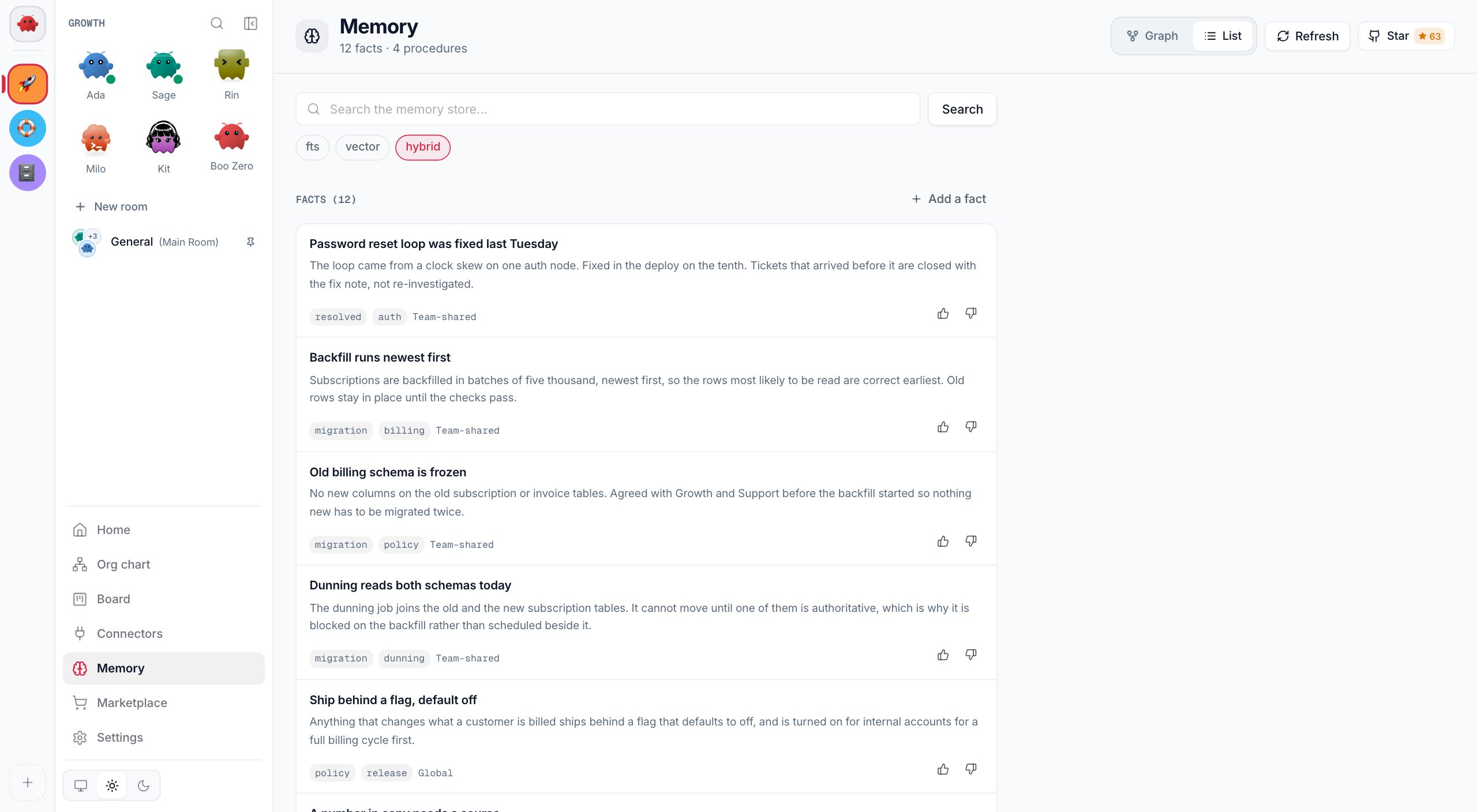
Open Memory
- Sidebar: click Memory, or press Cmd/Ctrl + 4. Memory opens full screen with a Graph | List switch, and your browser remembers the choice.
- Settings: Settings, then Memory under Workspace, shows the list only. Open full view switches to the full-screen Memory.
Search memory
1
Type a query
In the list, type into Search the memory store….
2
Pick a mode
The chips under the box choose how to match:
fts, vector or hybrid (the default). Without an embedding provider the chips are replaced by a line that says why search matches keywords only, and offers the fix when there is one.3
Run it
Press Enter or Search. You get up to 25 results, each with the mode that matched it, a score and the first 240 characters. A query that matches nothing reads No matches.
The list itself shows the 50 most recently updated facts and procedures; search to reach older ones.
Add a fact
Agents write most of the store, but you can add what the whole team should know.1
Open the form
Click Add a fact beside the Facts heading.
2
Fill it in
Enter a Title and the fact itself under What should the team remember?. Both are required. Optionally add Tags, separated by commas.
3
Save it
Click Save fact. The form closes and the fact appears at the top of Facts, marked Global.
Rate a fact
Each fact has Helpful (thumbs up) and Outdated (thumbs down). Agents report the same way when a fact they used turned out right or wrong. Clawboo combines the reports into a status, shown as a pill on the fact:
Newer reports count for more: a report loses half its weight every 30 days. Click a fact to see its recent reports; Full history shows the rest once agents have used it.
The status changes what agents get. Facts marked dead end are left out of the facts Clawboo hands to agents automatically (see What agents remember on their own), though an agent can still find them by searching. preferred facts rank higher, and contested ones arrive with a note to check them.
Fix or remove a fact
You cannot edit or delete a fact, in the dashboard or through the API. To retire a wrong one, mark it Outdated so it stops reaching agents, then add the correct version with Add a fact. Facts live in Clawboo’s database on this machine; see Data and state for where.Explore the memory graph
The Graph view draws each fact as a node, and each procedure as one node however many versions it has. Links show how entries relate; the legend at the bottom left names them:
Connected nodes form clusters, named after their most common tag. The legend lists each cluster with its size; untick one to hide it.
- Search (top left) dims everything that does not match as you type. Enter runs a full search, highlights the hits and their neighbors, and opens the top hit.
- The inspector (right) shows the selected entry’s text, kind, scope and neighbors. For a fact it also has Helpful, Outdated and Full history.
- Filters (top right): scope (All, Global, Team, Agent), age (All, 24h, 7d, 30d; older nodes fade rather than vanish), and Community hulls, which draws or hides the cluster outlines.
Who can see a fact
An agent on a team reads its team’s facts, its own and the global ones, never another team’s. OpenClaw agents read and save global facts only, because Clawboo cannot tell which OpenClaw agent is asking.
What agents remember on their own
Nothing is saved automatically: an agent saves a fact when it decides to, with the Memory tool. What Clawboo hands an agent without being asked depends on how the agent is working:
Routine runs and team chat run work in two different ways; How a team works explains both.
Turn on similarity search
An embedding is a numeric fingerprint of a fact’s text. Embeddings power similar links,vector and hybrid search, and better matching for the facts handed to a run. Everything else in Memory works without them, using keyword search.
Clawboo picks an embedding provider in this order:
- Ollama on this machine, at
http://localhost:11434, with thenomic-embed-textmodel installed. Fact text stays on this machine. - An OpenAI key, exported as
OPENAI_API_KEYor added under Providers. Fact text and every memory search, including the recall at the start of a run, are then sent to OpenAI. - None: keyword search only.
1
Install and start Ollama
Install Ollama on the machine that runs Clawboo and start it.
2
Install the model
In Memory, press Install model in the note that says the model is missing. It downloads a few hundred megabytes through Ollama and shows progress; Cancel stops it. Running
ollama pull nomic-embed-text in a terminal does the same.3
Wait for indexing
Within about a minute, Clawboo notices the model and indexes your facts in the background (Indexing N facts). When it finishes, similar links appear in the graph.
http://localhost:11434; the OLLAMA_BASE_URL setting that Clawboo Native chat uses does not apply here. To keep memory on keyword search, set CLAWBOO_DISABLE_EMBEDDINGS=1 before you start Clawboo.
Two rules keep your facts from leaving the machine by surprise. Once any fact has been indexed by Ollama, Clawboo never switches to OpenAI on its own, even while Ollama is down: if an OpenAI key is connected, Use OpenAI instead switches for that outage only, and says how many facts it sends. And with OpenAI as the provider, only facts that have no fingerprint yet are sent automatically. When Ollama serves again, facts move back to local indexing.
What the embedding note says
The legend (in the graph) and the line under the search box (in the list) say which state memory is in:Troubleshooting
The list says it could not load the memory store
The list says it could not load the memory store
The Clawboo server did not answer. Press Retry. An empty store reads No facts yet and No procedures yet instead.
Saving a fact says: Could not save the fact. Please try again.
Saving a fact says: Could not save the fact. Please try again.
The server did not accept the save, or could not be reached. Check that Clawboo is still running, then save again.
Search only matches keywords
Search only matches keywords
No embedding provider is working. Read the line under the search box, which names the reason, and use the table above.
The model installed but no similar links appeared
The model installed but no similar links appeared
Clawboo notices a model installed outside the app within about a minute. Similar links need at least two indexed facts. To check straight away, ask the server to re-check and index what is missing:It answers at once, and the legend shows the progress.
18790 is the default port; see the CLI reference to find yours.Next steps
- How memory works: shared and private memory, and how agents use them.
- Connectors: the Knowledge Graph Memory connector is a separate tool, not this store.
- Routines: runs that start with the most relevant facts.
- Memory API: search, save and rate facts from scripts.
- MCP servers: attach the Memory tool to an agent outside Clawboo.