> ## Documentation Index
> Fetch the complete documentation index at: https://docs.claw.boo/llms.txt
> Use this file to discover all available pages before exploring further.
# Browse and search shared memory
> Use the Memory panel to search, save, and browse the facts and procedures your team's runtimes share.
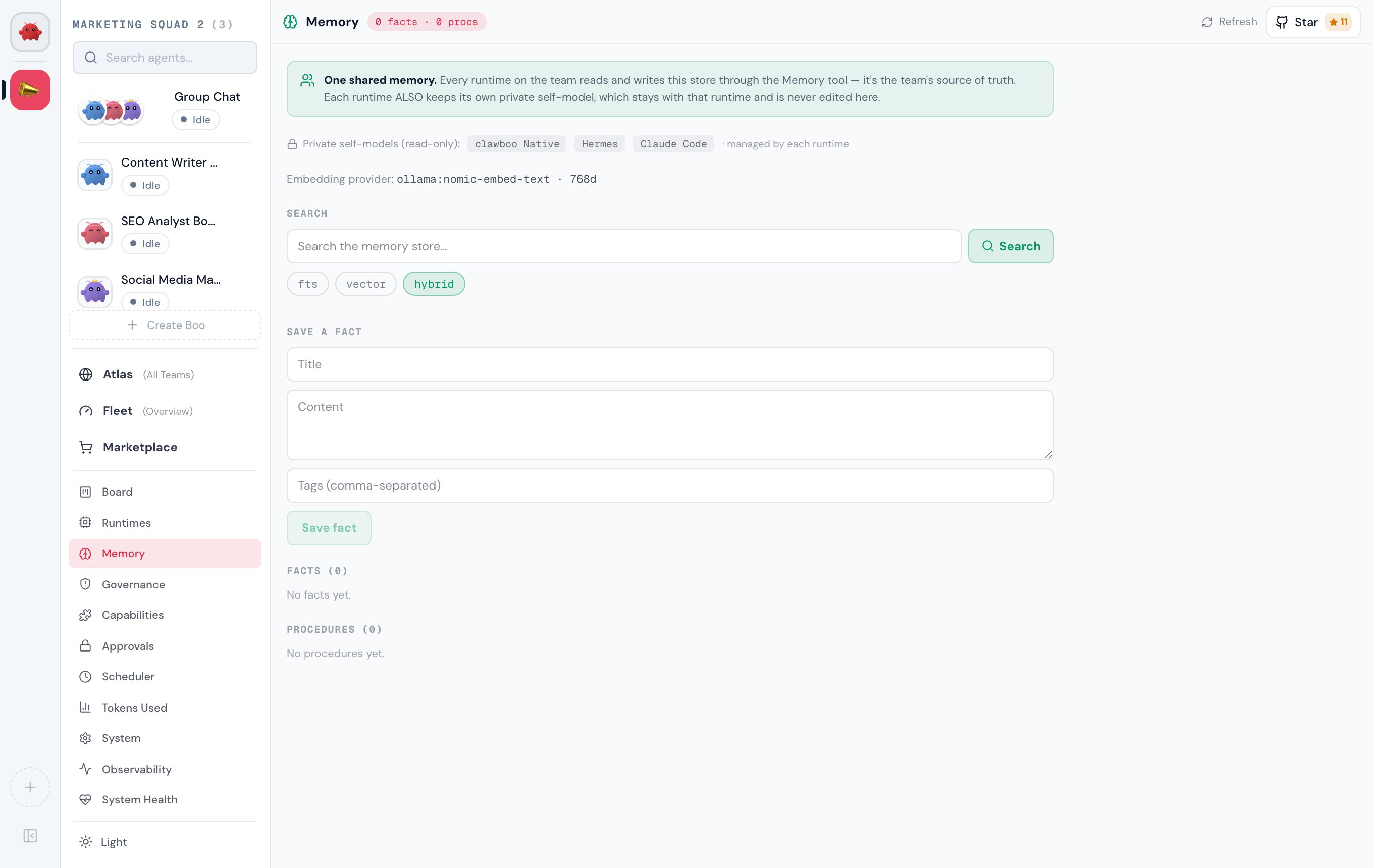
Use this page when you want to inspect what your agents remember. The **Memory** panel is the human-facing window onto the shared memory store every runtime on a team reads and writes through the Memory tool, the team's source of truth. From it you can search the store (three modes), save a declarative fact by hand, and browse the two memory tiers (facts and versioned procedures).
This is the UI half of a dual surface: the panel talks to `/api/memory*`, and the model-facing half is the [Memory MCP server](/concepts/memory). Both read and write the **same** SQLite store, so a fact an agent saves shows up here and vice versa.
 ## Prerequisites
The Memory panel is always available; it does not require a [runtime](/appendices/glossary) to be connected. An empty store renders empty-state cards rather than an error.
* Open the dashboard. The Memory panel is reached from **Settings** (the gear at the bottom of the sidebar, or `Cmd/Ctrl + ,`), then **Memory** under the Workspace group (the brain icon).
* Nothing else is required to browse or save a fact by hand. Vector and hybrid search additionally benefit from an embedding provider being reachable (see [Search modes](#search-modes)).
## Where it lives
`ContentArea` renders `` for the `memory` view, reached by clicking the **Memory** nav button. The panel is a single scrollable column with a fixed 44px header:
* **Header**: a `Brain` mark, the title **Memory**, and a count pill (`N facts · M procs`). On the right: a **Refresh** button (re-runs the browse load) and the GitHub star button.
* **Shared-memory banner**: restates that every runtime shares this store and that each runtime *also* keeps a private self-model that is never edited here.
* **Embedding provider line**: shows the active provider, or warns that vector/hybrid degrade to keyword search.
* **Search**: a query input, a run button, and the three mode pills.
* **Save a fact**: title, content, and comma-separated tags.
* **Facts** and **Procedures**: the two browsed tiers.
## Steps
### Search the store
1. Type a query into the **Search** input (placeholder *"Search the memory store…"*).
2. Pick a mode with the `fts` / `vector` / `hybrid` pills below the input. The default is `hybrid`.
3. Press **Enter** or click **Search**. An empty query is a no-op.
Each result card shows the fact's title, a `matchedVia` pill (which mode actually produced the hit), a numeric relevance score, and a truncated preview (first 240 characters). The panel requests up to 25 results. If the query matched nothing, a **No matches** empty state appears.
Under the hood the panel calls `searchMemory(query, mode, { limit: 25 })`, which issues `GET /api/memory?query=&mode=&limit=`. The handler parses the query string with `searchMemoryBody` (a 400 on an invalid `mode` or `limit`) and returns `{ ok: true, results }`. The client wrapper is defensive: a network or non-2xx failure resolves to an empty list rather than throwing, so a failed search renders as "no matches", not a crash.
### Save a fact
1. Fill in **Title** and **Content** (both required; the **Save fact** button stays disabled until both are non-empty).
2. Optionally add **Tags** as a comma-separated list. Tags are split on commas, trimmed, and empties dropped.
3. Click **Save fact**. On success the inputs clear and the browse list refreshes so the new fact appears under **Facts**.
The panel calls `saveFact({ title, content, tags })`, which POSTs `{ kind: 'fact', ... }` to `/api/memory`. The handler validates the body with `saveMemoryBody`, writes through `SqliteMemoryStore.saveFact`, and returns `{ ok: true, fact }`. If the save fails (network error or a non-2xx), the wrapper returns `null` and the panel shows an error toast, *"Could not save the fact. Please try again."*, instead of pretending it worked.
The panel saves **facts**. The save endpoint is discriminated and also accepts `{ kind: 'procedure', name, content }`, but the UI does not expose procedure-saving; procedures are built up by the agents themselves and are read-only here.
### Browse facts and procedures
The two lower sections list what is already in the store, loaded on mount (and on every **Refresh**) via `browseMemory({ limit: 50 })` plus `getProvider()`, run in parallel.
* **Facts**: each card shows the title, a scope badge (see below), a 200-character content preview, and any tags.
* **Procedures**: each card shows the name, a scope badge, a `v` chip, and a 200-character preview. Procedures are the versioned, reusable tier; they are not editable from the panel.
`browseMemory` issues `GET /api/memory/browse?limit=`; the handler reads both tiers (`store.browseMemory` + `store.listProcedures`) and returns `{ ok: true, facts, procedures }`. If the browse load fails, the client returns `ok: false` and the panel renders a distinct **"Couldn't load the memory store"** error strip with a **Retry** link, separate from a genuinely empty store.
## Search modes
The three pills choose how a query is matched. `hybrid` is the default.
| Mode | What it does | Backing |
| -------- | ---------------------------------------------- | ---------------------------------------------------------- |
| `fts` | Full-text keyword search over the stored facts | Always available: SQLite FTS5 |
| `vector` | Semantic similarity over stored embeddings | Needs a reachable embedding provider |
| `hybrid` | Combines keyword and semantic ranking | Needs an embedding provider; otherwise degrades to keyword |
The **embedding provider** line shows what backs vector/hybrid:
* If a provider resolved, it reads e.g. `nomic-embed-text · 768d` (the provider `id` and embedding `dimensions`).
* If no provider is reachable, it reads **FTS-only** with an amber note: *"vector / hybrid search degrade to keyword (FTS)."*
This is sourced from `GET /api/memory/provider`, which returns `{ provider: { id, dimensions } | null }`. The server resolves the provider **once** (a network probe) and caches it, so the value is stable for the life of the server process.
Picking `vector` or `hybrid` when the provider line reads **FTS-only** is harmless; those modes fall back to keyword search server-side. The `matchedVia` pill on each result tells you which mode actually produced the hit, so you can see whether semantic ranking was applied.
## Scope badges
Every fact and procedure carries a scope within the shared store. The badge is derived from the row's `scopeAgentId` / `scopeTeamId`:
| Badge | Meaning |
| ---------------- | ----------------------------------------------------------------------------------- |
| **Agent-scoped** | The row has a `scopeAgentId`, visible to that one agent |
| **Team-shared** | The row has a `scopeTeamId` (and no agent), the common case, shared across the team |
| **Global** | Neither scope set, visible everywhere |
This scope is *within* the shared store. It is not a runtime's private self-model; those are the per-runtime memory tiers shown read-only in the banner (`clawboo Native`, `Hermes`, `Claude Code`) and are never edited from this panel. See [Memory](/concepts/memory) for the shared-tier / private-tier model.
## Verify it worked
* After a **Save fact**, the inputs clear and the new fact appears at the top of **Facts**; the header count pill increments. You can also confirm it directly: `curl 'http://127.0.0.1:18790/api/memory/browse?limit=50'` and look for the new fact in `facts[]`.
* A search returns result cards with a `matchedVia` pill and a score; an unmatched query shows **No matches** rather than an error.
* The embedding-provider line reflects reality; `FTS-only` means vector/hybrid are running as keyword search.
## Troubleshooting
**"Couldn't load the memory store."** The browse load returned a non-2xx or failed at the network. Click **Retry** (or the header **Refresh**). This strip is distinct from an empty store; an empty store shows the **No facts yet** / **No procedures yet** empty states instead.
**A save shows the error toast.** `saveFact` resolves to `null` on a network failure or any non-2xx response, which triggers the *"Could not save the fact"* toast. Both **Title** and **Content** are required by the server (`saveMemoryBody`); the button is disabled until both are filled, so an empty-field rejection should not reach the network.
**Vector / hybrid feel like keyword search.** Check the embedding-provider line. If it reads **FTS-only**, no provider was reachable when the server probed at startup, and both modes are degrading to FTS. Restart the server once a provider is available (the probe result is cached for the process lifetime).
## Related
* [Memory (concept)](/concepts/memory): the shared-tier vs per-runtime private-tier model
* [`/api/memory` reference](/reference/rest-api/memory): full request/response shapes for search, save, browse, and provider
* [MCP servers](/operating/mcp-servers): how the Memory MCP server attaches to runtimes
* [Capabilities dashboard](/using/capabilities-dashboard): the Memory tool as a capability the team shares
## Prerequisites
The Memory panel is always available; it does not require a [runtime](/appendices/glossary) to be connected. An empty store renders empty-state cards rather than an error.
* Open the dashboard. The Memory panel is reached from **Settings** (the gear at the bottom of the sidebar, or `Cmd/Ctrl + ,`), then **Memory** under the Workspace group (the brain icon).
* Nothing else is required to browse or save a fact by hand. Vector and hybrid search additionally benefit from an embedding provider being reachable (see [Search modes](#search-modes)).
## Where it lives
`ContentArea` renders `` for the `memory` view, reached by clicking the **Memory** nav button. The panel is a single scrollable column with a fixed 44px header:
* **Header**: a `Brain` mark, the title **Memory**, and a count pill (`N facts · M procs`). On the right: a **Refresh** button (re-runs the browse load) and the GitHub star button.
* **Shared-memory banner**: restates that every runtime shares this store and that each runtime *also* keeps a private self-model that is never edited here.
* **Embedding provider line**: shows the active provider, or warns that vector/hybrid degrade to keyword search.
* **Search**: a query input, a run button, and the three mode pills.
* **Save a fact**: title, content, and comma-separated tags.
* **Facts** and **Procedures**: the two browsed tiers.
## Steps
### Search the store
1. Type a query into the **Search** input (placeholder *"Search the memory store…"*).
2. Pick a mode with the `fts` / `vector` / `hybrid` pills below the input. The default is `hybrid`.
3. Press **Enter** or click **Search**. An empty query is a no-op.
Each result card shows the fact's title, a `matchedVia` pill (which mode actually produced the hit), a numeric relevance score, and a truncated preview (first 240 characters). The panel requests up to 25 results. If the query matched nothing, a **No matches** empty state appears.
Under the hood the panel calls `searchMemory(query, mode, { limit: 25 })`, which issues `GET /api/memory?query=&mode=&limit=`. The handler parses the query string with `searchMemoryBody` (a 400 on an invalid `mode` or `limit`) and returns `{ ok: true, results }`. The client wrapper is defensive: a network or non-2xx failure resolves to an empty list rather than throwing, so a failed search renders as "no matches", not a crash.
### Save a fact
1. Fill in **Title** and **Content** (both required; the **Save fact** button stays disabled until both are non-empty).
2. Optionally add **Tags** as a comma-separated list. Tags are split on commas, trimmed, and empties dropped.
3. Click **Save fact**. On success the inputs clear and the browse list refreshes so the new fact appears under **Facts**.
The panel calls `saveFact({ title, content, tags })`, which POSTs `{ kind: 'fact', ... }` to `/api/memory`. The handler validates the body with `saveMemoryBody`, writes through `SqliteMemoryStore.saveFact`, and returns `{ ok: true, fact }`. If the save fails (network error or a non-2xx), the wrapper returns `null` and the panel shows an error toast, *"Could not save the fact. Please try again."*, instead of pretending it worked.
The panel saves **facts**. The save endpoint is discriminated and also accepts `{ kind: 'procedure', name, content }`, but the UI does not expose procedure-saving; procedures are built up by the agents themselves and are read-only here.
### Browse facts and procedures
The two lower sections list what is already in the store, loaded on mount (and on every **Refresh**) via `browseMemory({ limit: 50 })` plus `getProvider()`, run in parallel.
* **Facts**: each card shows the title, a scope badge (see below), a 200-character content preview, and any tags.
* **Procedures**: each card shows the name, a scope badge, a `v` chip, and a 200-character preview. Procedures are the versioned, reusable tier; they are not editable from the panel.
`browseMemory` issues `GET /api/memory/browse?limit=`; the handler reads both tiers (`store.browseMemory` + `store.listProcedures`) and returns `{ ok: true, facts, procedures }`. If the browse load fails, the client returns `ok: false` and the panel renders a distinct **"Couldn't load the memory store"** error strip with a **Retry** link, separate from a genuinely empty store.
## Search modes
The three pills choose how a query is matched. `hybrid` is the default.
| Mode | What it does | Backing |
| -------- | ---------------------------------------------- | ---------------------------------------------------------- |
| `fts` | Full-text keyword search over the stored facts | Always available: SQLite FTS5 |
| `vector` | Semantic similarity over stored embeddings | Needs a reachable embedding provider |
| `hybrid` | Combines keyword and semantic ranking | Needs an embedding provider; otherwise degrades to keyword |
The **embedding provider** line shows what backs vector/hybrid:
* If a provider resolved, it reads e.g. `nomic-embed-text · 768d` (the provider `id` and embedding `dimensions`).
* If no provider is reachable, it reads **FTS-only** with an amber note: *"vector / hybrid search degrade to keyword (FTS)."*
This is sourced from `GET /api/memory/provider`, which returns `{ provider: { id, dimensions } | null }`. The server resolves the provider **once** (a network probe) and caches it, so the value is stable for the life of the server process.
Picking `vector` or `hybrid` when the provider line reads **FTS-only** is harmless; those modes fall back to keyword search server-side. The `matchedVia` pill on each result tells you which mode actually produced the hit, so you can see whether semantic ranking was applied.
## Scope badges
Every fact and procedure carries a scope within the shared store. The badge is derived from the row's `scopeAgentId` / `scopeTeamId`:
| Badge | Meaning |
| ---------------- | ----------------------------------------------------------------------------------- |
| **Agent-scoped** | The row has a `scopeAgentId`, visible to that one agent |
| **Team-shared** | The row has a `scopeTeamId` (and no agent), the common case, shared across the team |
| **Global** | Neither scope set, visible everywhere |
This scope is *within* the shared store. It is not a runtime's private self-model; those are the per-runtime memory tiers shown read-only in the banner (`clawboo Native`, `Hermes`, `Claude Code`) and are never edited from this panel. See [Memory](/concepts/memory) for the shared-tier / private-tier model.
## Verify it worked
* After a **Save fact**, the inputs clear and the new fact appears at the top of **Facts**; the header count pill increments. You can also confirm it directly: `curl 'http://127.0.0.1:18790/api/memory/browse?limit=50'` and look for the new fact in `facts[]`.
* A search returns result cards with a `matchedVia` pill and a score; an unmatched query shows **No matches** rather than an error.
* The embedding-provider line reflects reality; `FTS-only` means vector/hybrid are running as keyword search.
## Troubleshooting
**"Couldn't load the memory store."** The browse load returned a non-2xx or failed at the network. Click **Retry** (or the header **Refresh**). This strip is distinct from an empty store; an empty store shows the **No facts yet** / **No procedures yet** empty states instead.
**A save shows the error toast.** `saveFact` resolves to `null` on a network failure or any non-2xx response, which triggers the *"Could not save the fact"* toast. Both **Title** and **Content** are required by the server (`saveMemoryBody`); the button is disabled until both are filled, so an empty-field rejection should not reach the network.
**Vector / hybrid feel like keyword search.** Check the embedding-provider line. If it reads **FTS-only**, no provider was reachable when the server probed at startup, and both modes are degrading to FTS. Restart the server once a provider is available (the probe result is cached for the process lifetime).
## Related
* [Memory (concept)](/concepts/memory): the shared-tier vs per-runtime private-tier model
* [`/api/memory` reference](/reference/rest-api/memory): full request/response shapes for search, save, browse, and provider
* [MCP servers](/operating/mcp-servers): how the Memory MCP server attaches to runtimes
* [Capabilities dashboard](/using/capabilities-dashboard): the Memory tool as a capability the team shares